Graham Mayor
... helping to ease the lives of Microsoft Word users.
 |
 |
 |
Many people access the material from this web site daily. Most just take what they want and run. That's OK, provided they are not selling on the material as their own; however if your productivity gains from the material you have used, a donation from the money you have saved would help to ensure the continued availability of this resource. Click the appropriate button above to access PayPal.
Automatically save Word documents (and Excel Workbooks)
A function to create a true automatic backup is provided by the Save In Two Places add-in which is detailed in a separate page, There is also available from this web site a complementary add-in which provides numbered versions of a document. Again that has its own web page.
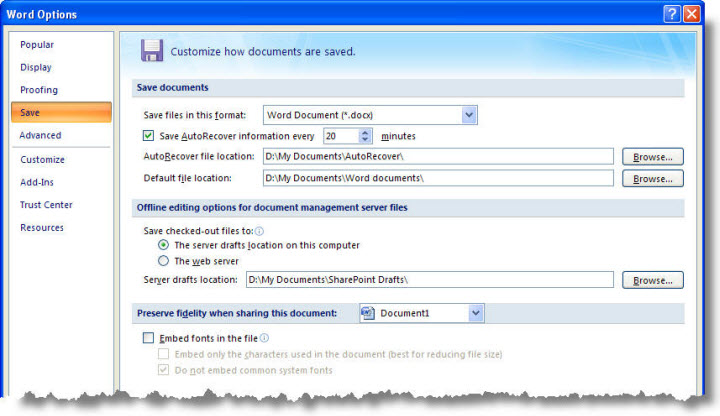
AutoRecover provides the basis to recover a document (or part of it) in the event of a system crash, but is somewhat hit or miss and should not be relied upon to save your bacon.
Automatically save Word documents
This functionality may be provided with an add-in which periodically offers the option to save the current document (or all open documents) either by means of a prompt to remind you to save or it will save automatically without prompting. Whether the latter option is a good idea or not rather depends on the nature of your work.
The add-in is for Word versions 2007 and more recent versions, though the zip file includes a version that will work with earlier Word versions. The earlier version has different dialogs, but the operation is similar.
 Link to download the Word add-in.
The zip file from the above link contains
two templates. Save the appropriate template in the Word startup
folder with Word closed, then restart Word.
If you have not
changed the preferred startup folder it can be located (in
English language versions of Windows) by typing or copying:-
%appdata%\Microsoft\Word\Startup
into the Windows Explorer Address bar and
pressing Enter.
Automatically save Excel workbooks
This page describes the Word version of
the add-in below, however I have created an Excel version of the
add-in, which works in a similar manner, including integration
with the Excel version of the Save in Two Places add-in. The
dialogs are similar (though references to documents are
replaced with references to workbooks).
The zip file from the following link contains a self extracting
file which will install the add-in the default add-ins folder %appdata%\Microsoft\AddIns
and the add-in template which you can install manually if you
prefer.
You will need to select the add-in from the Excel ribbon for it
to be available.
Link to download the Excel add-in.
The following describes the use of the add-ins for both Word
and Excel versions
The illustrations are from the Word version and may not reflect
the current version numbers.
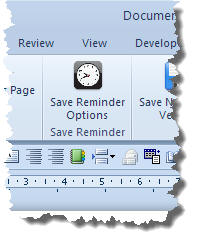
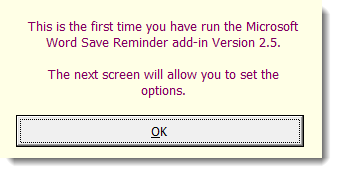
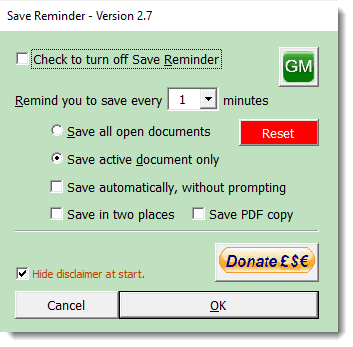
The first time the add-in is loaded (or following a Reset or an update to a later version) the registry entries that the add-in requires to store the variables it uses are not available. The user is presented with a message to that effect and prompted to set those options, which remain until changed using the button shown in the previous illustration.
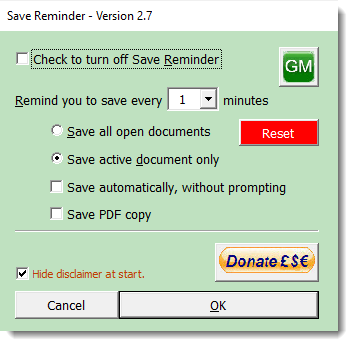
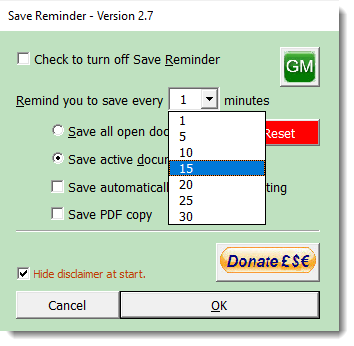
The dropdown provides a range of preset times, or you can enter your own preference.
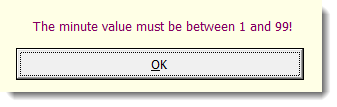
If you enter an invalid number you will see a warning message.
While the Save Reminder is active it will either save the current document or all open documents, at the chosen interval, with or without prompting, according to the preferences set.
When the 'Save PDF copy' check box is checked, a PDF copy of the document is saved at the same time as the document.
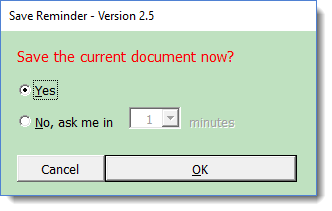
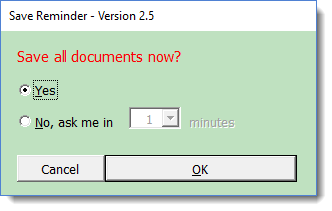
If the prompt is set, the dialog (above) provides the options to save, cancel or to defer the save to another time interval.
Save document to two locations
Save document to two locations - see also the Save in Two Places add-in.
Where the Save in Two Places add-in is installed, the Save Reminder function can interface with that add-in to automatically save documents to the two locations. When the Save in Two Places add-in is present an additional option is available on the Save Reminder Options, which when checked will save the document(s) in two places
The way to achieve a true backup is to save the document to two separate locations, however, because of the way Word creates temporary files in the workspace, and the unpredictability of the document size, these locations must never be on removable media - particularly floppy discs. Saving to such media is one of the main causes of document corruption (and thus loss of your work!). There are macros later on this page which can be used for creating duplicate files on removable media, but the essential process is to SAVE the file to the hard drive then COPY the resulting document to the alternative location.
You cannot copy a document that is open, so the following macro closes the document before coping then re-opens it again with the cursor located at the same place as it was when the macro was run.
Dim oDoc As Document
Dim strFileA As String
Dim strFileB As String
Dim strBackupPath As String
'Define the backup location
strBackupPath = "D:\My Documents\Word Backup\"
On Error Resume Next
Set oDoc = ActiveDocument
With oDoc
'Mark the cursor position with a bookmark
.Bookmarks.Add Range:=Selection.Range, name:="OpenAt"
.Save
strFileA = .FullName
strFileB = strBackupPath & "Backup " & .name
.Close 'Close the document
End With
FileCopy strFileA, strFileB 'Copy the document
Documents.Open strFileA 'Reopen the original document
'and restore the cursor position
ActiveDocument.Bookmarks("OpenAt").Select
End Sub
The following version allows the user to select the
backup location each time the macro is run
Dim oDoc As Document
Dim strFileA As String
Dim strFileB As String
Dim strBackupPath As String
Dim fDialog As FileDialog
Set fDialog = Application.FileDialog(msoFileDialogFolderPicker)
On Error GoTo CancelledByUser
'Get the folder for the backup location
With fDialog
.Title = "Select folder to save the copy and click OK"
.AllowMultiSelect = False
.InitialView = msoFileDialogViewList
If .Show <> -1Then
MsgBox "Cancelled By User", , "Save to Two Locations"
Exit Sub
End If
strBackupPath = fDialog.SelectedItems.Item(1)
End With
On Error Resume Next
Set oDoc = ActiveDocument
With oDoc
'Mark the cursor position with a bookmark
.Bookmarks.Add Range:=Selection.Range, name:="OpenAt"
.Save
strFileA = .FullName
strFileB = strBackupPath & "\Backup " & .name
.Close 'Close the document
End With
FileCopy strFileA, strFileB 'Copy the document
Documents.Open strFileA 'Reopen the original document
ActiveWindow.View.Type = wdPrintView
'and restore the cursor position
ActiveDocument.Bookmarks("OpenAt").Select
Exit Sub
CancelledByUser:
MsgBox "Cancelled by User"
End Sub
If you don't know how to use macros from web site listings, see the linked installation information.
This macro is best called from a toolbar button. It cannot, as it stands,
be used to replace the default 'Save' function which it uses itself,
though you could certainly call it from the toolbar icon
 or you could
re-assign the CTRL+S keyboard shortcut to the macro.
or you could
re-assign the CTRL+S keyboard shortcut to the macro.
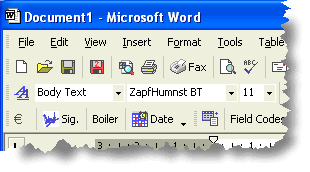
In my own installation, I have two 'Save' icons (see below). The left is
the original - the right (re-coloured with the customization tools
 ) calls
the macro.
) calls
the macro.
Note: You could copy this image and paste it to your Word 2000/2003 toolbar command if you wish.
With Word 2007/2010, you could add the macro command to your QAT (Quick Access Toolbar), but you will be limited to the available icons, or you can create an add-in template with a custom ribbon containing the commands you want and save that in the Word 2007 start-up folder. - See https://gregmaxey.com/word_tip_pages/customize_ribbon_main.html
Word 2010 also has the benefit of a built-in ribbon editor which can be used to add macro functions to the ribbon, though it is not as flexible as the method described in the previous link.
The macro uses the FileSave function to save the document, and allow you to name the document if a new document. The name is then stored and the document saved to the defined backup location - D:\My Documents\Word Backup\ in this example - though the code may easily be changed to reflect your own preference.
Having saved the document to the backup location, the Word focus is on the backed up version. To correct this, without the delay of closing and re-opening the required version of the document, the document is saved again to the original location.
This also has the effect of updating the automatic backup file (filename.WBK) to make that a true backup, thus you have two backup files if this option has been set.
Save a backup and copy to removable media
The following macro is a variation on the version above, inspired by a question posed in Microsoft's newsgroup forums. A user wanted to backup his documents to one of two locations - depending on whether it was an odd or even date - and to copy the document to a flash drive.
The macrosaves the document in its original location then makes a backup in one of two locations
D:\My Documents\Test\Versions\Odd
or
D:\My Documents\Test\Versions\Even
highlighted in the code in a bold typeface.
The document is then closed and the file copied to the flash drive - here shown with the drive letter H: and then finally the original document is re-opened. You can change the file locations to suit your requirements.
In addition the backup copies have the month and date of the backup appended to the beginnings of the filenames.
Note: This method could be used to copy to a floppy disc, however Word documents can have a file size of many megabytes and the space available on a floppy drive is strictly limited and scopying to removable media is a frequent source of document corruption.
If the disc is available but will not accommodate the file, the filename will be created and the error routine will activate. This will delete the corrupt partial file, but will mean that any file with that name, that previously existed on the removable medium, will be lost.
See also the Save in Two Places add-in
Dim strFileA As String
Dim strFileB As String
Dim strFlash As String
Dim strBackupFolder As String
With ActiveDocument
.Save 'Save the original document
strFileA = ActiveDocument.FullName
'Store original document name
'Select flash drive letter. Default is H
strFlash = InputBox("Enter Flash Drive Letter", "Flash Drive", "H")
strFlash = strFlash & ":\" & .name 'Store flash drive filename
' Set backup alternative folder for odd and even dates
If (Day(Now) Mod 2) = 1 Then 'It's an odd date
strBackupFolder = "Odd\"
Else 'It's an even date
strBackupFolder = "Even\"
End If
'Add full path to backup folder and date to filename
strFileB = "D:\My Documents\Test\Versions\" _
& strBackupFolder & Format$(Date, "MMM d ") _
& .name
.SaveAs FileName:=strFileB, AddToRecentFiles:=False 'save backup in the appropriate folder
.Close 'close the backup document
End With
On Error GoTo oops 'Trap copy error
FileCopy strFileA, strFlash 'Now copy document to flash drive
Documents.Open strFileA 'Re-open the original document
ActiveWindow.View.Type = wdPrintView
End
oops:
If Err.Number = 61 Then 'Flash drive is full error
MsgBox "Disc Full! The partial file created will be deleted", vbExclamation
Kill strFlash
Else 'Other error
MsgBox "The flash drive is not available", vbExclamation
End If
Documents.Open strFileA 'Re-open the original document
ActiveWindow.View.Type = wdPrintView
End Sub
Save a copy of the current document to flash
The following is a simpler version of the above macro, which merely copies the active document to a flash drive, subject to the same warning above relating to the use of floppy media
Dim strFileA As String
Dim strFlash As String
strFlash = InputBox("Enter Flash Drive Letter", "Flash Drive", "H")
If strFlash = "" Then
MsgBox "User Cancelled", vbExclamation, "Cancelled"
Exit Sub
End If
With ActiveDocument
.Save 'save the original document
strFileA = .FullName 'Saved original document name
strFlash = strFlash & ":\" & .name 'Flash drive filename
.Close 'Close the document
End With
On Error GoTo oops 'Error handler for missing flash drive
FileCopy strFileA, strFlash 'Copy source to flash
Documents.Open strFileA
ActiveWindow.View.Type = wdPrintView
End
oops:
If Err.Number = 61 Then
MsgBox "Disc Full! The partial file created will be deleted", vbExclamation
Kill strFlash 'Remove the partial file
Else
MsgBox "The flash drive is not available", vbExclamation
End If
Documents.Open strFileA
ActiveWindow.View.Type = wdPrintView
End Sub
Automatic Backup
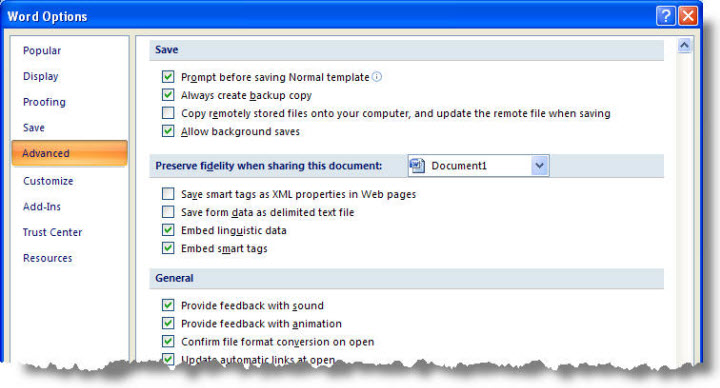
Contrary to popular opinion, Word has no integral means of automatically saving the current document, nor of backing-up the current document. What it does have is an option to save AutoRecover information after a specific and configurable interval and an option to save a backup copy of the previously saved version of the document with the default file extension of WBK (and although there is no reason to do so, Word also allows the option to change this extension to the user's choice). This is not a true backup in as much as it is not a copy of the current version of the document.