Graham Mayor
... helping to ease the lives of Microsoft Word users.
 |
 |
 |
Many people access the material from this web site daily. Most just take what they want and run. That's OK, provided they are not selling on the material as their own; however if your productivity gains from the material you have used, a donation from the money you have saved would help to ensure the continued availability of this resource. Click the appropriate button above to access PayPal.
Save numbered versions add-ins for Word and Excel
Word version - for Word 2007 and later
As with all Word template based add-ins the template should be extracted from the zip file to the Word Startup folder - defined in Word Options > Advanced > File Locations > StartUp with Word closed. When Word is started the template will load with Word.
When revising the versioned document - open the LAST numbered version and use the add-in function to save the document with a new name. DO NOT save the document normally before using the add-in to provide a new version number or you will defeat the concept of producing versions.
The add-in adds a button group, illustrated and annotated below, to the add-ins tab of the ribbon.
Save Numbered Versions
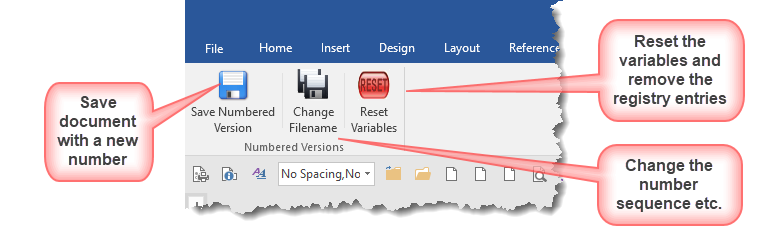
With the document open on screen (whether or not it has already been saved) click the Save Numbered Version button. The naming information is stored in document variables. The first time you do this for a given document sequence, the variables will not be present. The function will therefore prompt for the document type. This can be one of the four pre-defined types of any other type entered into the dialog. The rest of the variables will be defined from the document filename and the current date.
If the document has not previously been saved, you will be prompted to first save the document.
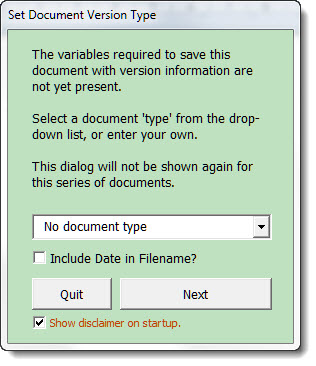
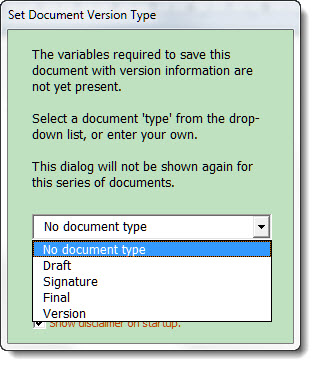
The document is saved, then resaved with the new versioned filename. The originally named document is removed leaving only version 1 of the document, and the document name and path are added to the Word title bar as shown below. Subsequent saves will add the version numbers as shown in the second of the following illustrations.
The date (if included) is added to the start of the filename in the format yyyy-mm-dd to take advantage of the filename sorting of Windows.



A document designated 'Final' should be just that - 'Final' - and the Save Numbered Version tool does not allow for having sequentially numbered final documents. The 'Change Filename' tool allows for any element of the filename to be changed (see next illustration). Use the various options to change the document name, type, the folder location and the number sequence.
In the following example the document numbering has reached number 5 and the next save is to be the final version of the document. Instead of clicking 'Save Numbered Version', click instead 'Change Filename'. The following dialog opens showing the current status of the document filename and its associated variables.
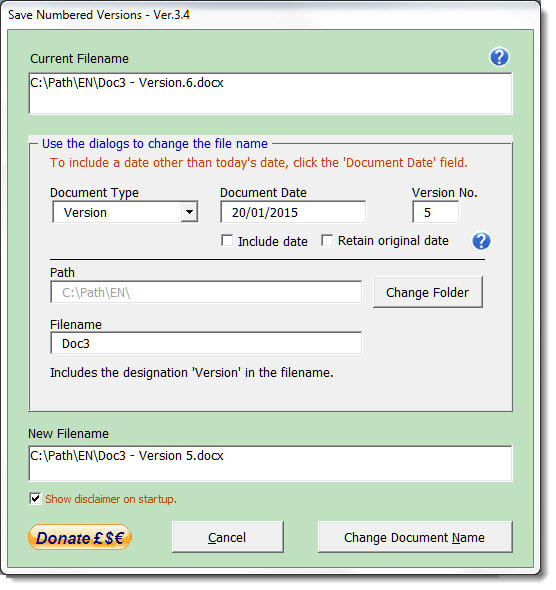
Change the document type to 'Final' and the 'Version No.' reverts to 1 and the document name is set as shown below.
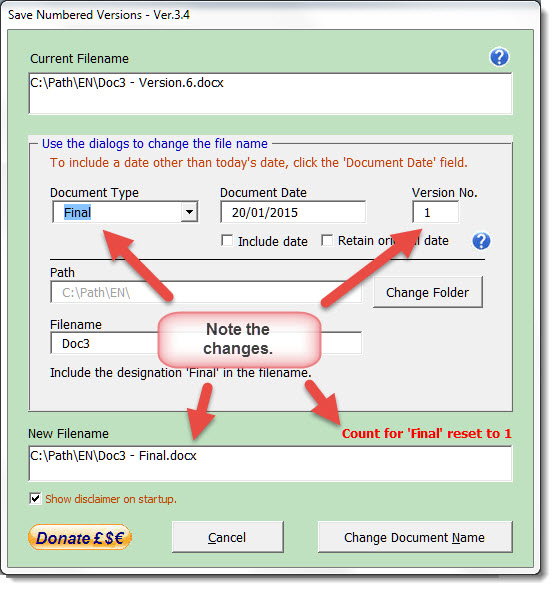
Click 'Change document name' to save the document with the new name.
Note that for 'Final' and 'Signature' document types it is not possible to change the version number from 1 from this dialog, but you may increment the number by using the Save Numbered Version tool.
Dated Documents
Where the 'Include Date' option is selected, the date is incremented each time the document is saved using the 'Save Numbered Version' button.
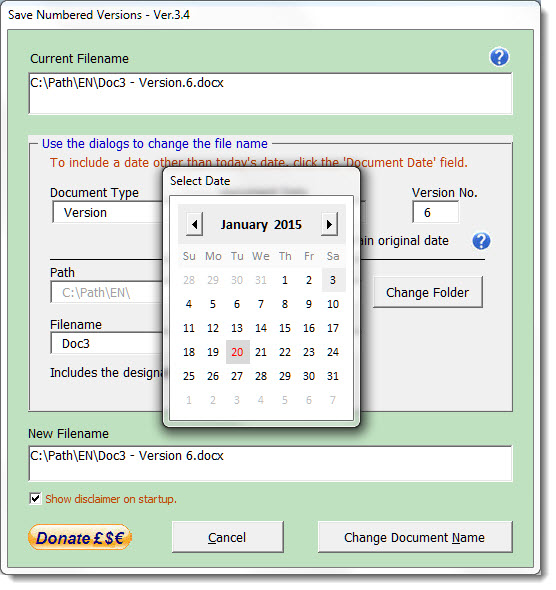
When using the 'Change Document Name dialog' by default this convention is retained and the current date is shown in the dialog. However you may check the 'Retain original date' check box to restore the date already associated with the filename. You may also change the date to any date by clicking in the date text box, which will display the following date picker dialog. Click the date number to insert that date.
Thanks to Trevor Eyre for developing the Date Picker function. The Date Picker userform and associated code may be downloaded here.
Any of the variables stored in the document may be edited using the Bookmarks and Variables etc. editor which you can also download from this site.
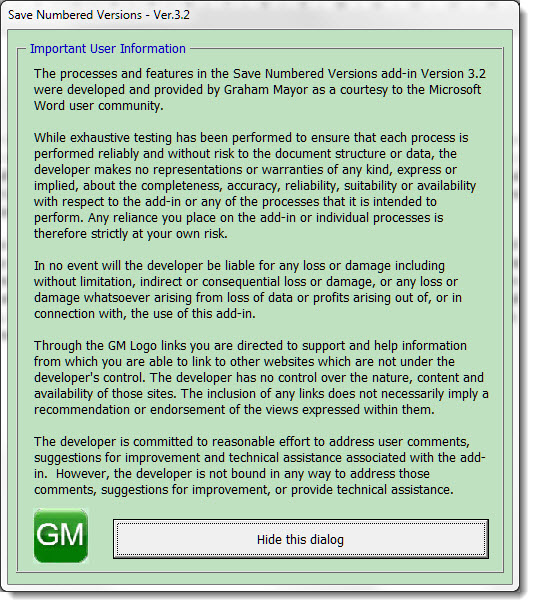
When first run (or if the option to show the disclaimer on startup is checked, the application will display the following disclaimer text..
Excel Version
The Excel version is virtually identical to the Word versions. The principle difference is that whereas the Word version stores the version information in variables in the document itself, the Excel version stores the version information in a hidden worksheet added to the Workbook being processed.
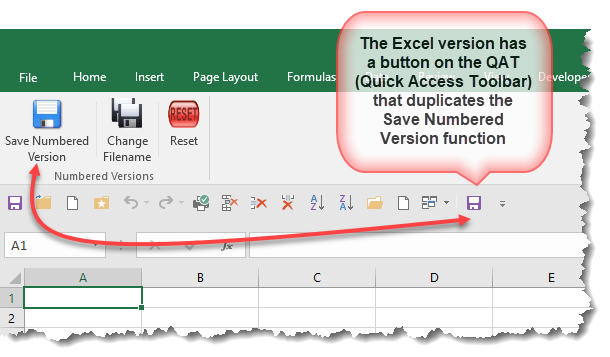
Here the Reset button will remove that worksheet, and the data stored in the registry, pertaining to the add-in.
The add-in template goes in the default add-ins folder, a normally hidden which can be located by typing
%appdata%\Microsoft\Addins
in the address bar of the Windows File Explorer. (The self extracting installer will attempt to install the file there, but can only do so if Excel is closed).
Having installed the add-in it can be activated from Excel. This varies between versions
 -
Click here to download both add-ins
-
Click here to download both add-ins
Save Versions
The add-ins featured on this page began with a version for Word, which has been available here for some time. However a number of users of the Word version have asked for an Excel version and so I have now added a version that works with Excel