Graham Mayor
... helping to ease the lives of Microsoft Word users.
 |
 |
 |
Many people access the material from this web site daily. Most just take what they want and run. That's OK, provided they are not selling on the material as their own; however if your productivity gains from the material you have used, a donation from the money you have saved would help to ensure the continued availability of this resource. Click the appropriate button above to access PayPal.
Save the current document in two locations add-in for Word 2007 and later.
As with all Word template based add-ins the template should be extracted from the zip file to the Word Startup folder - defined in Word Options > Advanced > File Locations > StartUp with Word closed. When Word is started the template will load with Word.
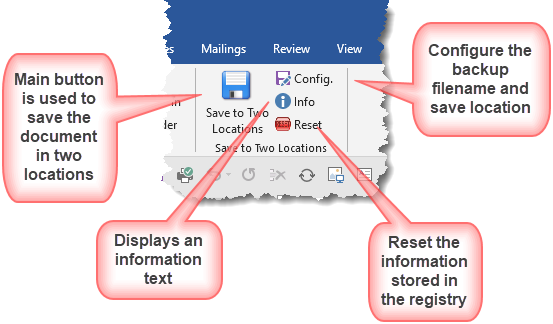
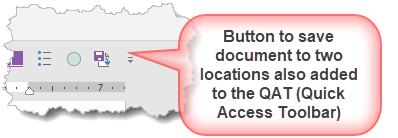
This add-in is a significant expansion of the macros suggested at Automatically backup Word documents, to produce a one-click solution to saving a true backup of your current document, to a second location of your choice. This could, for example, include a flash drive.
Saving directly to removable media often results in corrupted
documents. It is always preferable to save to the hard drive and copy to removable media. This
add-in achieves that function transparently to the user.
I cannot imagine than anyone is still using floppy discs, but if
there is, do not use this process to save to floppy disc.
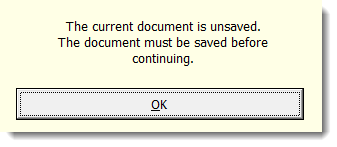
The first time the main Save to Two Locations button is clicked for a given document, if the document has not previously been saved the user is warned that it needs to be saved. Otherwise the configuration dialog is displayed.
This allows the user to select a location to save the backup copy of the document, and if required to add prefix or suffix text to the filename to be applied to the copy. The default setting as shown in the first illustration below is to have no such text. Note that the 'Continue' button is not available until a location has been added.
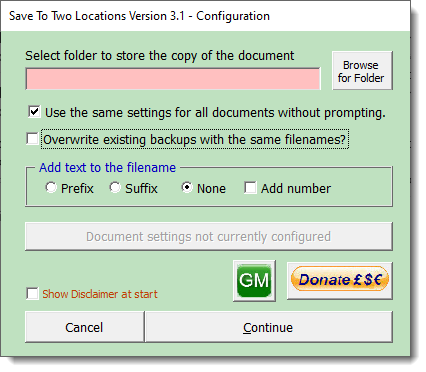
Click the Browse button to select a folder or type the required path in the dialog box. The dialog is able to determine from the filename the type of drive the path applies to and will make reporting decisions based upon that type. The application is able to save to fixed and network drives and also removable media. The function can determine whether the selected drive or the folder path is available, and will quit and report an error if it is missing.
Checking the Prefix or Suffix radio button will provide another dialog box to select or enter text to add to the filename of the copy. There are two predefined texts, but you can enter your own text if preferred as shown in the third of the following sequence of illustrations.
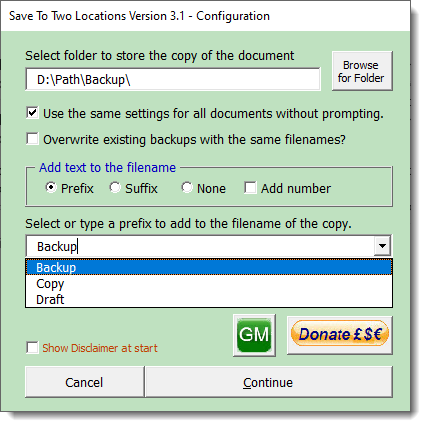
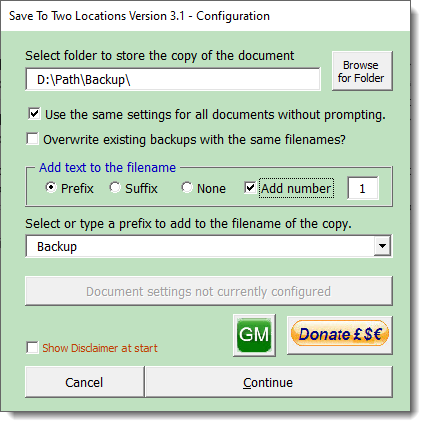
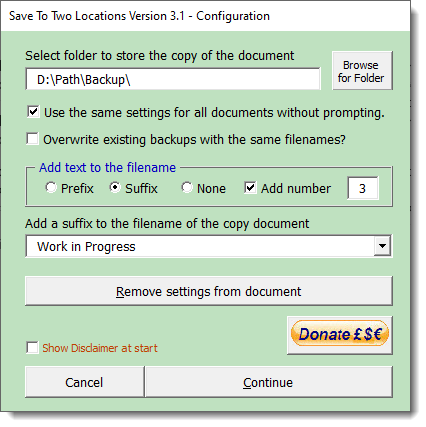
The dialog also allows for the creation of numbered backups. If the 'Add number' check box is selected, the backups will be sequentially numbered. By using this function it is possible to create a sequence of all the saved versions of a particular document. The number in the dialog is the next sequential number for the current document. New documents will begin at 1 where the same settings are used for all document.s.
If the backup filename already exists in
the target folder, the existing filename is retained, and the
backup filename will have an incrementing number appended, with
the aim of ensuring that files that may still be required are
not over-written.
Note that if the 'Add Number' option is selected, the appended
number would be in addition to that number.
From Version 2.4 (Version 1.0 for the Excel add-in) there is an
additional option to overwrite existing backup files of the same
name.
From Version 3.1, an option is available to apply the settings
selected to all documents, without the need to set it up separately
for each.


Click 'Continue' to conventionally save the document. The document will be saved, however if there is a problem with the path associated with the backup location e.g. the removable drive is not present or the folder has been deleted, the copy will not be created and you will see a warning message explaining the nature of the problem.
The function to select the folder is error trapped to prevent the selection of floppy drives, which are usually designated A: or B: If a drive with one of these letters is selected the entry is cleared and a warning message is displayed.
Note that the Windows 7 dialog offers 'Libraries' as a potential storage location. Libraries and custom Libraries are actually virtual locations and may not be selected as backup locations.
If you have made a mistake, or you wish to change the path or the prefix/suffix text, run the configuration dialog again by clicking the 'Config.' button on the ribbon. The current settings for the document will be presented in the dialog.
The configuration having been saved, the 'Remove settings fro document' button becomes available to remove the applied settings from the document.
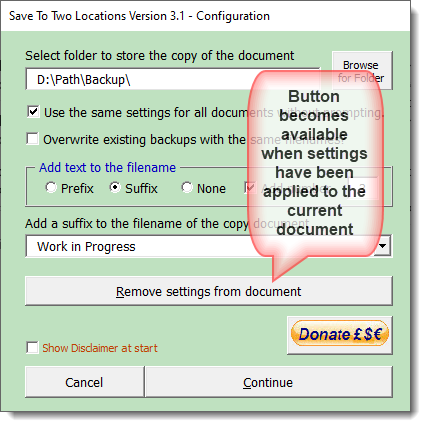
The other button provides an information page with a link to this page
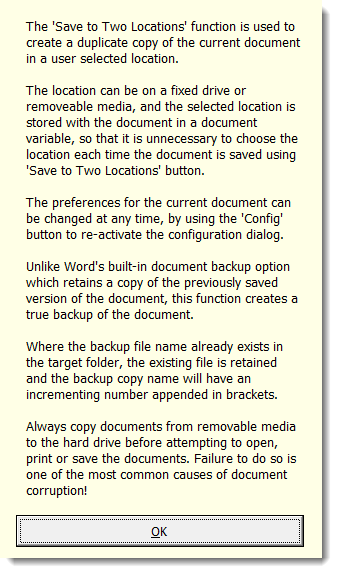
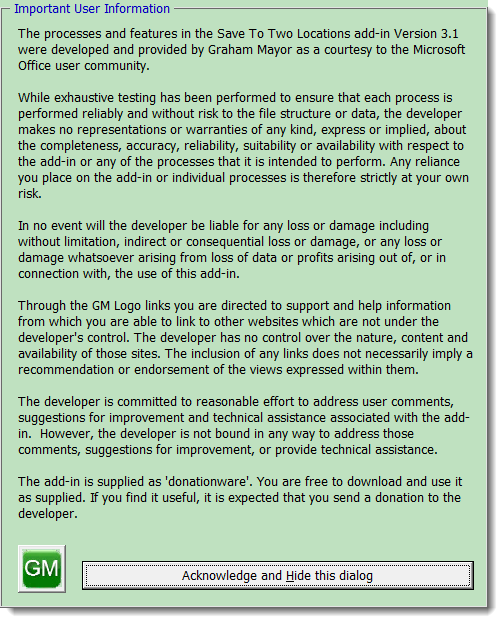
On first use and at any time while the Show Disclaimer check box is checked, the disclaimer text is shown on running the configuration dialog.
Any of the variables stored in the document may be edited using the Bookmarks and Variables etc. editor which you can also download from this site.
If you wish to always save the copy of documents based on a particular template to the same location, open the template in Word and click the 'Config' button (see first illustration). Then save and close the template normally (not using the add-in). All new documents based on that template will then have the document variables and their values from the template already in place, so the initial prompt will not be made. This will work for any document template except the add-in template.
To remove the variables from the template to revert to prompting for each document, open the template again and use the Bookmarks and Variables etc. editor to select and delete them, Then save and close the template.
Documents are sometimes opened on different PCs. This is not an issue as long as the different PCs have the same file locations configured in the document variables. Where the document is opened on a PC with a different operating system, the user is warned that there is potential for conflict.
 -
Click here to download the Word version of the add-in
-
Click here to download the Word version of the add-in
Save Excel workbook in two places
The add-in is also available as a version compatible with Excel. The functionality and appearance is virtually identical to that of the Word version; however whereas the configuration variables in the Word version are stored in document variables, the Excel version stores them in a normally hidden worksheet called, would you believe, 'Save in Two Places'. By making the worksheet visible, you can make changes to the configuration manually if you wish.
Both add-ins now store a small amount of data in the registry, primarily for use when updating to the latest version. Each therefore features a reset button on the ribbon, which removes the registry entries associated with the addins. This does not remove the settings from documents or workbooks. It should not, in normal use, be necessary to apply the Reset button,
-
Click here to download the Excel version of the add-in
Save in two places
Originally conceived as part of the Save Numbered Versions add in, it was suggested by my friend and frequent collaborator Greg Maxey, that it would be better to retain its individual identity. I have therefore acceded to his suggestion and produced the add-in as a separate entity which does not require the presence of the Save Numbered Versions add-in, but will nevertheless work happily alongside it. The current version also offers the option to create numbered backups.
The page also features an Excel version of the add-in to provide similar backup functionality for Excel workbooks.
Note that illustrations may not accurately reflect the latest version, but the functionality remains the same.