Graham Mayor
... helping to ease the lives of Microsoft Word users.
 |
 |
 |
Many people access the material from this web site daily. Most just take what they want and run. That's OK, provided they are not selling on the material as their own; however if your productivity gains from the material you have used, a donation from the money you have saved would help to ensure the continued availability of this resource. Click the appropriate button above to access PayPal.
Word Variables, Bookmarks and Properties editor add-in for Word 2007 - 2019
The following came as a result of a discussion with friend and former Word MVP Greg Maxey about a convenient method of determining the presence and value of any docvariables in the current document, and, like many projects we have started together, it sort of grew like Topsy into the current offering on Greg's site.
However I feel that while this is a powerful tool, which was formerly also hosted on this page, it has got away from the original design concept, which was for a tool that not only displays the names and values of any docvariables present, but provides the opportunity to edit their content and insert docvariable fields into the document at the current cursor position to display the stored content.
So I took a step backwards and redeveloped one of the much earlier iterations, which I feel comes much closer to that design concept and additionally provides simultaneous access not only to Document Variables, but to Bookmarks and Document Properties, providing a means to create, edit and insert such items in the document.
Content Controls
Unlike the tool now hosted only on Greg's site, this one does not cater for Content Controls. Greg has done much research in that area and has an additional tool that should be investigated if working with content controls. However Greg's tool is quite sophisticated and does rather more than the average user creating documents would require.
To this end, I have also resurrected another of the earlier iterations of the add-ins we worked on. This one has simpler Content Control functionality, that users will find more accessible for the essential task of inserting,editing and mapping content controls.
If you want basic functionality this one is the one to go for (which you will find detailed further down the page). If you are a programmer and want all singing, all dancing, then go for Greg's latest version, linked from the top of the page.
Variables, Bookmarks and Properties editor
Some of the built-in document properties, which this application can access, are not editable, but their values may be viewed and inserted, and some may only be inserted as content controls. The add-in caters for all these factors.
Where a function is not available for a given item or document, either the button which controls the function is disabled or the user is presented with an error message.
The functions have been designed to be self-evident, but there is a link to this page by clicking the GM logo on the main display.
Extract the template from the ZIP file to your Word startup folder with Word closed. If you have not changed the preferred startup folder it can be located (in English language versions of Windows) by typing
%appdata%\Microsoft\Word\Startup
in the Windows Explorer Address bar and pressing Enter.
The ZIP file also includes an EXE installer. This will automatically install the add-in to the default Word Startup folder (or can be redirected if you have changed that location) and will remove any previous version from that folder.
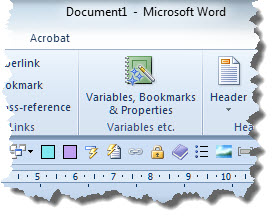
The add-in places a button on the Insert Tab of the ribbon
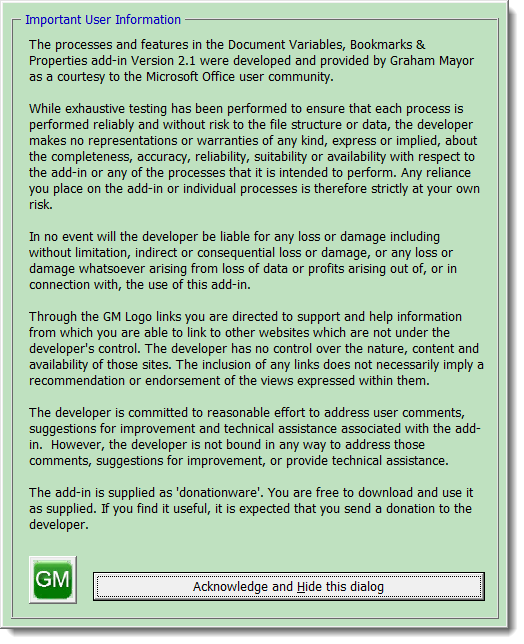
When first run, the add-in will display the usual disclaimer. Future display of this disclaimer is controlled by a check box on the main window which follows.
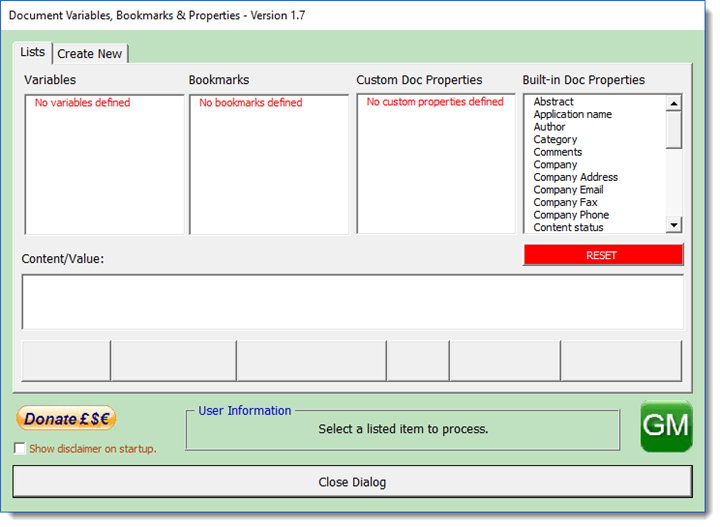
On clicking the main button, the userform will display the 'Lists' tabbed page of the dialog which features various list boxes and an assortment of action buttons.
The userform will remain on screen until dismissed and is modeless, which means that you can switch to edit the document without dismissing the form.
If one or other docvariables, bookmarks or custom document properties are not present, the associated list box will display a message to that effect. There will however always be built-in document properties present and thus listed.
The action buttons beneath the lists are context sensitive and some examples are shown below:
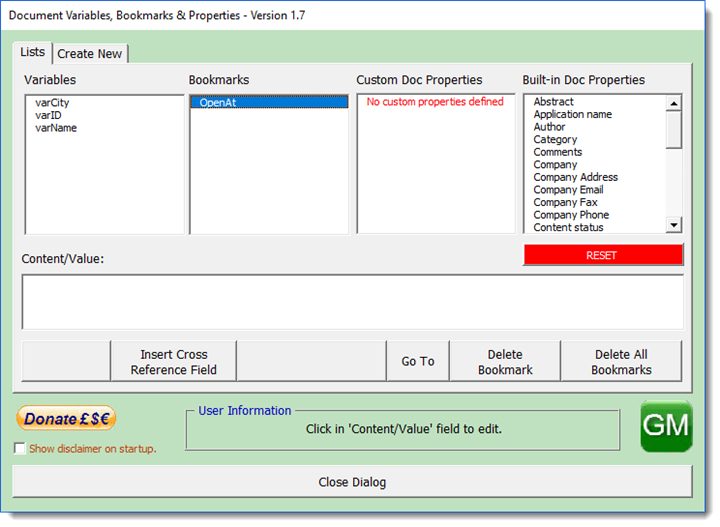
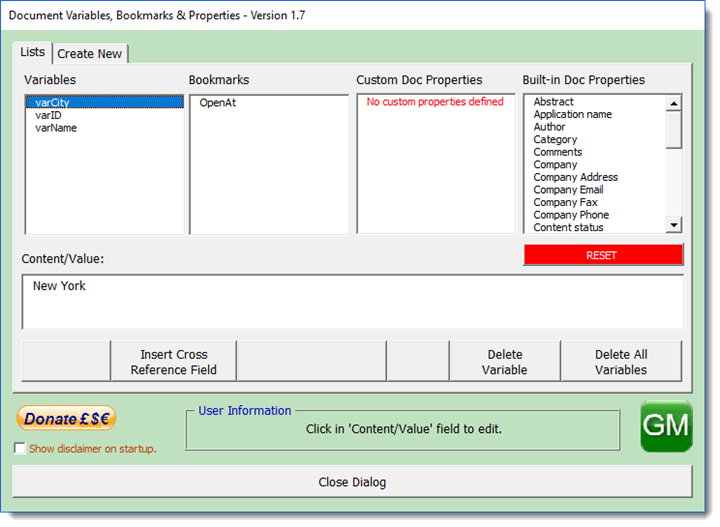

Note that if a single item is selected in any of the four lists, a cross reference may also be inserted by double clicking that item.
The red coloured RESET button beneath the 'Built-in Doc Properties' list clears the information stored for use with the add-in from the registry.
Create a new Variable, Custom Property or Bookmark
Bookmarks are created using Word's own bookmarks function, Variables and Custom Properties may be created directly from the following page of the main dialog.
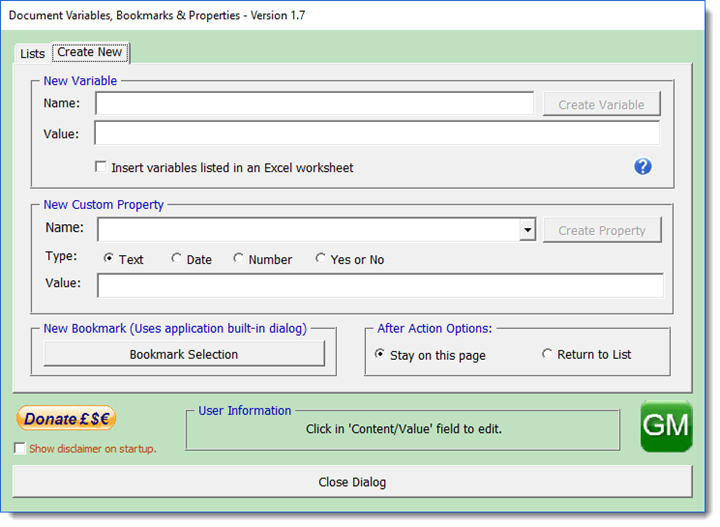
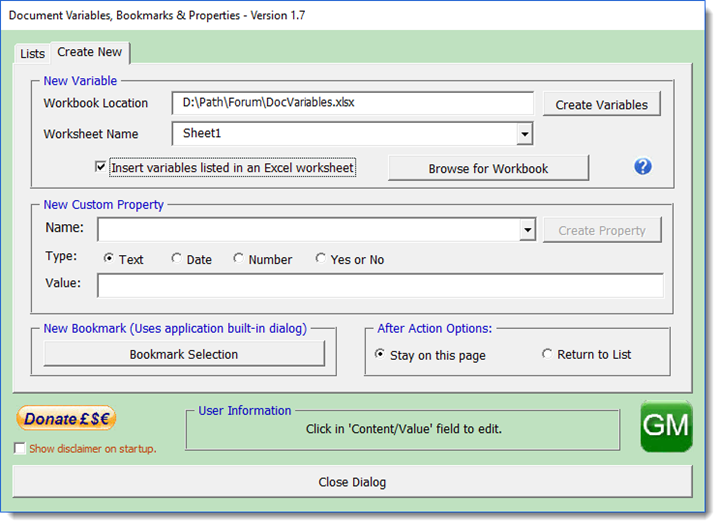
By clicking the 'Insert variables listed in an Excel worksheet' checkbox the New Variable field change to allow the selection of an Excel worksheet that contains a list of variable names and values. The workbook selected and its sheet containing the data is stored for future use.
The worksheet should have the variable names in column A and their values in Column B starting at row 1, and without a header row.
If the worksheet contains variable names that already exist in the document, the options to ignore the item in the worksheet or to update the values of the existing variables from the worksheet are provided.
Built-in doc properties.
Note that the values of some built-in docproperties, such as the 'Company' item displayed, are user editable. Others reflect values created by the document and thus are not editable, though reference may be made to them in the document.
Protected Forms
This editor is not intended and not recommended to be used to complete Word protected forms, however it can be used to do so, and in particular it adds the ability to add list items to a dropdown form field - even in a password protected form, which cannot be normally achieved from Word while the form is protected. It does not provide the ability to add or delete form fields in a protected form, nor to change their properties.
Delete Items
Deletion provides the opportunity to unlink any cross references (retaining their content at the time) or to delete the cross references of individually selected items. In the case of bookmarks, there is also the opportunity to delete the bookmarked content.
Selection of items in any of the user editable lists also enables the Delete All action button which allows the items to be deleted from the list, but does not affect any cross references, which may thus show errors relating to the missing sources.
Content Control Editor Version
As mentioned earlier I have included a version of the add-in that includes the Content Control editor. This works on similar principles to the version described above and can be used in place of the version above, but if your work is primarily concerned with bookmarks, variables and document properties the one above is more convenient as it displays the lists all on one page.
The Content Control version doesn't have the space for that so uses separate pages, so I don't propose to dwell on the features included with the above and here discuss only the content controls.
After the usual disclaimer the dialog opens in the Content Control list view. Controls in the document are listed
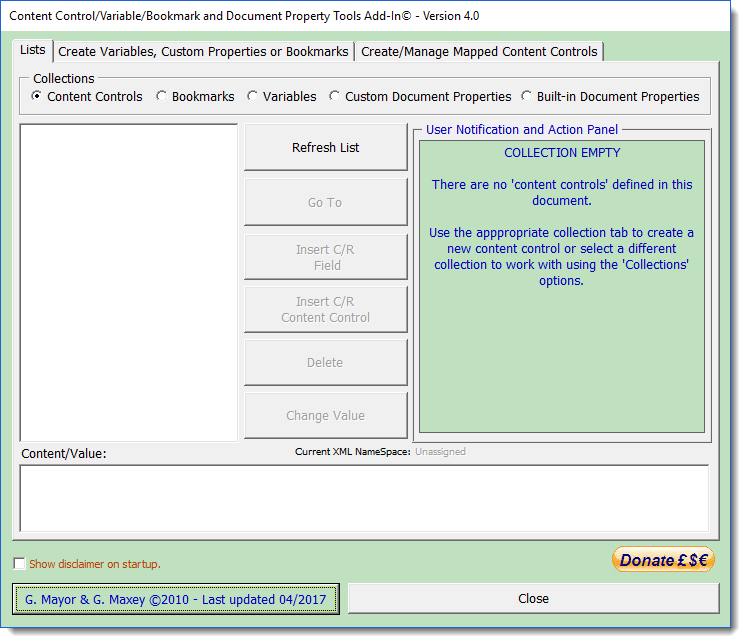
If there are unnamed content controls in the document, instead of seeing a list of the controls, you will see instead the following dialog:
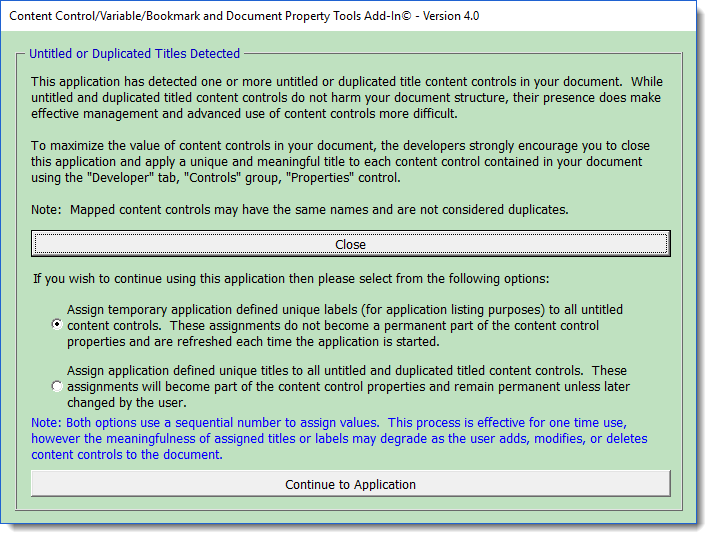
This dialog is self explanatory and provides an opportunity to add temporary or permanent names to the content controls (the default is temporary) which will allow you to modify the content and/or delete the control.
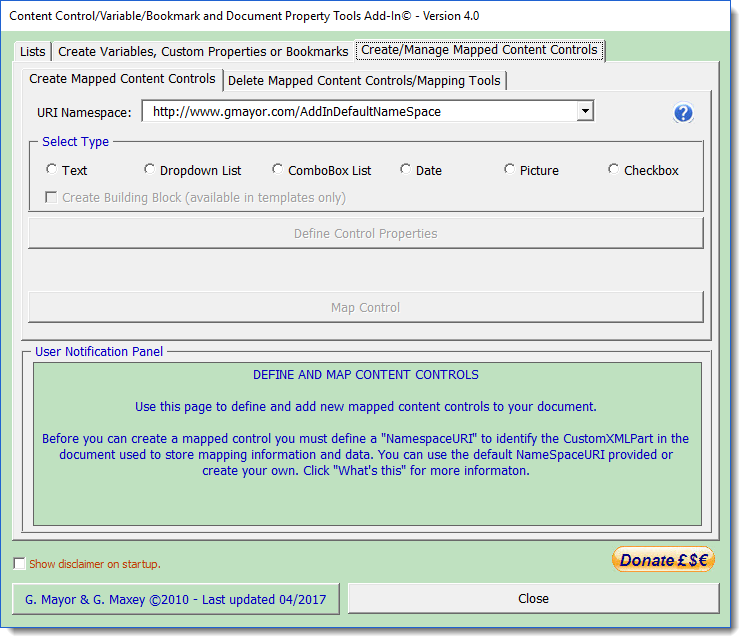
Select a content control type and the Define Control Properties button becomes available. The button initiates the Word 'insert content control' dialog of the type selected and you must at least enter a name for the control (or you will see a warning message)
Completing that dialog returns the user to the dialog above but with the Placeholder text highlighted. You can change the placeholder text as required.
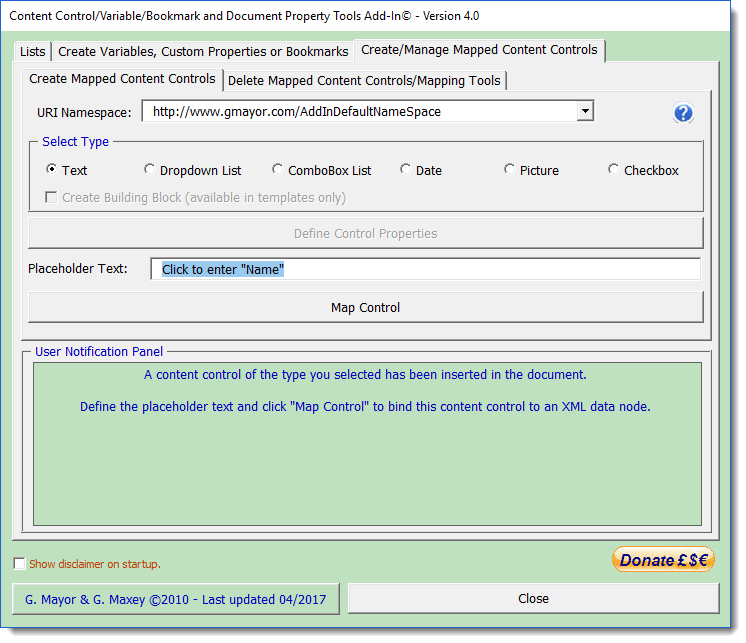
Click 'Map Control' to map the control. If you simply close the dialog the content control will have been inserted with its default placeholder text and will not have been mapped.
If you want to know more about content control mapping, visit Greg Maxey's web site, where you will find lots of information on Content Controls and their uses and of course his more advanced version of this add-in. The link is at the top of this page.
Mapping allows you to do what I chose to include this version of the add-in for, and that it the simple cross reference of content controls from the List view.
Cross referenced content controls display the same information entered into any one of them. Thus are ideal for repeating information in (say) legal documents.
Which leaves the remaining options for mapped content controls which are on the easily missed tab indicated below
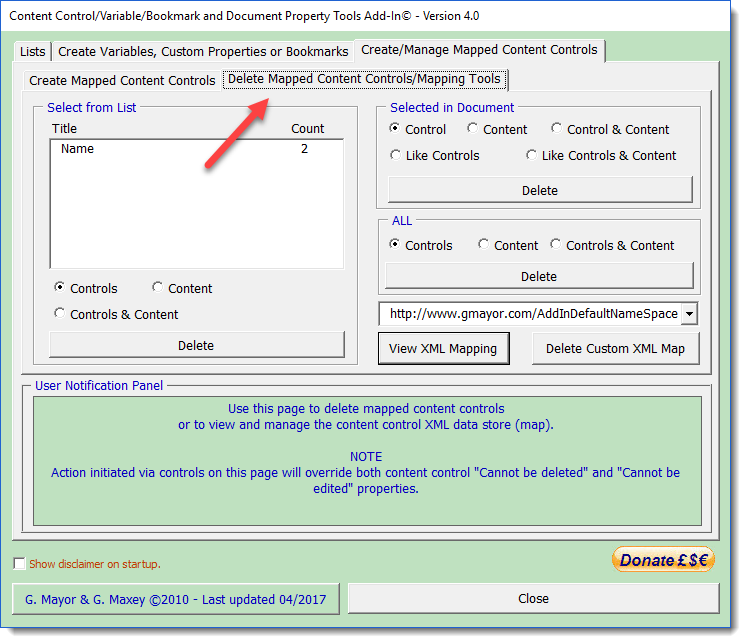
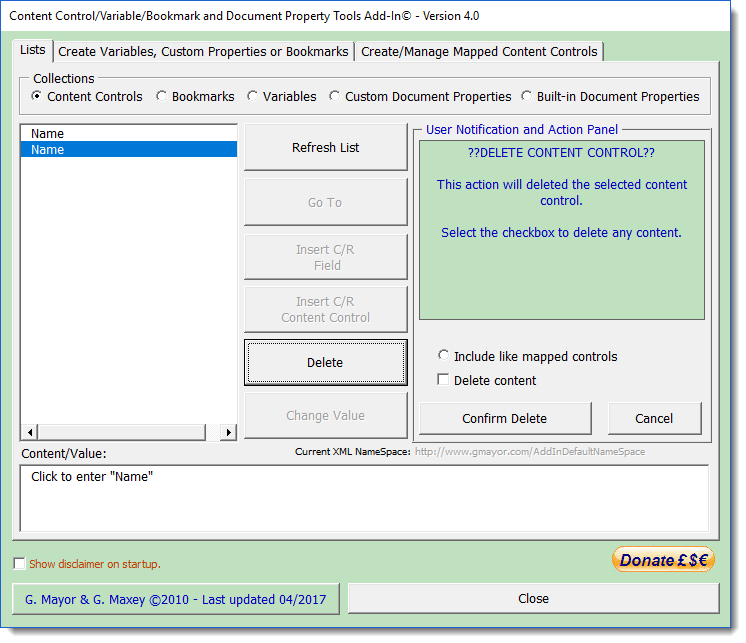
While this page is concerned primarily with deletion it also provides access to the XML which drives the process, however you can delete the controls from the List view.
Both add-ins are included in the Zip, install one or both as required.
 -
Click here to download the add-in
-
Click here to download the add-in
Word Variables
Word does not provide a convenient method of examining document variables, which thus tends to limit their usefulness to those who are comfortable with vba programming. Document variables are however extremely useful and can be used to store all manner of information to employ in in a document or macros used with that document.