Graham Mayor
... helping to ease the lives of Microsoft Word users.
 |
 |
 |
Many people access the material from this web site daily. Most just take what they want and run. That's OK, provided they are not selling on the material as their own; however if your productivity gains from the material you have used, a donation from the money you have saved would help to ensure the continued availability of this resource. Click the appropriate button above to access PayPal.
Insert an address or print an envelope or label add-in for Word 2007 to 2019
Some of the illustrations may be from earlier versions of the add-in or from different Office versions.
Version 2.0 of this add-in brought a complete revision of what was originally something of a 'wheel re-invention', as the function to print envelopes or labels is already available from Word. This version added a raft of new features concerned with the provision of return addresses, logos, and the ability to produce envelope and label templates for use with mail merge.
The extra features were inspired by a request from a private client, for functions which it seemed practical to include, though the actual work involved kept me amused for a considerable time.
Version 2.6 brought not only a change of colour for the dialog, but introduced the ability to work with an address book in the form of an Excel workbook. This may be of particular use to those with the Home and Student versions of Office, which versions do not include Outlook.
The add-in allows the printing of envelopes from one up to all of the items in the Excel list. You can switch address lists from the configuration option, thus you may have separate lists for business and personal addresses, You may for example create a Christmas card list and as all Excel addresses listed may be selected, printing envelopes or labels for all recipients is a simple matter..
As with earlier versions, the add-in should be installed in the appropriate Word startup folder and the templates that provide the envelope and labels should be placed at some convenient location. The templates contain no macro code, but the envelope template does have a number of bookmarks as place markers for the addressee, the return address and the logo. The supplied template is for #10 envelopes, but by all means change the page size to suit your own envelope preference. Just ensure that you don't delete the bookmarks when doing so. You can check for their presence before and after with another add-in you can download from this site.
The label templates are simply documents created from the Word labels tool and saved as a templates. They do not contain any bookmarks related to the task. The supplied label templates cover a variety of popular Avery™ sizes, but any label size that can reasonably used for mailing labels can be employed. If your label format does not work with the add-in let me know.
The names of the envelope and label templates are immaterial as your preferences are stored in the registry and can be changed at any time.
The add-in also allows for a logo graphic to be added to the envelope and to the labels. You can use different graphics for each e.g. living on a small island I tend to add an Air Mail graphic (included with the add-in) to my envelopes. You may also select from a list of return addresses, which should be useful for those who create correspondence for a variety of clients, and choose whether to display the return address on one line or several.
Create a label template
I have included templates for envelopes and labels in the zip file. These can be saved to any convenient location and the paths added in the configuration dialogs.
To create a label template, use Word's built-in label tool (see below). Select the required label format (or create a custom label) from Options, then click New Document. Save that document and apply the full path to the saved document to the configuration dialog.

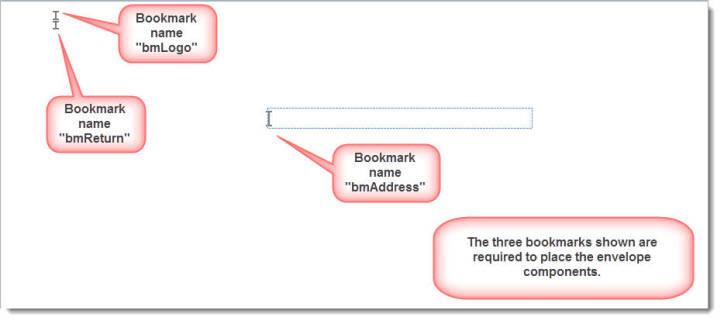
The supplied envelope template is #10 size, which is a common business size envelope. If you wish to work with different envelope sizes, then the simplest solution is change the page size of the supplied envelope template and save it with a new name. Be aware that there are three required bookmarks on the face of the envelope which are used to position the address, logo and return address. If starting from scratch you will need to replace the three bookmarks as shown in the illustration below. The address frame can be selected and dragged around as required and the bookmark it contains will move with it. The frame will expand vertically to accommodate the address.
Envelopes and Labels are created as documents or are printed directly to the printer. Some users will wish to use an alternative printer for printing envelopes and/or labels. This add-in does not accommodate changing the printer, however to facilitate using an alternative printer, the templates could be associated with the appropriate printer using the Associate Printer add-in. Envelopes and Label sheets created from the templates would then print to the associated printer when the add-ins print option is selected, or you can print the envelope/label documents using the Associate Printer add-in.
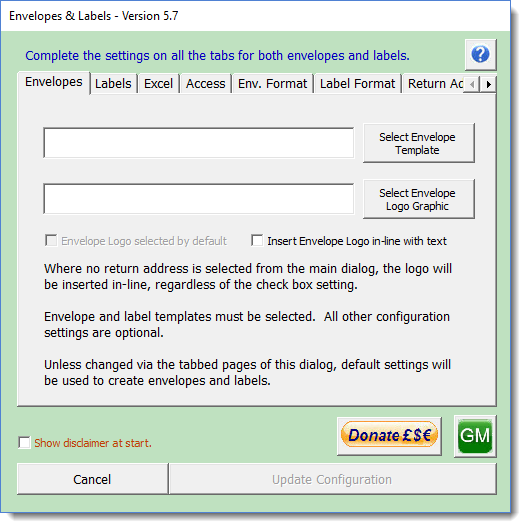
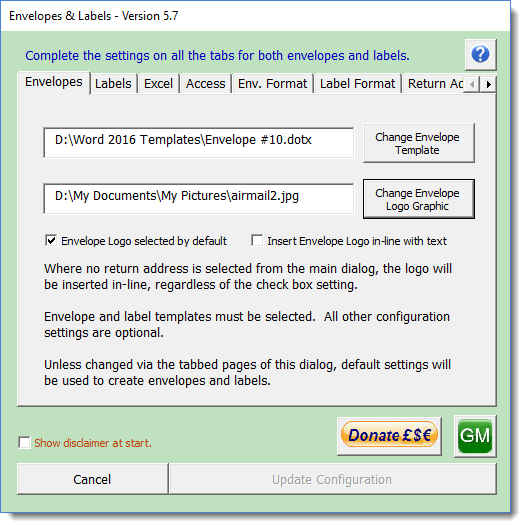
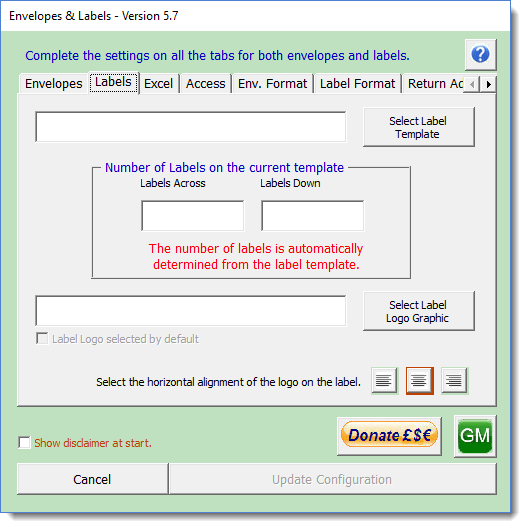
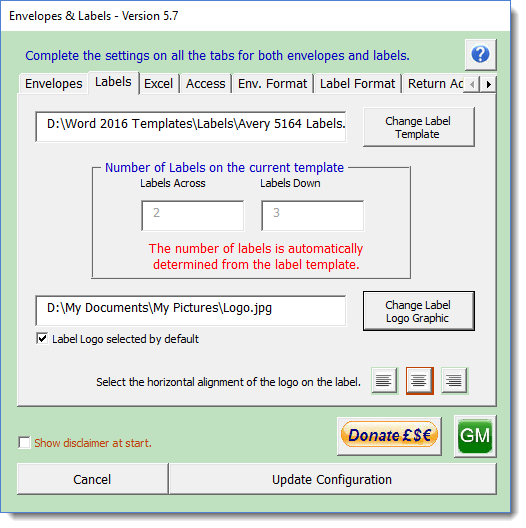
Although you do not have to use a logo, or any other type of graphic, on your envelopes and labels, the add-in does require that graphics are assigned as logos to both envelope and label. If you are not going to include a graphic, then you can select any small graphic for the purpose of completing the configuration, including the supplied air mail graphic. I may get round to modifying this later, but for the moment it is a mandatory requirement to complete all the fields in the configuration.
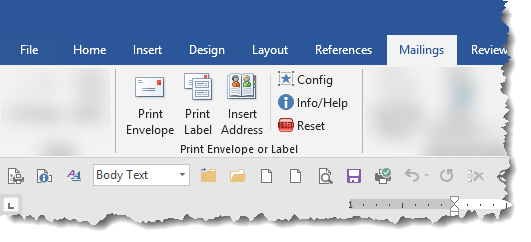
When installed, the add-in places a selection of buttons on the Mailings tab of the ribbon
Before using the add-in for the first time, you will have to supply the preferences to the Config dialog. The function will warn that the settings are not present and will not proceed until the configuration settings have been completed. The disclaimer will show each time until you use the add-in until the option not to display it is checked.
The 'Donate' button on the main dialog (and the help screens) provides the options, similar to those at the top of this page, to enable users who find this function useful to show their appreciation.
User Setup
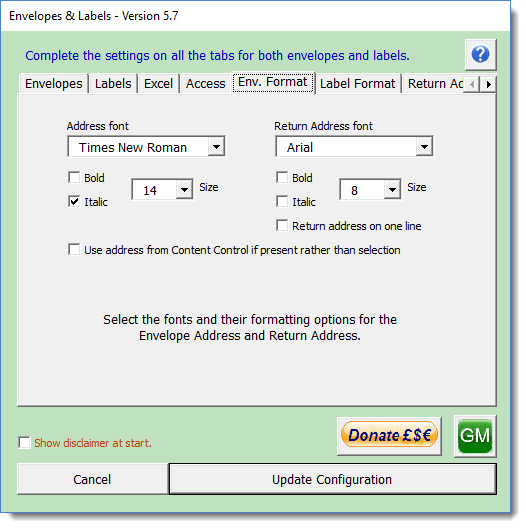
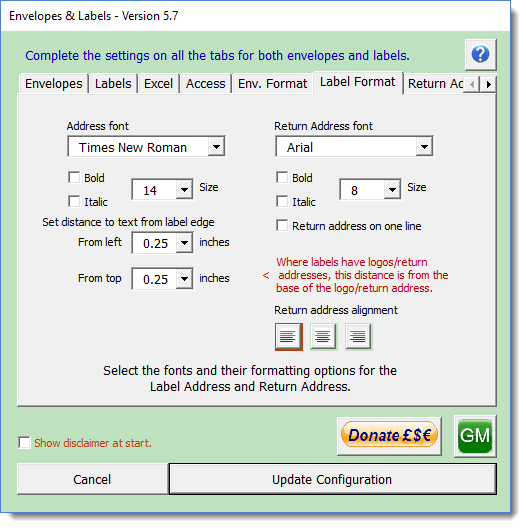
Click the Config button to display the following dialog which you must fill with the appropriate data. The formatting dialog is not mandatory, but if you do not record choices, the results will be unpredictable.
Excel worksheet as address book.
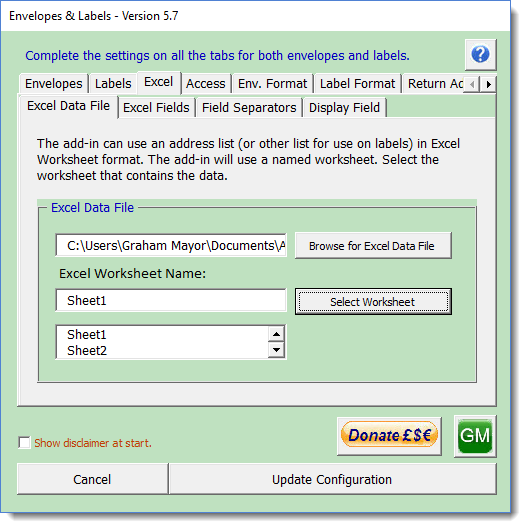
The Excel function enables the selection of addresses or (in especially in the case of labels) other data from an Excel workbook, which may be inserted as an envelope address or label text. The same workbook could have a number of sheets each with a different set of addresses, or you could choose alternative workbooks. The three illustrations which follow demonstrate the selection of worksheet, fields to use and the layout of those fields.
I have included a blank workbook in the zip file, with the fields used for the illustrations, which you may use as a start point for your address book.
If you use a worksheet layout with a different set of fields from that provided, note that the first column of the worksheet is used to display the selection of records in the main application (shown as the field 'Display' in the following illustrations).
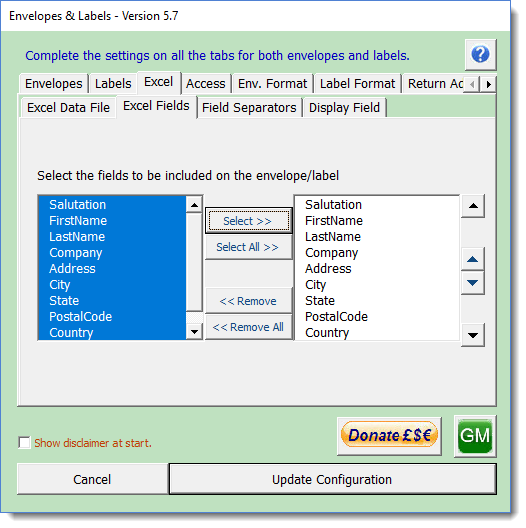
Select the fields to use and use the spinner buttons to the right of the right hand window to reposition one or more items to provide the order of insertion required.
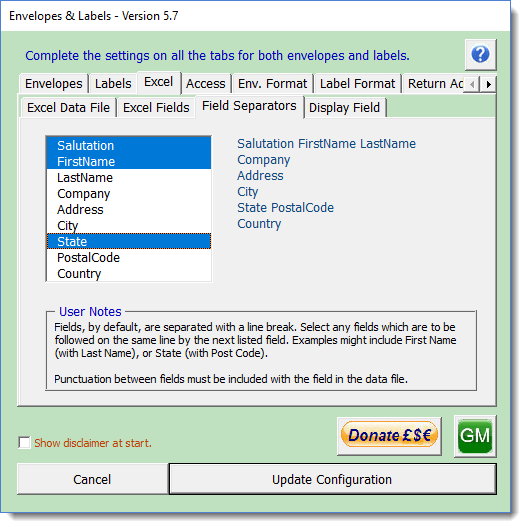
Select any fields which are to be positioned along with the following field on the same line, as shown in the layout alongside:
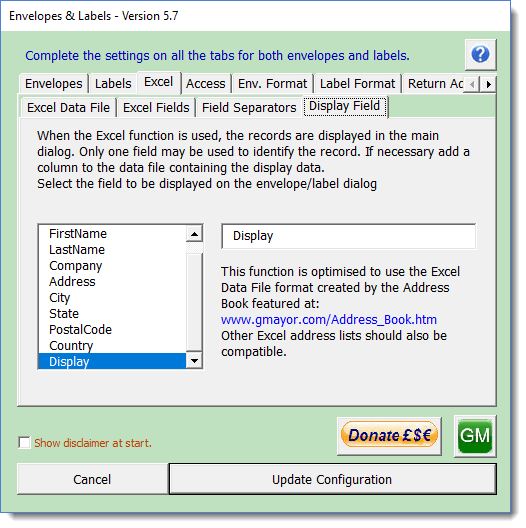
From version 4.8, the same options shown for Excel data sources are available for Access tables, with similar dialogs.
When considering the layout of labels and the use of logos and
return addresses, bear in mind the size of the labels that you are using. For labels
with logos and return addresses you should probably consider using four (or 6) to a
page shipping labels such as Avery 5164™ (first illustration below), which would provide ample
room for the various elements.
Nevertheless the function can be used with smaller labels provided you set the
font size and indents appropriately e.g. Avery™ 5160 (second
illustration below).
Return Addresses
Return addresses are optional, but the application allows for a variety of such addresses to be employed, thus users who prepare envelopes or labels for several offices may include the required return address.
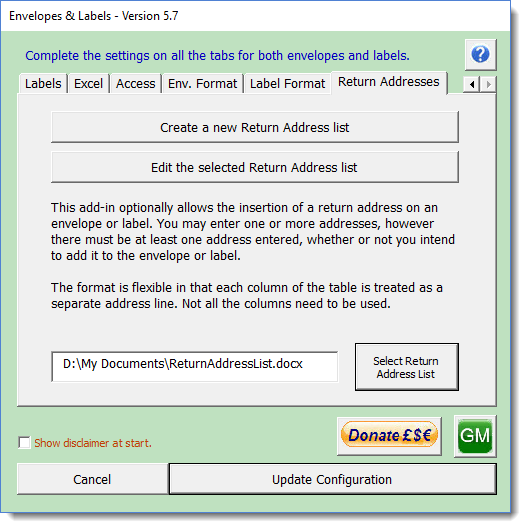
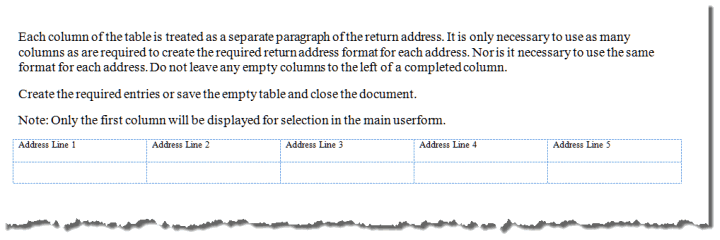
The dialogs are self explanatory. The buttons provide access to the filing system in order to pick the relevant files. However the return address function requires some additional comment. As can be seen from the final dialog the function allows the creation and editing of a data source to hold the return addresses. While the data source does not have to have any addresses included, it does have to be present. The document takes the form of a table with initially five columns, though for very long addresses you can add extra columns. Each column of the table is treated as a separate paragraph, so you can format the same address in different ways to produce different effects.
Of course the function comes into its own in organisations that have several office addresses.
Initially the document is as shown below. Add the required address(es) and don't forget to save the document.
The following shows some examples of address formats that may be used.

When all settings are complete, click Update Configuration to write the changes to the registry.
Insert an address into a document
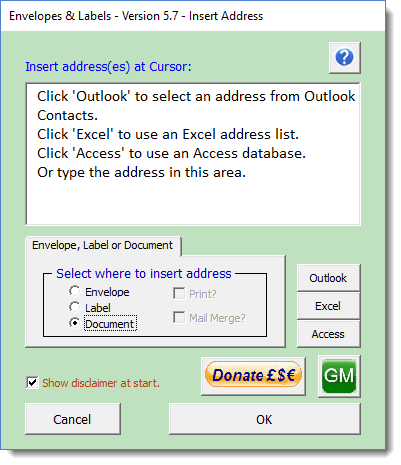
In addition to the creation of addressed envelopes and labels as described below, the add-in also allows a selected address (or addresses) to be inserted into the current document at the cursor position.
Addresses inserted into the current document are formatted with the style at the cursor position, with the additional formatting option of having no additional spacing between the lines of the address. If you would prefer to adopt the style at the cursor complete with such spacing then select the inserted address(es) and click CTRL+Q (reset style).
Creating envelopes and labels
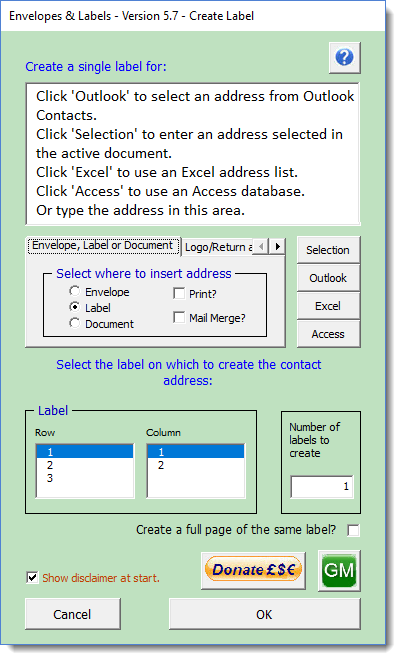
Clicking the Print Envelope or Label button on the ribbon will then produce the following dialog
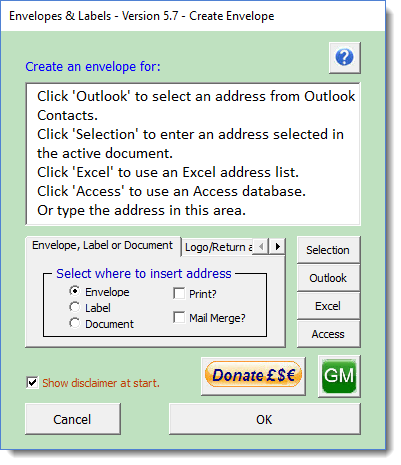
The dialog will work with addresses from five sources.
1. You may select an address (formatted in any style) in the document - then click 'Selection'
2. You may select an address in the Outlook address book. Clearly you must have Outlook present and set as the default e-mail application in order to use this, or the Outlook selection button is not available.
3. You can click in the window, which will clear the instruction text and enable you to enter (or edit) an address directly.
4. The add-in can use an Excel worksheet that contains addresses (for labels, the worksheet could contain other data that might be used on a label).
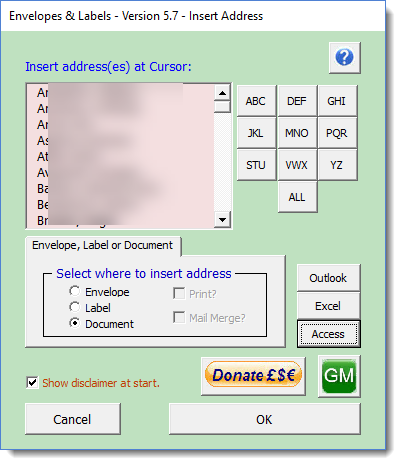
5. The add-in can use an Access database table in much the same way that you may use an Excel table.
Multiple addresses may be entered each
separated with a blank line. The Outlook button adds the
required spacing to the dialog between addresses.
Only one address may be selected at a time from Outlook
contacts, though the button can be used repeatedly. Addresses
selected from Excel may not be mixed with addresses from other
sources.
Selected addresses may include addresses in adjacent cells of a
Word table.
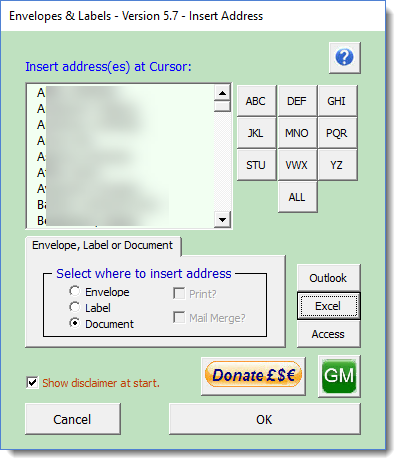
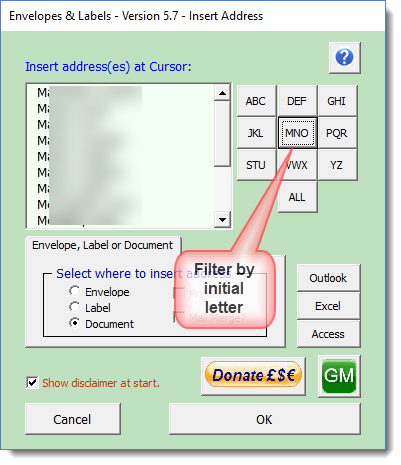
The Excel function uses “Microsoft.ACE.OLEDB.12.0” to communicate with the workbook. This should be present, but if it proves to be missing, the components are available from https://www.microsoft.com/en-us/download/confirmation.aspx?id=23734
Access
Similar dialogs are available for Access, however when Access is chosen the background changes from pale green to pale pink
Mail Merge
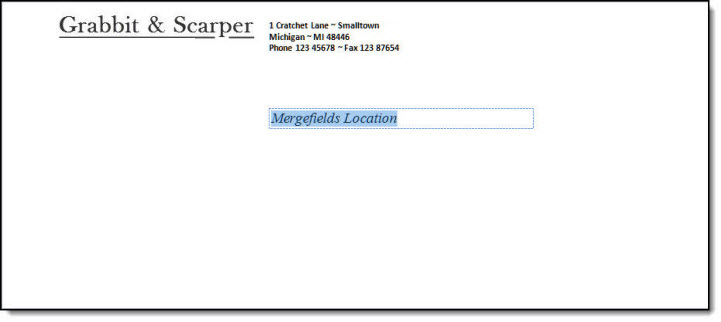
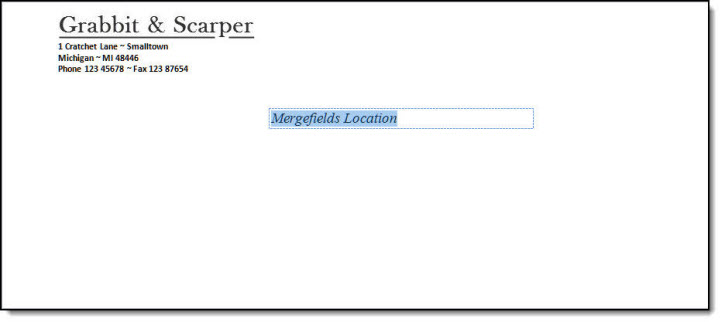
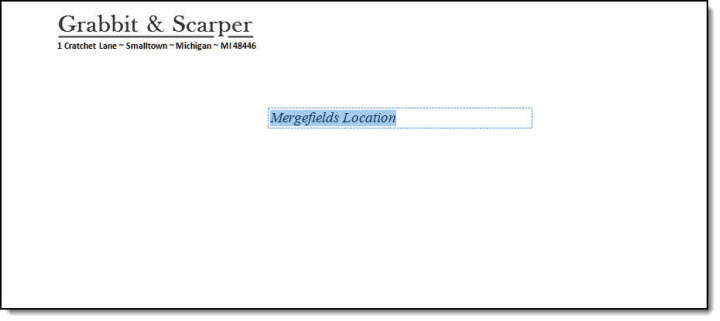
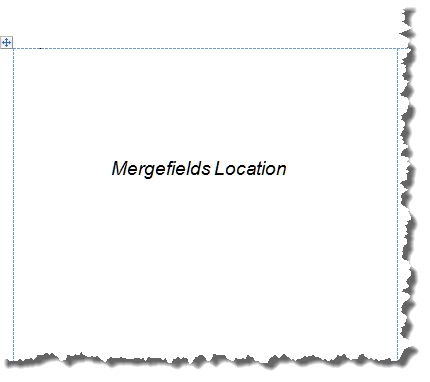
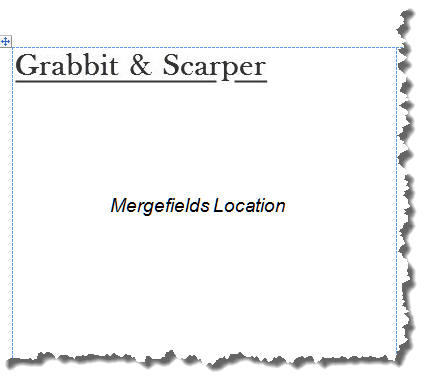
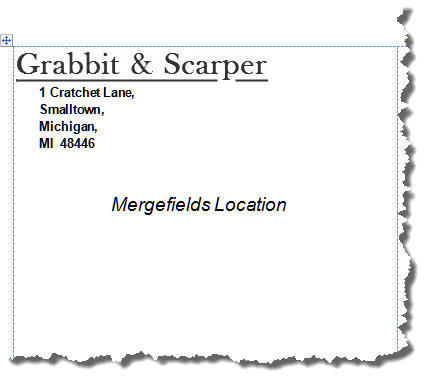
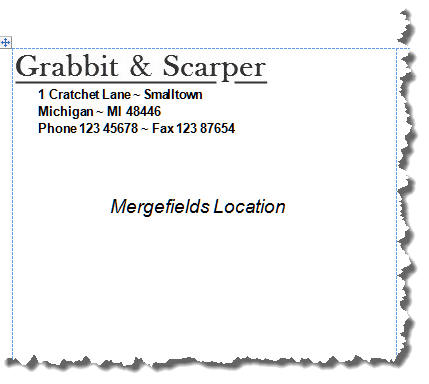
In addition there is a further option - 'Mail Merge?' This is provided to assist when creating merge label or envelope documents, by formatting the text areas and indicating where the fields should be placed (see the illustration below). The function does not create a merge document. It creates a document that can be used as the basis of a merge envelope or label document. The mail Merge option is not used with the Insert Address into a document option.
Attach your data source and replace the default text 'Mergefields Location' with the fields from your data source. For more information on mail merges generally, see https://www.gmayor.com/merge_labels_with_word_2007.htm
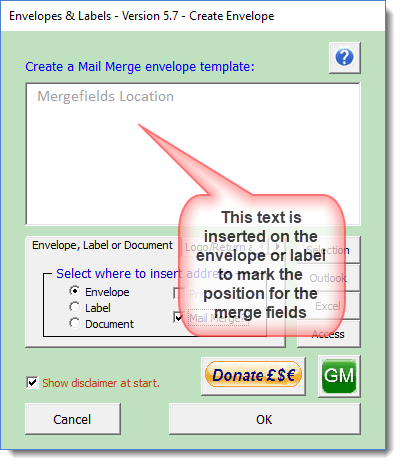
You can over-ride the option to include a logo that you set in the Config dialog and you can choose to print the envelope/label without further user involvement. If you choose that option the envelope/label is simply closed after printing without the option to save.
If you check the Label the dialog expands to display a further set of options. You choose which label to print upon, and if you choose to print more than one copy of the label you may choose the first label on which to print.
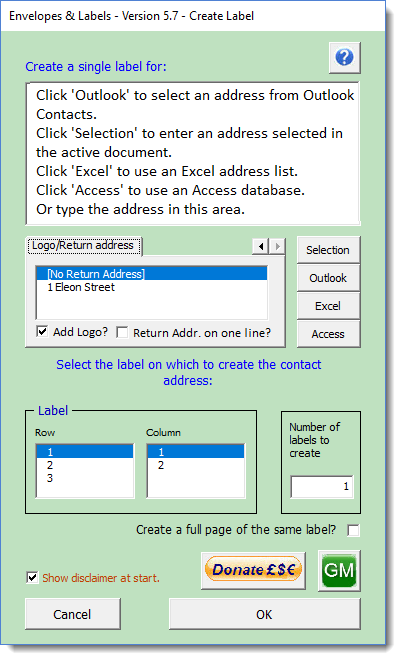
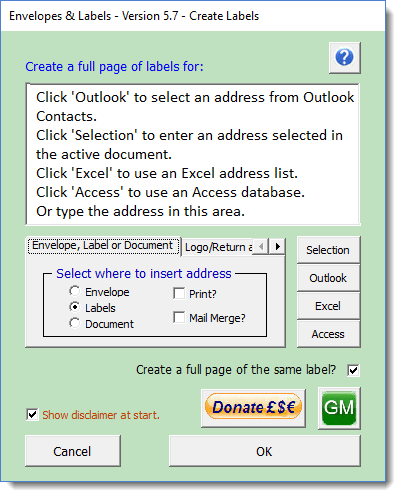
You may also choose to print a full page of the same label.
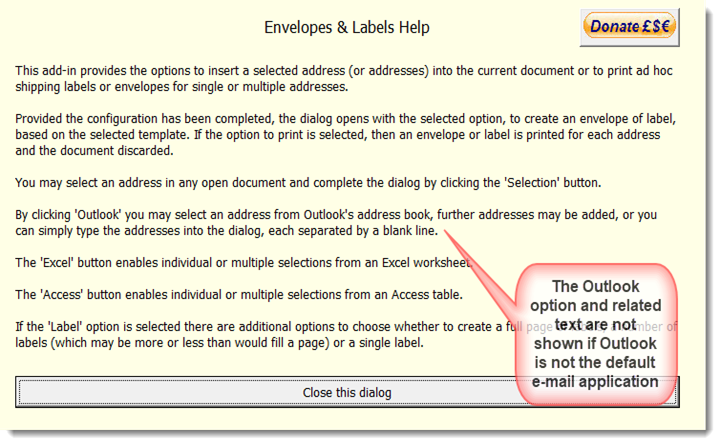
The question mark buttons which appear in some dialogs -
 - provide access to an information dialog.
The Final Results
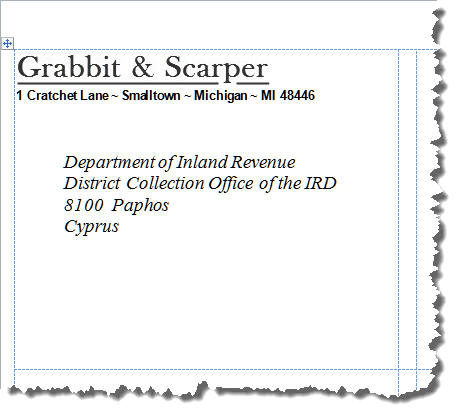
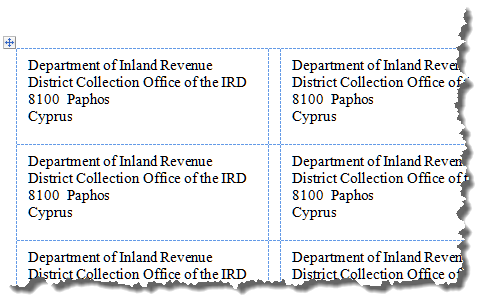
The illustrations below give some idea of the range of layouts that can be achieved.
The relationship between the Outlook Address Book and Word can be a tad flaky, resulting in Word crashing. If you find that this occurs when you select an address from Outlook, repairing Office may fix it, but it should not occur if you make sure that Outlook is running before using the function. This is not unique to this add-in, but is a frequently observed problem that applies equally to Word's built-in Address Book function.
 -
Click here to download the add-in
-
Click here to download the add-in
Print an envelope or label
This page describes an add-in which provides ad hoc printing of envelopes or labels, with or without graphics and with or without a choice of return addresses.
All aspects of the envelope or label layout are configurable to user requirements.