Graham Mayor
... helping to ease the lives of Microsoft Word users.
 |
 |
 |
Many people access the material from this web site daily. Most just take what they want and run. That's OK, provided they are not selling on the material as their own; however if your productivity gains from the material you have used, a donation from the money you have saved would help to ensure the continued availability of this resource. Click the appropriate button above to access PayPal.
Associate a Word document with a printer
The companion web page Print to a specific printer demonstrates how to select individual printers without affecting the default. This page provides simple tools to store the preferred printer in the document's properties and to print to the named printer without affecting the default printer.
The functions incorporate modified versions of vba routines borrowed from the now defunct MVPS.ORG web site to list the installed printers and to write to custom document properties - and are offered in the form of an add-in which you can download via the link at the end of the page. While the functions of the add-in are self evident, take a moment to read this page before downloading.
Using the add-in
The add-in is packaged in a standard ZIP format containing a document template, which will work with Word 2007 to 2016 and which should work with both 32 and 64 bit versions.
Extract the template to the Word Startup folder. If in doubt installation instructions are in the template body, and can be viewed by opening the template in Word.
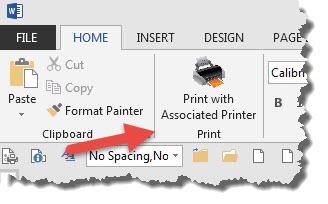
On starting Word the add-in adds a Group with four entries to the Add-Ins tab (if no other add-ins were installed, the Add-Ins tab would not previously have been displayed) and a single Print button to the Home Tab.
The button on the Home Tab (first illustration below) can be used both to print a document with an associated printer or to associate a document with a printer that has no printer currently associated.
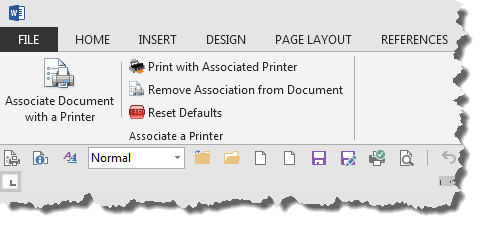
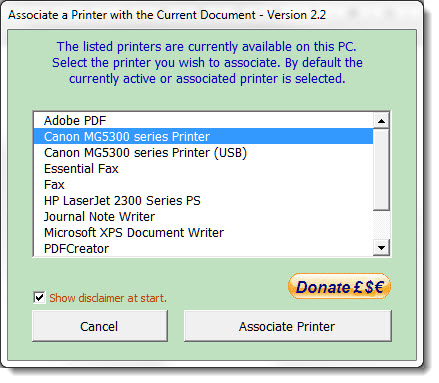
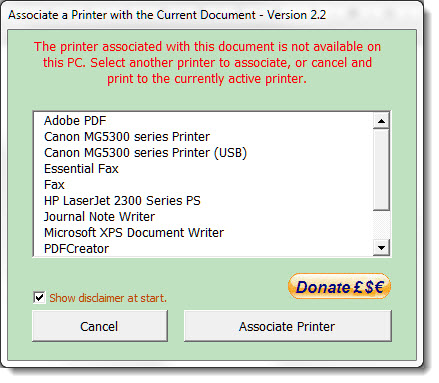
The main option 'Associate Document with a Printer' reads the list of available printers from Windows and presents them in a list box (see illustration below). The currently active printer is offered as the default selection. If a printer is already associated with the document, the associated printer is offered as the default selection. If the associated printer is not available, no printer is offered as the selection.
The function then writes the printer name to a custom document property 'Associated Printer'.
Custom document properties (and a whole lot of other stuff) are best viewed with the Bookmarks and Variables etc. add-in.
Printing the document
While it would be possible to intercept the print command, I prefer to offer a separate command to print to the printer indicated in the custom property field. The print command on the toolbar looks for the custom property entry and, if it contains a printer name, will check whether that printer is available.
If there is no custom printer property found, the Print button offers the opportunity to associate the current document with a printer.
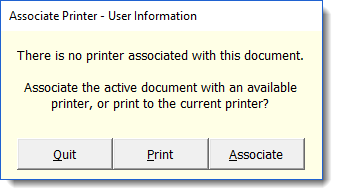
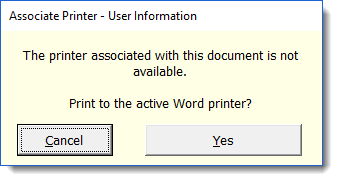
If the named printer is not available, it offers the opportunity to print to the active printer or to cancel.
The macro finally reports your choice of action.
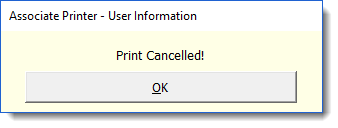
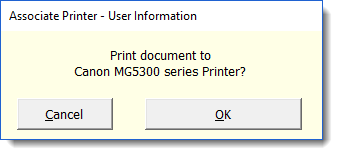
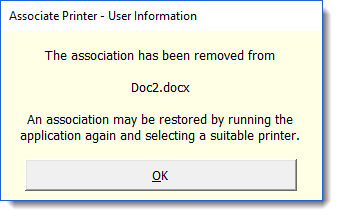
While it is always possible to by-pass the associated printer by using Word's own Print command, the add-in also provides an option to remove the association from the document.

 -
Click here to download the add-in
-
Click here to download the add-in
Associate a printer
Word does not store information about the specific printer intended to print the document, and as the current printer to a large extent determines the formatting of the document, it would be useful to be able to store this information and set the active printer to the printer stored in the document.