Graham Mayor
... helping to ease the lives of Microsoft Word users.
 |
 |
 |
Many people access the material from this web site daily. Most just take what they want and run. That's OK, provided they are not selling on the material as their own; however if your productivity gains from the material you have used, a donation from the money you have saved would help to ensure the continued availability of this resource. Click the appropriate button above to access PayPal.
Word text to speech
Although it is not a function I personally have had use for, the ability to have Word read out the text is nevertheless a function that many Word users find useful. On researching the problem, I noted that Microsoft's own knowledge base article - https://support.microsoft.com/?kbid=287120 invokes the use of Excel to provide the speech function within Word. This tutorial takes that article a step further to provide a practical application within Word
The macros here use the Microsoft Speech Object Library from within Word to speak either the full document or a selected block of text.
I take no credit for the macros beyond reproducing them here. The code was produced by Mathew Heikkila in response to a newsgroup question way back in 2003, but the process is still relevant today.
From Word - Start the VBA Editor (Alt+F11)
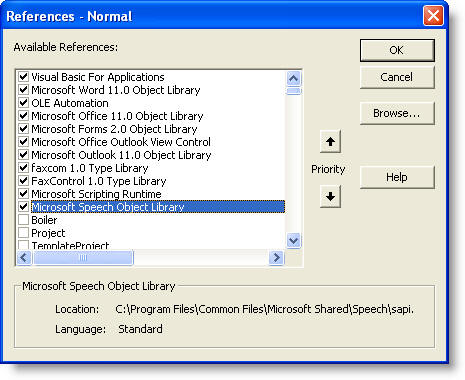
Add a reference in the normal project to Microsoft Speech Object Library (Tools > References...) - see below
Locate the reference (first picture) and add a check mark. It will then join the other checked items (second picture).
You must have installed the Speech portion of Excel for the Microsoft Speech Object Library to be available to the VBA editor.

Create a new module and call it TextToSpeech
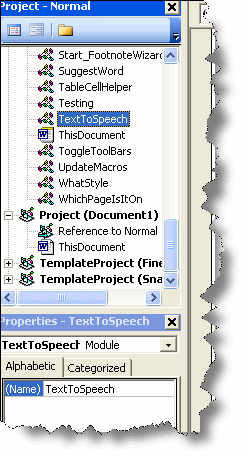
Copy and paste the following macro code into the module you have created, save and close the macro editor.
Sub SpeakText()
'Based on a macro by Mathew Heikkila
On Error Resume Next
Set speech = New SpVoice
If Len(Selection.Text) > 1 Then
'speak selection
speech.Speak Selection.Text, _
SVSFlagsAsync + SVSFPurgeBeforeSpeak
Else
'speak whole document
speech.Speak ActiveDocument.Range(0, ActiveDocument.Characters.Count).Text, _
SVSFlagsAsync + SVSFPurgeBeforeSpeak
End If
Do
DoEvents
Loop Until speech.WaitUntilDone(10)
Set speech = Nothing
End Sub
Sub StopSpeaking()
'Based on a macro by Mathew Heikkila
'used to interrupt any running speech to text
On Error Resume Next
speech.Speak vbNullString, SVSFPurgeBeforeSpeak
Set speech = Nothing
End Sub
Do not overlook the first line - Dim speech as SpVoice - or the macro to stop speaking will not work.
Word 2007/2010
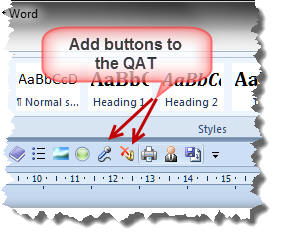
Add the macros to the QAT (Quick Access Toolbar) or to the ribbon and use suitable icons from the selection available. Clicking 'Speak Text' (on the left in the example) will read either the selected text block, or, if no text is selected, the whole document. Click the 'Stop Speaking' button to interrupt.
Word 2002/2003
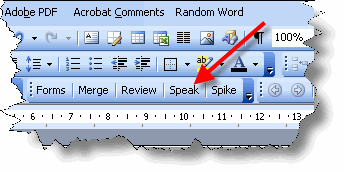
Create a personal toolbar in the default normal template, and add the two macros to that toolbar. Edit their names to something manageable like those in the following illustration.
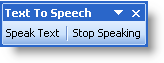
It is unlikely that you will need the toolbar permanently displayed, but it is easy to toggle the toolbar on/off with a further short macro attached to a button on the standard toolbar. The code for that would be as follows. This code can easily be adapted to pop up infrequently used toolbars, as in the following screen shot.
Sub SpeechBar()
With CommandBars("Text to Speech")
.Visible = Not .Visible
End With
End Sub
For more information about installing macros from code listings and adding them to toolbars or the ribbon.
Text to speech
If you want Word to read your document to you, then this simple macro will work in all recent Word versions.