Graham Mayor
... helping to ease the lives of Microsoft Word users.
 |
 |
 |
Many people access the material from this web site daily. Most just take what they want and run. That's OK, provided they are not selling on the material as their own; however if your productivity gains from the material you have used, a donation from the money you have saved would help to ensure the continued availability of this resource. Click the appropriate button above to access PayPal.
Quick Toolbar Access - Word 2003 and earlier
Toolbars take up valuable screen space, particularly on small screens and laptops, so it would be nice to be able to toggle the most frequently used bars on or off.
Word provides such access to the toolbar for the Drawing tools via the
 button, but for the others, the route is via a right click in the toolbar to enable you to check the required bar. It is, however very simple to create a macro to toggle the toolbar(s) on or off.
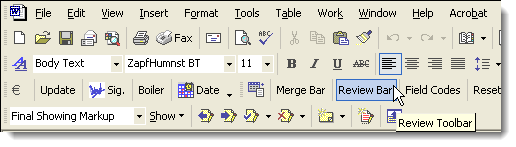
Sub ReviewToolbar()
With CommandBars("Reviewing")
.Visible = Not .Visible
End With
End Sub
The same method can be used to toggle the merge toolbar as in the second example

Sub MergeBar()
With CommandBars("Mail Merge")
.Visible = Not .Visible
End With
End Sub
Essentially similar is the method to toggle Text boundaries.
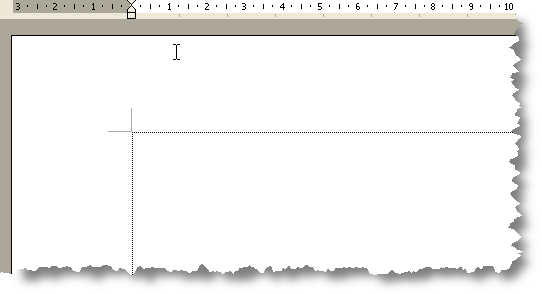
Sub ToggleTextBoundaries()
With ActiveWindow.View
.ShowTextBoundaries = Not .ShowTextBoundaries
End With
End Sub
For instructions on how to install the macros, checkout the installation tutorial.
Word versions before 2007
This page is only for users of Word before version 2007, of which there are still many around, so this page made the cut when the site was re-developed.