Graham Mayor
... helping to ease the lives of Microsoft Word users.
 |
 |
 |
Many people access the material from this web site daily. Most just take what they want and run. That's OK, provided they are not selling on the material as their own; however if your productivity gains from the material you have used, a donation from the money you have saved would help to ensure the continued availability of this resource. Click the appropriate button above to access PayPal.
Automatic Numbering of Documents
Some of the macros featured lower down this page had been available on my old site for a while, but I thought it would be worth integrating, and improving upon, the various functions into a simple add-in (for Windows Word versions from 2007 to the present) for those uncomfortable with the use of macros.
The add-in, in DOTM template format, is intended to be filed in the Word startup folder and thus load with Word. If you have not changed the preferred startup folder it can be located (in English language versions of Windows) by typing
%appdata%\Microsoft\Word\Startup
in the Windows Explorer Address bar and pressing Enter.
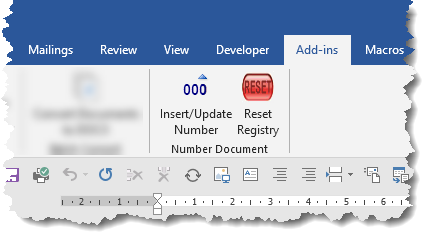
It provides buttons on the Add-Ins tab of the ribbon which can be used to apply numbering in a variety of formats. The ZIP file contains both the template itself and a self extracting archive file which will attempt to load the template in the default Word Startup folder.
The add-in stores the user's preferences and the current value of the incrementing number in the registry.
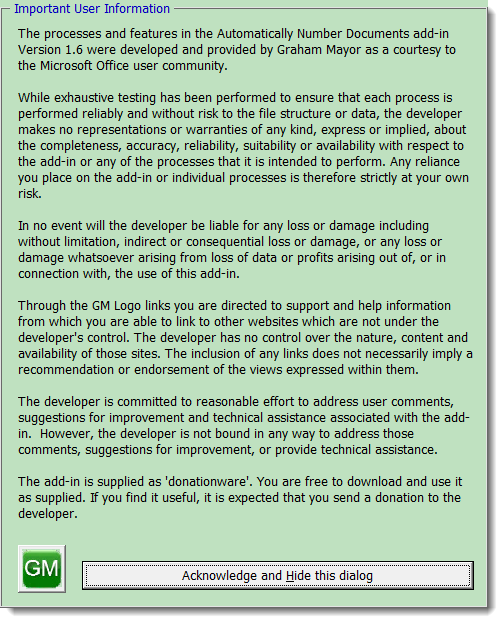
When first run, the add-in will display a disclaimer text. This will display each time the function is run, until the check box at the bottom of the main dialog is checked.
The add-in employs a text content control to display the number and any associated text in the document. Whenever the process is run, it first checks to establish if there are text (or rich text) content controls positioned anywhere in the document. If such controls exist their titles will listed in the userform (see later) along with a default title 'Incrementing Number', which will be used if there is no preferred existing content control.
The process can work with any number of content controls, either in the same document or in separate documents. Provided the controls share the same title, they will be populated according to the content control title that is selected.
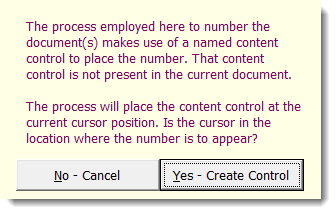
If there is no content control in the document and either you select the default title, or you enter your own preferred title in the combo box, before the process is completed it will present the following dialog which offers to place the content control at the cursor position.
When the dialog is closed the following dialog is displayed.
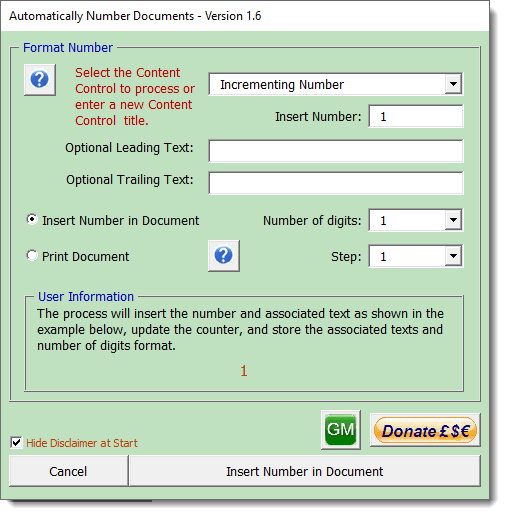
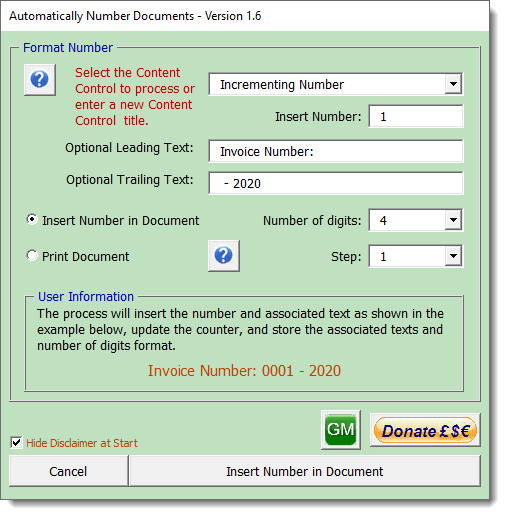
The dialog displays the next available number associated with the selected content control title (obviously 1 the first time the add-in is run).
There are text boxes to add optional common leading and trailing texts, and you can set the number of digits from the dropdown to any value between 1 and 10, which should be enough to cover most circumstances.
The changes that you add are displayed in orange coloured type across the bottom of the frame that fills the lower part of the userform as you make them, so you can see how the number is going to appear in the document before you enter it.
It is also possible to select a 'step' value which determines the next number to be used e.g. a step setting of 2 will produce a number sequence 1, 3, 5, 7 etc. (assuming a start number of 1).
On the left of the dialog are three radio buttons. These allow the user to insert the number at the current cursor position; to update the number in a document to which a number has already been applied; and to print a batch of incrementing numbered documents.
The next number, skip value, number format and associated texts are stored with the content control title in the registry for ease of recall for the next numbered document.
The number and any associated leading and trailing texts are inserted in the content control when the number is inserted or replaced.
The font and paragraph attributes of the inserted number are dependent upon the format at the cursor position. The add-in does not format the inserted content control and associated texts.
Note: The add-in stores the next number etc.
associated with the content control title used, which it increments when the function is run. It does not check
if the number relates to the last used number in a particular
document e.g. if more than one document uses the same content
control title for the number, you would need to check and manually
update the next number in the userform.
For this reason, where
different documents are numbered e.g. an invoice, an order and a
certificate, it is a good idea to use different content control
titles for each. To this end it is probably wiser to insert the
content control(s) you wish to fill, before running the process.


The add-in dialog is equipped with context sensitive help.
'Print Document' option
Some users may wish to print a batch of otherwise identical numbered documents. The 'Print Document' option allows this.
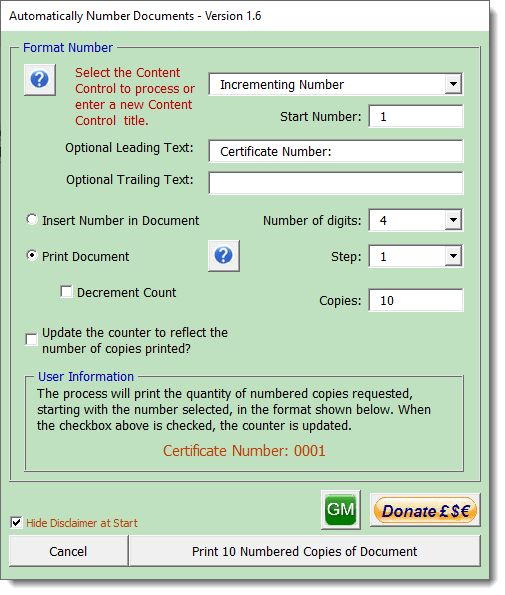
It works on entirely similar principles to the process to insert a single number, except that it sends the requested number of numbered copies to the printer. There is an option to store the last used number of the batch so the sequence may be continued.
There is a further option to decrement the numbers i.e. it starts numbering from the start number and counts backwards. This option is error trapped for inappropriate selections that would produce negative numbers. However in the unlikely instance where you may want negative numbers to be included, the warning does not prevent the creation of printed documents with such negative numbers.
When the print option is employed a progress indicator keeps track of the process

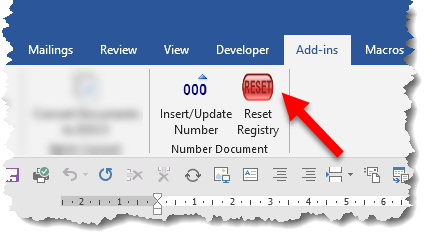
The reset button (below) clears the registry of ALL settings related to the add-in and should therefore be used with caution, or before permanently removing the add-in.
 Click here to download the add-in
Inserting a number from an ini file
Here the number sequence is stored in an editable text file called Settings.ini which is stored here in the Word startup folder and displayed by a content control (or controls) titled 'Number', pre-inserted in the template.
For a multi-user system any folder to which all users have read/write access can be used.
Instead of using the Options.DefaultFilePath() you can enter the full path to the file.
The same Settings.ini file can be used to store number sequences for other macros as required.
The macros should be stored in a module in the document template - not in the normal template!
The macro code below will insert an incrementing number in the content control, here shown with some fixed text at the right side of the document header thus. The content control can however be inserted anywhere in the document.
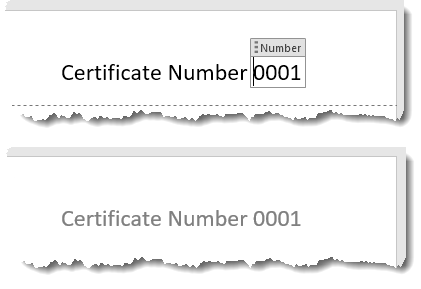
Code to change the number and to recycle the number when a document is closed without saving is included.
Note You will find another example of this technique on the vba macro examples page.
'Graham Mayor - https://www.gmayor.com - Last updated - 12 Nov 2020
Private DocNum As String
Private sName As String, sPath As String
Private bCC As Boolean, bReset As Boolean
Private oCC As ContentControl
Private oStory As Range
Const sFormat As String = "000#"
Sub AutoNew() 'Add a number when a new document is created
For Each oStory In ActiveDocument.StoryRanges
For Each oCC In oStory.ContentControls
If oCC.Title = "Number" Then
bCC = True
Exit For
Exit For
End If
Next oCC
If oStory.StoryType <> wdMainTextStory Then
While Not (oStory.NextStoryRange Is Nothing)
Set oStory = oStory.NextStoryRange
For Each oCC In oStory.ContentControls
If oCC.Title = "Number" Then
bCC = True
Exit For
Exit For
End If
Next oCC
Wend
End If
Next oStory
If Not bCC Then
MsgBox "The content control 'Number' is not present!", vbCritical
Exit Sub
End If
sPath = Options.DefaultFilePath(wdStartupPath) & "\Settings.ini"
DocNum = System.PrivateProfileString(sPath, "MacroSettings", "DocumentNumber")
If DocNum = "" Then 'The settings file entry does not exist
DocNum = 1 'So set the start number
Else 'The settings file entry does exist so increment it by 1
DocNum = DocNum + 1
End If
For Each oStory In ActiveDocument.StoryRanges
For Each oCC In oStory.ContentControls
If oCC.Title = "Number" Then
oCC.Range.Text = Format(DocNum, sFormat)
End If
Next oCC
If oStory.StoryType <> wdMainTextStory Then
While Not (oStory.NextStoryRange Is Nothing)
Set oStory = oStory.NextStoryRange
For Each oCC In oStory.ContentControls
If oCC.Title = "Number" Then
oCC.Range.Text = Format(DocNum, sFormat)
End If
Next oCC
Wend
End If
Next oStory
'Save the number in the INI file
System.PrivateProfileString(sPath, "MacroSettings", "DocumentNumber") = DocNum
lbl_Exit:
Exit Sub
End Sub
Sub SaveDocumentAs()
sPath = Options.DefaultFilePath(wdStartupPath) & "\Settings.ini"
DocNum = System.PrivateProfileString(sPath, "MacroSettings", "DocumentNumber")
If Not ActiveDocument.Path = "" Then
'The document has previously been saved, so resave
ActiveDocument.Save
Else 'The document has not been previously saved, so save it
'In the current document folder with a name including the number
With Dialogs(wdDialogFileSaveAs)
.Name = "Document " & Format(DocNum, sFormat)
.Show
End With
End If
'Close the document
ActiveDocument.Close
lbl_Exit:
Exit Sub
End Sub
Sub AutoClose() 'Recycles number if the document was unsaved.'
sPath = Options.DefaultFilePath(wdStartupPath) & "\Settings.ini"
DocNum = System.PrivateProfileString(sPath, "MacroSettings", "DocumentNumber")
'Check if the document is unsaved
If ActiveDocument.Name Like "Document#*" Then
'Offer the user the opportunity to save
If MsgBox("The document has not been saved." & vbCr & "Do you want to save before closing?", vbYesNo, "MacroSettings") = vbYes Then
With Dialogs(wdDialogFileSaveAs)
.Name = "Document " & Format(DocNum, sFormat)
.Show
End With
Else ' Close the document and recycle the number
For Each oStory In ActiveDocument.StoryRanges
For Each oCC In oStory.ContentControls
If oCC.Title = "Number" Then
oCC.Range.Text = Format(DocNum, sFormat)
If DocNum = Val(oCC.Range.Text) Then
bReset = True
End If
End If
Next oCC
If oStory.StoryType <> wdMainTextStory Then
While Not (oStory.NextStoryRange Is Nothing)
Set oStory = oStory.NextStoryRange
For Each oCC In oStory.ContentControls
If oCC.Title = "Number" Then
oCC.Range.Text = Format(DocNum, sFormat)
If DocNum = Val(oCC.Range.Text) Then
bReset = True
End If
End If
Next oCC
Wend
End If
Next oStory
If bReset = True Then
MsgBox "The current number " & "will be recycled.", vbOKCancel, "Recycle"
System.PrivateProfileString(sPath, "MacroSettings", "DocumentNumber") = DocNum - 1
End If
ActiveDocument.Saved = True
End If
End If
lbl_Exit:
Exit Sub
End Sub
Sub ResetStartNo()
'Reset the number shown in the current document and record 'it as the last used number
sPath = Options.DefaultFilePath(wdStartupPath) & "\Settings.ini"
'Get the current number from the settings file
DocNum = System.PrivateProfileString(sPath, "MacroSettings", "DocumentNumber")
'Get the user to input the new number
DocNum = InputBox("Reset Document number?", "Reset", DocNum)
'Record the input number as a docvariable
For Each oStory In ActiveDocument.StoryRanges
For Each oCC In oStory.ContentControls
If oCC.Title = "Number" Then
oCC.Range.Text = Format(DocNum, sFormat)
End If
Next oCC
If oStory.StoryType <> wdMainTextStory Then
While Not (oStory.NextStoryRange Is Nothing)
Set oStory = oStory.NextStoryRange
For Each oCC In oStory.ContentControls
If oCC.Title = "Number" Then
oCC.Range.Text = Format(DocNum, sFormat)
End If
Next oCC
Wend
End If
Next oStory
'Save the input number
System.PrivateProfileString(sPath, "MacroSettings", "DocumentNumber") = DocNum
'Set the new number as the displayed variable content
lbl_Exit:
Exit Sub
End Sub
Increment a number in a document each time the document is opened
The previous macro is useful in a template for creating invoices, orders, certificates etc, but you may want to increment a number in a document each time it is opened. One way to do this is to increment the content control (or controls) using an AutoOpen macro to increment the number stored in a pre-existing content control or controls, as in the previous example."
The format string (sFormat) is used to format the number, here "0000", to format the number to four digits, with leading zeroes for numbers with fewer digits.
Add the following macro to the document (not the Normal template) and save the document as macro enabled (DOCM) format
Dim oVars As Variables
Dim bVar As Boolean
Dim lngCount As Long
Set oVars = ActiveDocument.Sub AutoOpen()
Dim oStory As Range
Dim oCC As ContentControl
Dim bCC As Boolean
Dim lngCount As Long, DocNum As Long
Const sFormat As String = "000#"
For Each oStory In ActiveDocument.StoryRanges
For Each oCC In oStory.ContentControls
If oCC.Title = "Number" Then
DocNum = Val(oCC.Range.Text) + 1
oCC.Range.Text = Format(DocNum, sFormat)
End If
Next oCC
If oStory.StoryType <> wdMainTextStory Then
While Not (oStory.NextStoryRange Is Nothing)
Set oStory = oStory.NextStoryRange
For Each oCC In oStory.ContentControls
If oCC.Title = "Number" Then
DocNum = Val(oCC.Range.Text) + 1
oCC.Range.Text = Format(DocNum, sFormat)
End If
Next oCC
Wend
End If
Next oStory
ActiveDocument.Save
lbl_Exit:
Exit Sub
End Sub
Variables
For Each oVar In ActiveDocument.Variables
If oVar.Name = "varNum" Then
bVar = True
lngCount = oVar.Value + 1
Exit For
End If
Next oVar
If Not bVar Then lngCount = 1
oVars("varNum").Value = lngCount
UpdateAllFields
ActiveDocument.Save
lbl_Exit:
Exit Sub
End Sub
Each time the document is opened, the macro runs, increments the content control, displays and saves the change
If you need to change the number, edit the content control(s). Where there are more than one control displaying the number, edit them all similarly.
Note: If you don't know what to do with macro listings see - Installing Macros From Listings