Graham Mayor
... helping to ease the lives of Microsoft Word users.
 |
 |
 |
Many people access the material from this web site daily. Most just take what they want and run. That's OK, provided they are not selling on the material as their own; however if your productivity gains from the material you have used, a donation from the money you have saved would help to ensure the continued availability of this resource. Click the appropriate button above to access PayPal.
Insert address etc. add-in for Word 2010 and later
Word provides a function to insert addresses from the Outlook address book, but this is somewhat rigid in its format, and while the address layout can be changed, as shown in my macrobutton page, it is still not especially flexible. The add-in described on this page attempts to overcome that, by allowing the user to select what is inserted from a wider range of address book data.
I have not attempted to allow the user to pick all the address book fields, but have limited the selection to the information most commonly required.
The add-in comes in the form of a self extracting ZIP file (and the template is supplied separately for manual insertion in the Word Start-up folder).
Country information
The Outlook address book uses the Windows regional settings to determine the user's location. Some users, for various reasons, may not be in physically located the country defined as the current locality. To avoid the need to change Windows settings in order to correctly display the country as part of the address, I have included a function to enable the user to set the country in which he is working.
Frankly this was something of a self-indulgent requirement, but others may find it useful. It is not something you need change if you do not wish to.
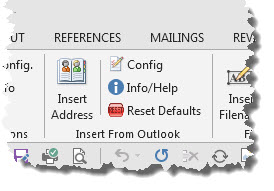
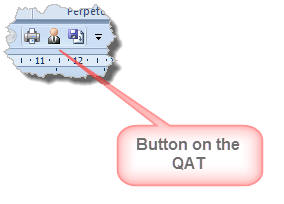
The add-in adds a button group to the Add-Ins tab of the ribbon and a convenient button on the QAT (Quick Access Toolbar).
The Add-in begins by displaying the familiar address book dialog as shown below:
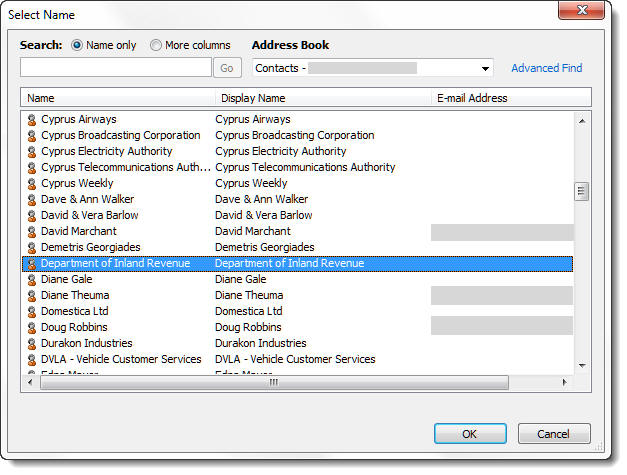
Having selected the address and clicked 'OK' the main dialog appears. The first time the dialog is shown, a disclaimer is displayed over the dialog. This may be dismissed by clicking anywhere in that notice. The notice will appear each time unless the check box at the bottom of the notice is selected.
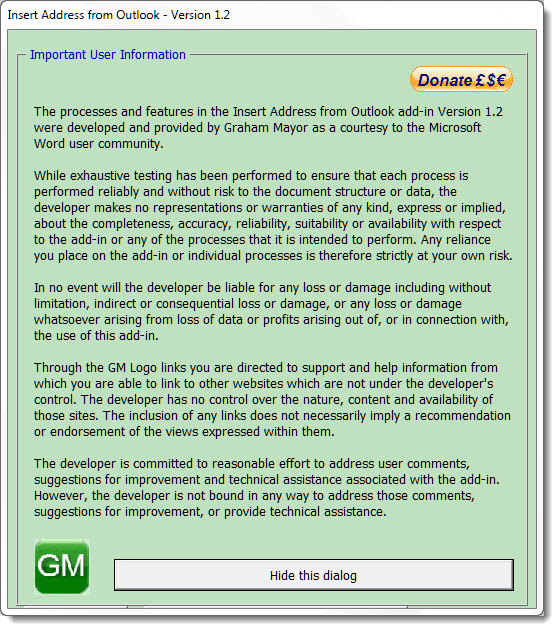
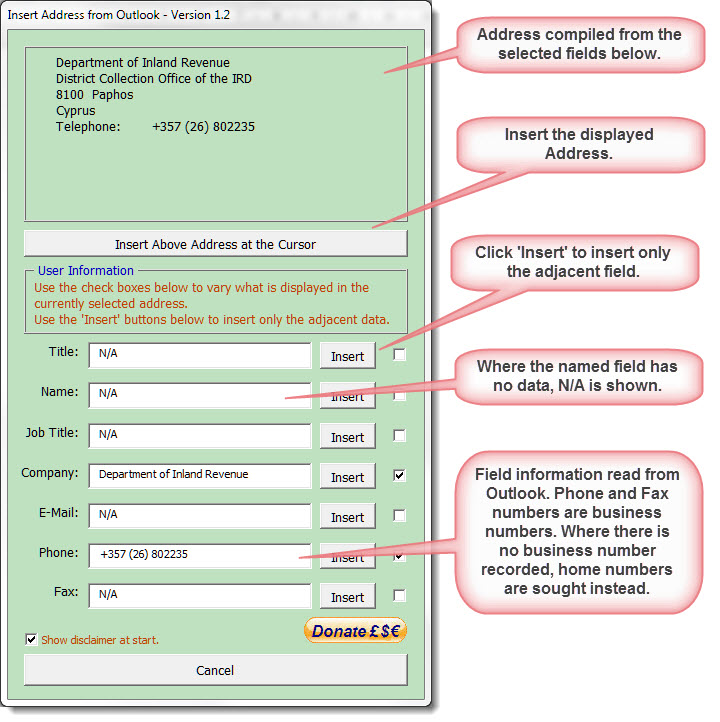
Leaving the disclaimer dialog, calls the main form
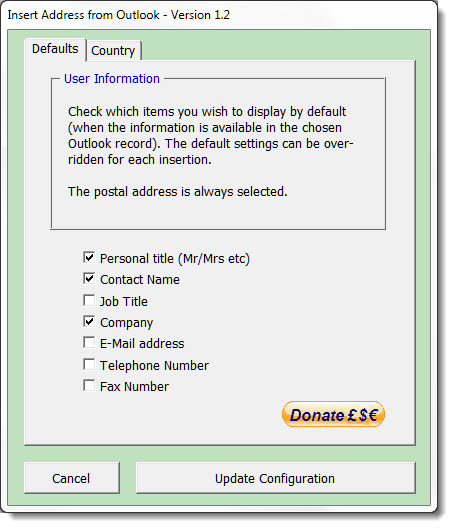
The Config button provides access to the following dialog. The 'Defaults' page sets which address fields are selected by default in the main dialog. If there is no value in the selected field, then the main dialog setting overrides the default to show N/A with the selector check box unchecked. Note that the postal address is always selected. The dialog sets which other fields are included with that address.
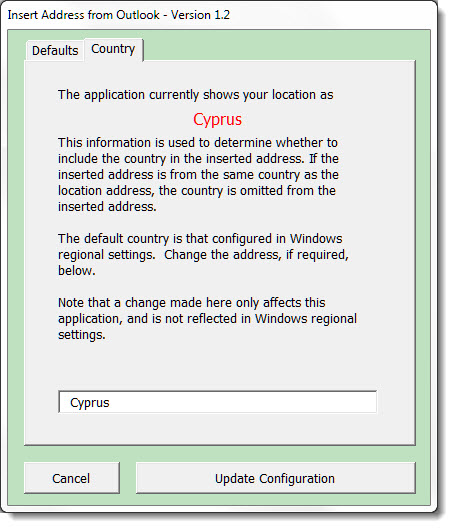
I mentioned the Country in the pre-amble. Most users will leave this at its default settings, but if your physical location does not match the indicated location you may change the country to match your physical location. As indicated on the dialog, this does not change the Windows regional setting. The country information required by the add-in is stored in the registry and is retained until you change it from the following dialog.
The 'Donate' button on the main dialog (and the disclaimer dialog) provides the options, similar to those at the top of this page, to enable users who find this function useful to show their appreciation.

Using the add-in
The main dialog displays seven fields, each accompanied by an Enter button and a check box.
The Enter button enters only the content of the adjacent field at the cursor position. The check box adds the content of the field to the address block at the top left of the dialog. The content of this address block may be inserted by clicking 'Enter Address'. By default the check boxes will be checked for every field that has content. Fields that do not have content are unchecked and display N/A.
The add-in does not format the inserted data, but adopts the format at the cursor position.
 - Click here to download the
add-in
- Click here to download the
add-in
Insert address
If you have the Home and Student version of Office which omits Outlook - see my Address Book add-in for Word for an alternative solution to inserting addresses into Word documents.