Graham Mayor
... helping to ease the lives of Microsoft Word users.
 |
 |
 |
Many people access the material from this web site daily. Most just take what they want and run. That's OK, provided they are not selling on the material as their own; however if your productivity gains from the material you have used, a donation from the money you have saved would help to ensure the continued availability of this resource. Click the appropriate button above to access PayPal.
Show the date a page was last edited in the page header/footer of that page
This method is not foolproof as it cannot account for changes in page numbers caused by adding more text than fits on the page or by removing text which changes the numbering of the pages in the document. The date applied to the page will be retained on that page even if the page content has changed by virtue of what went before.
To attempt to overcome that limitation it would be necessary to insert a section break after each relevant section and use instead the {Section} field. The field construction below would be inserted in each header/footer of the document (or the section header/footers) must be linked to ensure that the field appears in each.
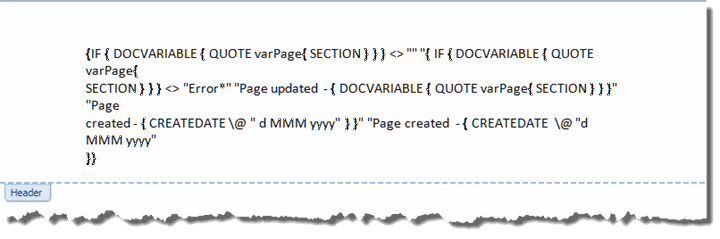
The above field construction will, when first entered, show the Createdate field value as the docvariables will not be present.
To avoid the necessity of recreating the field construction manually, you can copy and paste the following text to the document, and use the macro at Export Fields to reconstruct the text as fields.
{ IF { DOCVARIABLE { QUOTE varPage{ SECTION } } } <> "" "{ IF { DOCVARIABLE { QUOTE varPage{ SECTION } } } <> "Error*" "Page updated - { DOCVARIABLE { QUOTE varPage{ SECTION } } }" "Page created - { CREATEDATE \@ " d MMM yyyy" } }" "Page created - { CREATEDATE \@ "d MMM yyyy" }}

When changes are made to the section, running the following macro will save the changes, create the docvariable and update the header to display the following, the date being the date the macro is run.

Note: The cursor must be in the page to be dated before running the macro.
To use the version with page fields rather than section fields, move the apostrophe from the line
i = Selection.Information(wdActiveEndPageNumber)
to the start of the following line
Dim oDoc As Document
Dim i As Long
Dim oVars As Variables
Dim oStory As Range
Set oDoc = ActiveDocument
On Error Resume Next
Start:
If Len(oDoc.Path) = 0 Then
oDoc.Save
If Err > 0 Then GoTo err_Handler
End If
Set oVars = ActiveDocument.Variables
'i = Selection.Information(wdActiveEndPageNumber)
i = Selection.Information(wdActiveEndSectionNumber)
oVars("varPage" & i).Value = Format(Date, "d MMM yyyy")
For Each oStory In ActiveDocument.StoryRanges
oStory.Fields.Locked = False
oStory.Fields.Update
oStory.Fields.Locked = True
If oStory.StoryType <> wdMainTextStory Then
While Not (oStory.NextStoryRange Is Nothing)
Set oStory = oStory.NextStoryRange
oStory.Fields.Locked = False
oStory.Fields.Update
oStory.Fields.Locked = True
Wend
End If
Next oStory
Set oStory = Nothing
ActiveDocument.Save
lbl_Exit:
Set oDoc = Nothing
Set oStory = Nothing
Set oVars = Nothing
Exit Sub
err_Handler:
If MsgBox("The document must be saved before this process will work." & vbCr & vbCr & _
"Do you want to save the document now?", vbYesNo, "Save Error") = vbYes Then
GoTo Start
Else
MsgBox "Process cancelled", vbInformation, "Save Error"
GoTo lbl_Exit
End If
End Sub
If you don't know how to use the macro code see - https://www.gmayor.com/installing_macro.htm
Overview
It is a frequent requirement for documents, especially manuals, to record the last date that a particular page was updated. This is not that easy to do, as Word is not a page layout application and 'page' is a rather vague concept, created by the flowing of text within the current margins. However on thinking about the problem, it should be possible to work around this by taking advantage of the {Page} field which would enable you to increment docvariable fields, so you could introduce a docvariable field to the header/footer, which would allow the same field construction throughout the document.