Graham Mayor
... helping to ease the lives of Microsoft Word users.
 |
 |
 |
Many people access the material from this web site daily. Most just take what they want and run. That's OK, provided they are not selling on the material as their own; however if your productivity gains from the material you have used, a donation from the money you have saved would help to ensure the continued availability of this resource. Click the appropriate button above to access PayPal.
Export field constructions as text
If you have ever tried to copy a field construction to a text file, you will know that it is not possible and where complex field constructions are involved (like those of fellow MVP Paul Edstein who uses the pseudonym 'Macropod' in the Word forums, in his remarkable work on date calculations) attempting to reproduce them manually is a nightmare. This page aims to resolve that.
As some users are uncomfortable with using macros as shown in the listings below, I have combined the functions in a simple add-in for Word 2007 and later. The add-in features similar code, but with some detail improvements and enhanced messaging.
The add-in will place a command button on the Developer Tab of the ribbon. The Developer Tab is not displayed by default in Word but it may easily be added from Word's Options, or in the case of versions 2010 and later from the built-in ribbon editor.

Select the field construction to be converted to text or the text version of a field construction to be converted to working field and click the button. The add-in will detect which type of conversion is required and presents the following dialog:
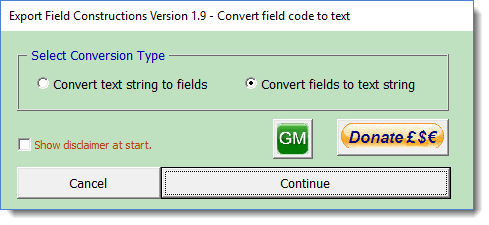
The process completes and depending on the direction of the conversion will finish either by copying the text to the clipboard or by offering to update the fields.
 -
Click here to download the add-in
-
Click here to download the add-in
Do it yourself version (including Word 2003)
Below the original code used is detailed so that users who wish to play around with the code, or those for whom the XML versions are unsuitable i.e. Word 2003 users, may do so.
First step is to open the vba editor and create a new module in the default document template (normal.dot(m)). In the following illustration, I have created the module in normal.dot(m) and renamed it from the default Module1 to FieldCodeToString. The name isn't particularly important.
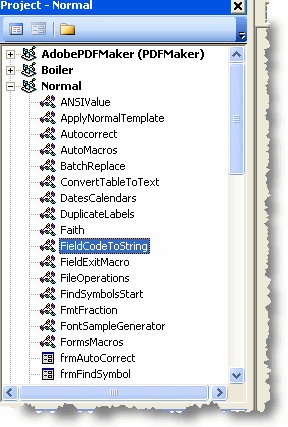
Copy and paste the following macro code into the module you have created, save and close the macro editor.
Note that in some circumstances the following code may not work. If you find that it does not, then use the add-in, which employs a different method of writing the field structure to the clipboard.
Dim oRng as Range
Dim Fieldstring As String
Dim NewString As String
Dim CurrChar As String
Dim CurrSetting As Boolean
Dim fcDisplay As Object
Dim MyData As DataObject
Dim X As Long
NewString = ""
Set fcDisplay = ActiveWindow.View
Application.ScreenUpdating = False
CurrSetting = fcDisplay.ShowFieldCodes
If CurrSetting <> True Then fcDisplay.ShowFieldCodes = True
Set oRng = Selection.Range
Fieldstring = oRng.Text
For X = 1 To Len(Fieldstring)
CurrChar = Mid(Fieldstring, X, 1)
Select Case CurrChar
Case Chr(19)
CurrChar = "{"
Case Chr(21)
CurrChar = "}"
Case Else
End Select
NewString = NewString + CurrChar
Next X
oRng.Text = NewString
Set MyData = New DataObject
MyData.SetText NewString
MyData.PutInClipboard
fcDisplay.ShowFieldCodes = CurrSetting
End Sub
Next step is from the VBA editor, select tools > references and check the Forms 2.0 Object Library - see below - this is required for the macro to work.
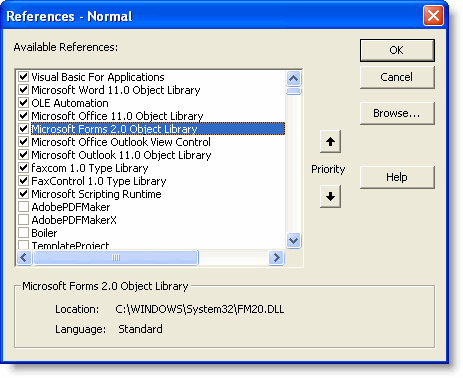
To use the macro, select the field(s) in the document and run the macro.

This copies a facsimile of the field layout to the clipboard, and which can be reproduced as plain text. The result from the above example is reproduced below:
{ IF {Mergefield Name } <> "Fred" "This isn't Fred" "{ Mergefield Name }" }
Reversing the process
It is equally likely that you may wish to import field constructions others have posted from (e.g.) on-line forums, for use in your own documents without the hassle. The following macro suggested by Paul Edstein does just that. It converts text field constructions in a selection of text to actual fields.
' Based on a macro provided by Paul Edstein
' Converts "textual" field codes into real field codes
' To do the conversion, simply paste the "textual" field codes
' into your document, select them and run the macro.
Dim RngFld As Range
Dim RngTmp As Range
Dim oFld As Field
Dim StrTmp As String
Dim sUpdate As String
Dim bFldCodes As Boolean
Const Msg1 = "Select the text to convert and try again."
Const Msg2 = "There are no field strings in the selected range."
Const Msg3 = "Unmatched field brace pairs in the selected range."
Const Title1 = "Error!"
Const Title2 = "Update fields?"
Application.ScreenUpdating = False
bFldCodes = ActiveDocument.ActiveWindow.View.ShowFieldCodes
If Selection.Type <> wdSelectionNormal Then
MsgBox Msg1, vbExclamation + vbOKOnly, Title1
Exit Sub
End If
If InStr(1, Selection.Text, "{") = 0 Or InStr(1, Selection.Text, "}") = 0 Then
MsgBox Msg2, vbCritical + vbOKOnly, Title1
End If
If Len(Replace(Selection.Text, "{", vbNullString)) <> Len(Replace(Selection.Text, "}", vbNullString)) Then
MsgBox Msg3, vbCritical + vbOKOnly, Title1
Exit Sub
End If
ActiveDocument.ActiveWindow.View.ShowFieldCodes = True
Set RngFld = Selection.Range
With RngFld
.End = .End + 1
Do While InStr(1, .Text, "{") > 0
Set RngTmp = ActiveDocument.Range(Start:=.Start + InStr(.Text, "{") - 1, End:=.Start + InStr(.Text, "}"))
With RngTmp
Do While Len(Replace(.Text, "{", vbNullString)) <> Len(Replace(.Text, "}", vbNullString))
.End = .End + 1
If .Characters.Last.Text <> "}" Then .MoveEndUntil cset:="}", Count:=Len(ActiveDocument.Range(.End, RngFld.End))
Loop
.Characters.First = vbNullString
.Characters.Last = vbNullString
StrTmp = .Text
Set oFld = ActiveDocument.Fields.Add(Range:=RngTmp, Type:=wdFieldEmpty, Text:="", PreserveFormatting:=False)
oFld.Code.Text = StrTmp
End With
Loop
ActiveDocument.ActiveWindow.View.ShowFieldCodes = bFldCodes
.End = .End - 1
If bFldCodes = False Then .Fields.ToggleShowCodes
.Select
End With
Application.ScreenUpdating = True
sUpdate = MsgBox("Do you wish to update the fields?" & vbCr + vbCr & _
"Note that if the converted fields include ASK or FILLIN fields, " & _
"updating will force the prompt for input to those fields", vbYesNo, Title2)
If sUpdate = vbYes Then RngFld.Fields.Update
Set RngTmp = Nothing
Set RngFld = Nothing
Set oFld = Nothing
End Sub
Note: For more information about installing macros use this link
Export fields as text
I take little credit for this pair of useful macros at the end of the page beyond making them available here. They also form the basis of the add-in for those uncomfortable with macros.
Fellow Word MVP Cindy Meister lists the first of the featured code samples on her web site which may be used to reproduce field constructions for use in on line forums or e-mail messages etc.
The second macro was instigated by Paul Edstein.