Graham Mayor
... helping to ease the lives of Microsoft Word users.
 |
 |
 |
Many people access the material from this web site daily. Most just take what they want and run. That's OK, provided they are not selling on the material as their own; however if your productivity gains from the material you have used, a donation from the money you have saved would help to ensure the continued availability of this resource. Click the appropriate button above to access PayPal.
Batch print envelopes from a folder containing letter documents
A newsgroup questioner had been tasked with printing envelopes for the day's correspondence, which was stored as a series of similar documents stored in a folder. He raised the possibility of automating the printing of those envelopes. While it might have saved a lot of bother had the user employed window envelopes, what follows is the approach I suggested.
The macro requires an envelope template to produce the envelopes, and I have used the #10 envelope template you can download from the downloads page of this site, but by changing the template name in the code, you can use any envelope template installed in the current User Templates folder location. The only proviso is that the template must have the address location, indicated by the frame associated with the Envelope Address paragraph style bookmarked with the bookmark name 'Address'.
The downloadable templates are already bookmarked. If the macro is to be used with Word 2007/2010, although the downloadable templates work quite happily with 2007/2010, the macro runs a little more smoothly if the downloaded template is opened in Word 2007/2010 and saved as a macro enabled DOCM format template.
The folder used for processing by this macro must ONLY contain letters each formatted identically with respect to the addressee information.
The macro could be used in conjunction with split merge add-in as an alternative to running a separate merge to envelopes - for example where the original data source is no longer available.
The address used in the examples is fictitious!
The macro starts by disabling auto macros contained in any document opened by the macro. The envelope template for example contains auto macros not required by this function. It then allows the user to select the folder containing the documents to be processed. All open documents are closed (with the option to save unsaved documents).
It then opens an envelope based on the envelope template as noted above, locates the Address bookmark it contains and inserts a DocVariable field at that location which will be used to display the addresses from the letters.
The macro grabs the addressee information from each letter in turn.
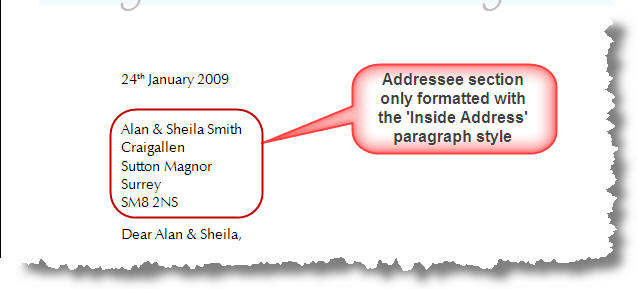
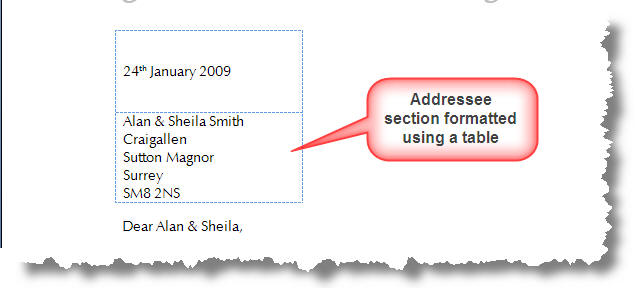
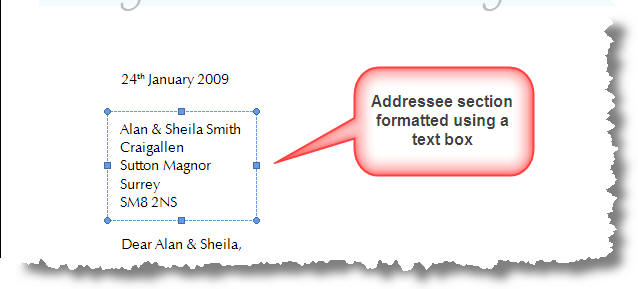
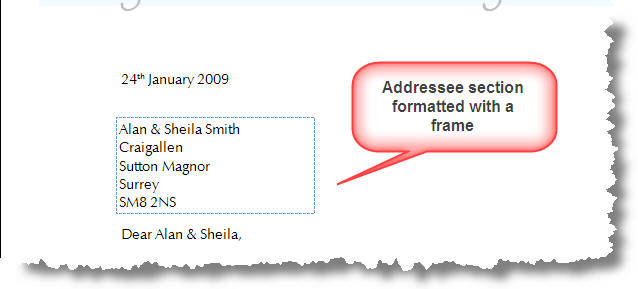
There are several ways that users add addressee information to their letters. I personally use a template which formats the addressee information with the built-in 'Inside Address' paragraph style, formatted to give the appearance as shown below. Others may use a table, a text box, a frame, or some other method. I have covered the use of dedicated style, table, text box and frame as shown below.
Having selected the address from the letter, it records the address as a docvariable, updates the docvariable field in the envelope to display the changed address and prints the envelope. If you wish to use alternative printers or trays follow the link which demonstrates the extra code required.
Having printed envelopes for all the documents in the selected folder, the auto macro function is re-enabled and the envelope document is discarded.
If necessary see The Idiots Guide to Installing Macros
'Macro requires Envelope #10.dot
'Download from www.gmayor.com
'and extract to the user templates folder
Dim oEnvelope As Document
Dim oAddress As Range
Dim oRng As Range
Dim oVars As Variables
Dim EnvAddress As String
Dim i As Long
Dim strFile As String
Dim strPath As String
Dim strDoc As Document
Dim fDialog As FileDialog
Set fDialog = Application.FileDialog(msoFileDialogFolderPicker)
'The envelope template contains automacros, not required
'by this macro, so start by disabling them
WordBasic.DisableAutoMacros 1
With fDialog 'Select the folder containing the letters
.Title = "Select folder and click OK"
.AllowMultiSelect = False
.InitialView = msoFileDialogViewList
If .Show <> -1 Then
MsgBox "Cancelled By User", , "List Folder Contents"
Exit Sub
End If
strPath = fDialog.SelectedItems.Item(1)
If Right(strPath, 1) <> "\" Then strPath = strPath + "\"
End With
If Documents.Count > 0 Then
'Close any open documents
Documents.Close SaveChanges:=wdPromptToSaveChanges
End If
'Open an envelope document. The one shown is based on
'Envelope #10.dot
Set oEnvelope = Documents.Add(Template:= _
Options.DefaultFilePath(wdUserTemplatesPath) & _
"\Envelope #10.dot", NewTemplate:=False, DocumentType:=0)
Set oVars = ActiveDocument.Variables
'The Envelope #10.dot template includes a bookmark called Address
'in the addressee section. Locate this bookmark and insert
'a Docvariable field called vAddress and add a charformat switch
With Selection
.GoTo What:=wdGoToBookmark, Name:="Address"
.Fields.Add Selection.Range, wdFieldDocVariable, _
"""vAddress"" \*Charformat", False
End With
'Open each document from the selected folder
'Use a folder that ONLY contains documents for which
'Envelopes are required
strFile = Dir$(strPath & "*.do?")
While strFile <> ""
Set strDoc = Documents.Open(strPath & strFile)
'***************************************************************
'Define the location of the address on the envelope.
'In this example, the address starts at the second paragraph
Set oAddress = strDoc.Paragraphs(2).Range
'Check the next few paragraphs to see if they are formatted
'the 'Inside Address paragraph style and if so add them to
'the address range
For i = 2 To 9
If strDoc.Paragraphs(i).Style = "Inside Address" Then
oAddress.End = strDoc.Paragraphs(i).Range.End
End If
Next i
oAddress.End = oAddress.End - 1
'Add the address range to the docvariable which will
'Be used to display the address on the envelope
'***************************************************************
With oEnvelope
oVars("vAddress").Value = oAddress
.Fields.Update 'Update the docvariable field
.PrintOut 'Print the envelope
End With
'Close the letter document and repeat until all the documents
'have been processed
strDoc.Close wdDoNotSaveChanges
strFile = Dir$()
Wend
CleanUp:
'Restore the automacro function
WordBasic.DisableAutoMacros 0
'Close the envelope
oEnvelope.Close wdDoNotSaveChanges
End Sub
In each of the following examples, the code replaces the code in the starred section in the above code panel
Alternative code for address in a table
'Enter the number(1) of the table containing the address
With strDoc.Tables(1)
'Enter the cell (row/column) containing the address
Set oAddress = .Cell(2, 1).Range
oAddress.End = oAddress.End - 1
End With
Alternative code for address in a text box
'Enter the number(1) of the in-line text box containing the address
With strDoc.Shapes(1)
Set oAddress = .TextFrame.TextRange
oAddress.End = oAddress.End - 1
End With
Alternative code for address in a frame
'Enter the number(1) of the frame containing the address
With strDoc.Frames(1)
Set oAddress = .Range
End With