Graham Mayor
... helping to ease the lives of Microsoft Word users.
 |
 |
 |
Many people access the material from this web site daily. Most just take what they want and run. That's OK, provided they are not selling on the material as their own; however if your productivity gains from the material you have used, a donation from the money you have saved would help to ensure the continued availability of this resource. Click the appropriate button above to access PayPal.
What to do when Word crashes?
When Word crashes it leaves behind temporary files, the presence of which can impair the normal performance of Word. Later in this page this issue is addressed, but first let's look at some of the background issues that help ensure the smooth running of Word.
Word 2003 (and earlier)
Start with Tools > Options > Save.
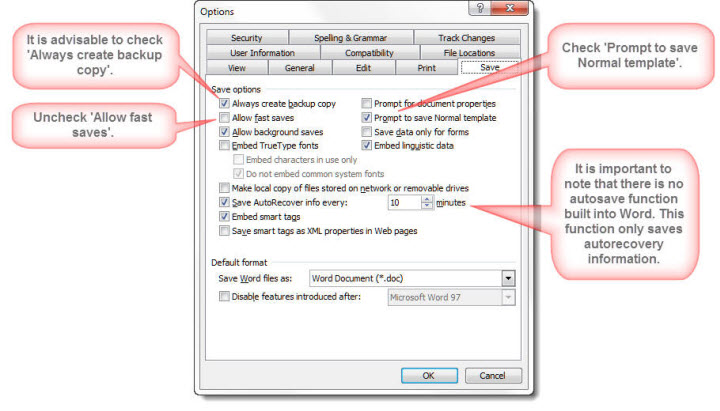
While in the above dialog box - make sure that Allow fast saves is unchecked, as this is a major source of document bloat and corruption. As a bloated document will actually take longer to save, the function is effectively useless.
Word 2007 and later
Word 2007and later versions have similar options, however in Word 2007 they are accessed by
clicking the Office Button
 and in later versions from the File tab on the ribbon. The dialogs
are essentially similar to the illustrations below.
and in later versions from the File tab on the ribbon. The dialogs
are essentially similar to the illustrations below.
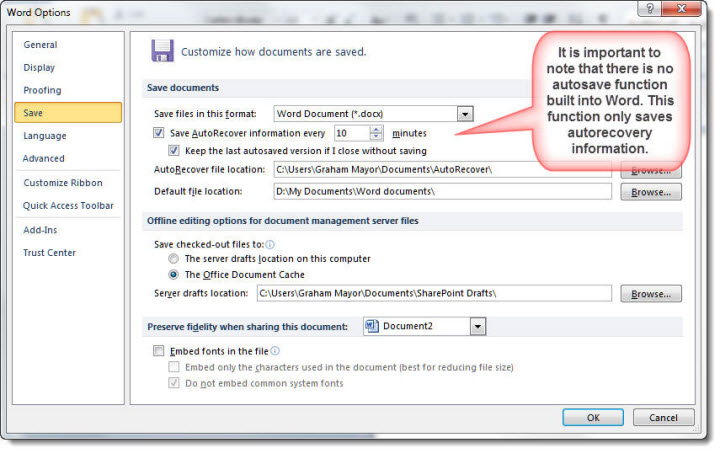
Fast saves has been dropped, but check the following
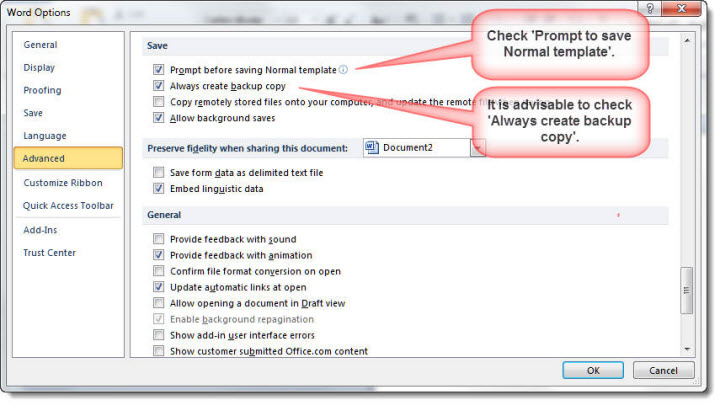
As shown in the comments on the illustrations, there is no 'autosave' function in Word, however if manually saving the document is too onerous, see Automatically backup Word documents. This features an add-in configurable not only to remind you to save, but you can set it to perform the save at predetermined intervals.
Orphaned Temporary Files - Applies to all versions
When Word is opened, Word creates an assortment of hidden temporary files, in various locations on the hard drive. Open a document and more are created. Edit the document and there are even more. In the normal course of events, these files are closed when they are no longer required, but if Word crashes and is unable to recover, they may be left behind, where they can cause havoc, and in a worse case, prevent you from re-opening your document - even from re-starting Word.
Much of this heartache can be avoided, if, following such a crash, measures are taken to put things right.
Before restarting Word!
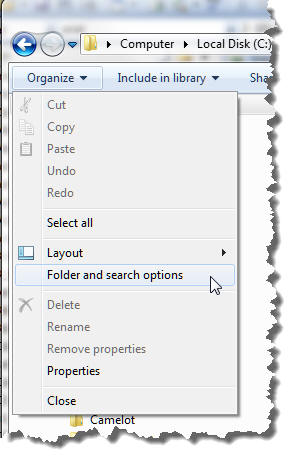
Windows Explorer is configured to hide hidden folders and system folders by default. Configure Explorer to display hidden files and the extensions of know file types. In Windows 7 this option is accessed from the Explorer menu
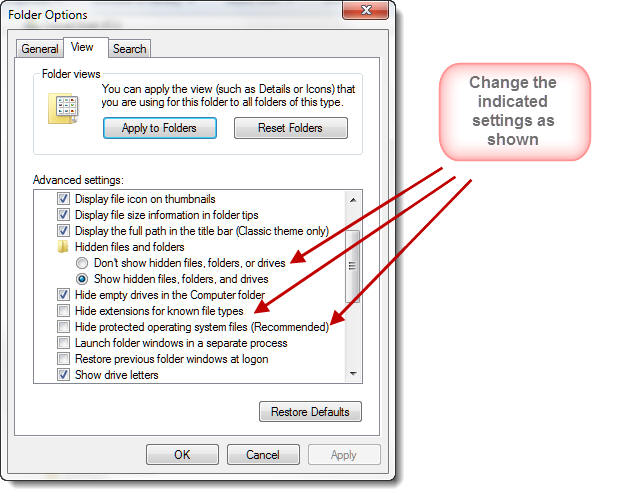
Windows 8/10
Windows 8 introduced the ribbon to Windows Explorer and renamed the function as File Explorer. The principles are however the same.
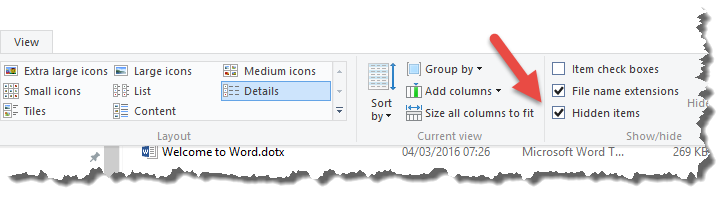
You cannot show protected operating system files from the ribbon. You may access the command from Windows > Start > Control Panel > Appearance and Personalisation > File Explorer Options, which will display the dialog shown in the previous section.
Temporary Files
Using Windows Explorer, the first place to look is the Windows temp folder, the location of which will be determined by the operating system, but it can be easily found by typing %temp% in the address bar of Windows Explorer and pressing Enter. This same shortcut will work with Internet Explorer but not other browsers.
You can safely delete everything in this folder. Windows will not allow you to delete anything actually in use; however if Windows has locked the files, and certainly with Windows 95/98 if anyone is still using these old systems, you must reboot first to free the locked files.
Given that the crash may have left the machine in an unstable condition, this is not a bad plan in any case.
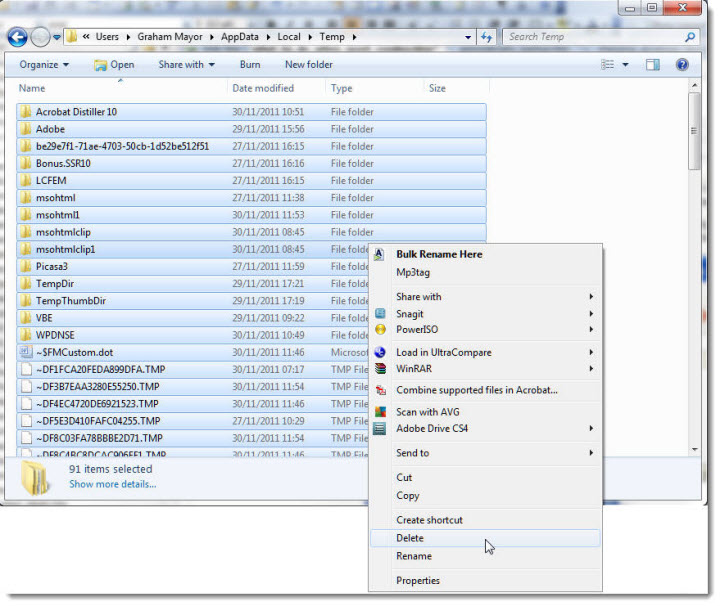
Next step is to find the remaining problem files and delete them. Word creates temporary files in a variety of places. Whereas these were fairly easy to locate with older operating systems, in Windows 7 at least they are somewhat more elusive as the standard search pattern of
"~$*.do*"
does not appear to locate them, so look in the following locations:
1. The User Templates folder - this is the folder defined in Word Options > File Locations > User Templates and is that folder that will contain the normal template. Word always creates a temporary file associated with the normal template.
If you have not changed the preferred User Templates folder it can be located (in English language versions of Windows) by typing %appdata%\Microsoft\Templates in the Windows Explorer Address bar and pressing Enter.

2. The document template.- Word no longer adheres so religiously to its template folder locations as did earlier versions. If you were using a document template filed somewhere other than the designated User templates folder when Word crashed, then you will need to remove the temporary file associated with the template in that folder.
3. The Word Startup folder - This folder contains templates used for add-ins.
If you have not changed the preferred startup folder it can be located (in English language versions of Windows) by typing %appdata%\Microsoft\Word\Startup in the Windows Explorer Address bar and pressing Enter.
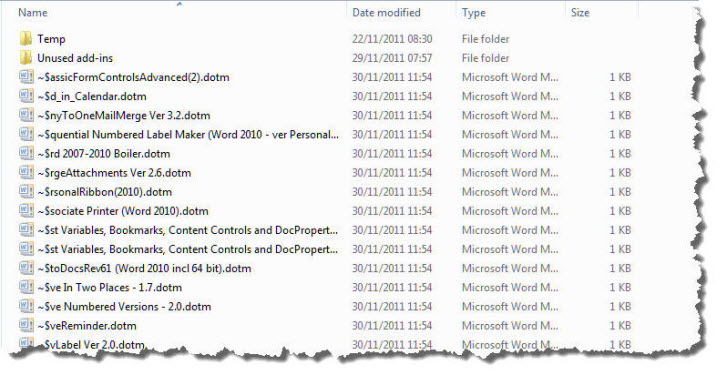
4 The Office Startup folder - Few, if any add-ins, now use this folder, but it works in much the same way as the Word Startup folder. It is located at C:\Program Files (x86)\Microsoft Office\Office14\STARTUP (where 14 is the Office version - here Office 2010 and x86 indicates a 64 bit operating system)
Use a DOS batch file to collate the above actions to a single keystroke
DOS commands have largely been lost to folklore, but you can eliminate the temporary files by means of a simple DOS batch file called from a Windows shortcut (run as Administrator in recent versions of Windows).
Identify the user template, add-in, user temp and document folder locations:
In the following example from my own PC these are:
D:\Word 2010 Templates
D:\Word 2010 Startup
C:\Program Files (x86)\Microsoft Office\Office14\STARTUP
D:\My Documents
C:\Users\Graham Mayor\AppData\Local\Temp
!!! WARNING !!!
Your folder locations will certainly be different. The batch
file listing
below is merely a guide. So CHECK that it addresses the correct
files and folders on YOUR system BEFORE attempting to run it.
DOS commands have none of the safety checks available in Windows,
and the wrong command has the potential to permanently delete
required files and folders without a confirmation prompt and
without moving them to the recycle bin!!!
If you are not confident about using this approach, then DO NOT
DO SO! Use instead the manual methods of removing temporary
files described elsewhere on this page.
!!! WARNING !!!
The batch file opens each folder in turn, sets the file attributes to unhidden, where required, and deletes the orphaned temporary files.
Using Notepad or a preferred text editor, enter the following - changing the drive letters and folder paths to match the locations of the template and add-in folders. The REM lines are only descriptive and are ignored when the batch file is run.
D:
REM Select My Documents as the active folder
CD \My Documents
REM Delete orphaned hidden temporary files from My Documents and its sub folders
DEL /S /A:h ~$*.do*
DEL /S /A:h *.tmp
REM Select User Templates folder
CD \Word 2010 Templates
REM Delete orphaned hidden temporary files
DEL /A:h ~$*.do*
REM Select Word startup folder
CD \Word 2010 Startup
REM Delete orphaned hidden temporary files
DEL /A:h ~$*.do*
REM Select the C: drive
C:
REM Select Office startup folder
CD \Program Files (x86)\Microsoft Office\Office14\STARTUP
REM Delete orphaned hidden temporary files
DEL /A:h ~$*.do*
REM Select the user temp folder
CD \Users\Graham Mayor\AppData\Local\Temp
REM Delete all temp files in the folder (its sub folders will not contain Word temp files).
DEL /S /Q *.*
Save in the Windows folder as WordFix.bat Create a shortcut to this file on the desktop and when the wheel comes off and Word crashes, click to delete the all the orphaned temp files.

Word can now be restarted and you can re-load the last saved version of your document.
Word crashes
Such is the nature of the beast that sooner or later Word will crash. When you restart, Word may try and recover the document you were working on, but this is a bit hit and miss, so don't rely on it.
Configure Word to create a backup file - and save often.
It is good practice to drill CTRL+S
into your brain and apply it every time you pause for thought. Then
when the wheel comes off, you don't lose too much work.