Graham Mayor
... helping to ease the lives of Microsoft Word users.
 |
 |
 |
Many people access the material from this web site daily. Most just take what they want and run. That's OK, provided they are not selling on the material as their own; however if your productivity gains from the material you have used, a donation from the money you have saved would help to ensure the continued availability of this resource. Click the appropriate button above to access PayPal.
Save numbered versions of a document
When activated, the macro stores the current date in the format indicated in red in the line:
strDate = Format((Date), "dd MMM yyyy")
It then checks whether the document has been saved by looking for a path associated with the document. If this is not present, you are given the opportunity to save the file with your own choice of name and location. The macro then checks the filename again and strips the extension. If the file in question is already one that has been created as a version by this macro the version details are also stripped.
The version numbers for each named document are stored in a document variable varCount
If this variable doesn't exist, (and it won't in a new document) the macro creates it.
Finally the macro increments the version number and recreates a filename based on the original stripped filename with the addition of the version number and date. The result can be seen in the illustration at the end of this page.
Version 1 will be a copy of the original document without
version numbers.
When revising versions - open the LAST numbered
version and not the original document.
'Graham Mayor 15 Jan 2006
'Completely Revised 18 January 2011
'to store count in a document variable
'and improve document type handling
Dim strVer As String
Dim strDate As String
Dim strPath As String
Dim strFile As String
Dim oVars As Variables
Dim strFileType As WdDocumentType
Dim strVersionName As String
Dim intPos As Long
Dim sExt As String
Set oVars = ActiveDocument.Variables
strDate = Format((Date), "dd MMM yyyy")
With ActiveDocument
On Error GoTo CancelledByUser
If Len(.Path) = 0 Then
'No path means document not saved
.Save 'So save it
End If
strPath = .Path 'Get path
strFile = .Name 'Get document name
End With
intPos = InStr(strFile, " - ") 'Mark the version number
sExt = Right(strFile, Len(strFile) - InStrRev(strFile, ".do"))
If intPos = 0 Then
'No version number
intPos = InStrRev(strFile, ".do") 'Mark the extension instead
End If
strFile = Left(strFile, intPos - 1) 'Strip the extension or version number
Select Case LCase(sExt)
'Determine file type by extension
Case Is = "doc"
strFileType = 0
Case Is = "docx"
strFileType = 12
Case Is = "docm"
strFileType = 13
Case Is = "dot"
strFileType = 1
Case Is = "dotx"
strFileType = 14
Case Is = "dotm"
strFileType = 15
End Select
Start: 'Get Registry Data
On Error Resume Next 'No entry in registry will flag an error
strVer = oVars("varVersion").Value
If strVer = "" Then
'Variable does not exist
oVars("VarVersion").Value = "0" 'So create it
GoTo Start:
End If
On Error GoTo 0
strVer = Val(strVer) + 1 'Increment number
oVars("varVersion").Value = strVer
'Define the new version filename
strVersionName = strPath & "\" & strFile & " - " & strDate & _
" - Version " & Format(Val(strVer), "00#") _
& Chr(46) & sExt
'and save a copy of the file with that name
ActiveDocument.SaveAs strVersionName, strFileType
Exit Sub
CancelledByUser: 'Error handler
MsgBox "Cancelled By User", , "Operation Cancelled"
End Sub
If you don't know what to do with macro listings see - Installing Macros From Listings
To reset the start count for a particular document, a simple solution is to use the variables, bookmark and docproperty add-in.
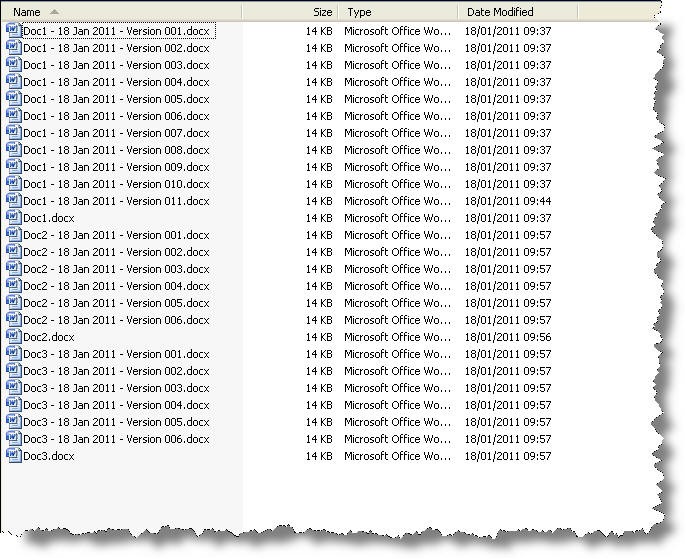
Save versions
Sometimes when working with Word documents, you may wish to save numbered (and dated) versions of the document for future reference. The featured macro should be attached to a personal toolbar button or keyboard shortcut for ease of access.