Graham Mayor
... helping to ease the lives of Microsoft Word users.
 |
 |
 |
Many people access the material from this web site daily. Most just take what they want and run. That's OK, provided they are not selling on the material as their own; however if your productivity gains from the material you have used, a donation from the money you have saved would help to ensure the continued availability of this resource. Click the appropriate button above to access PayPal.
Rotate text
Some printers, but by no means all, offer the opportunity to produce mirror imaged text, by utilising a feature intended for the printing of iron-on transfers. Check the printer properties.
Rotate text in a text box by 180 degrees
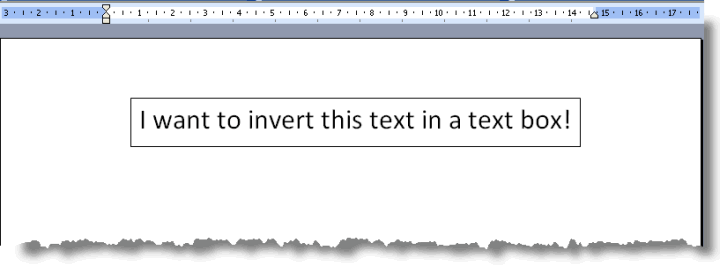
Word has no built-in function to invert text, to rotate it by 180 degrees or produce mirror imaged text.
A simple solution is to select the text and its box and copy to the clipboard then paste into a graphics application, such as Windows Paint. There, there are tools to flip or rotate the text according to requirements. The downside is that the text becomes no longer editable. This approach should work in all Word versions.
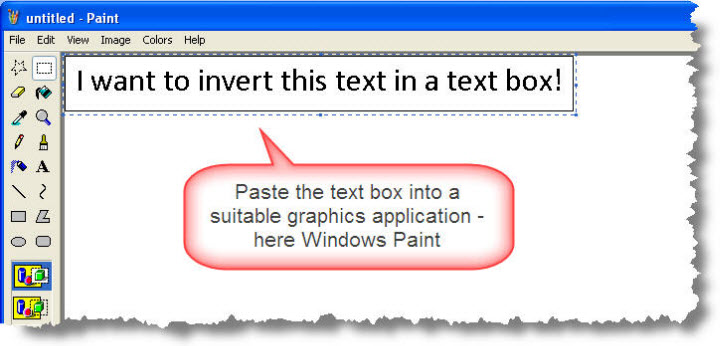
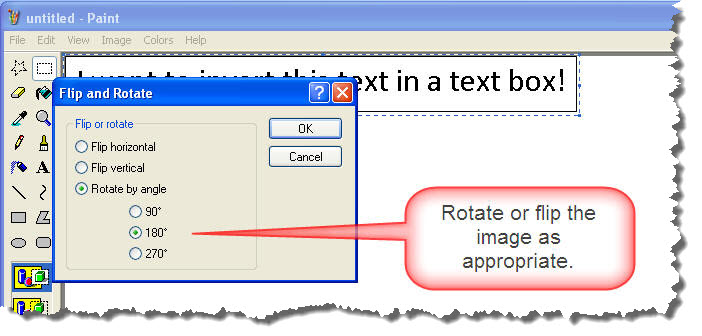
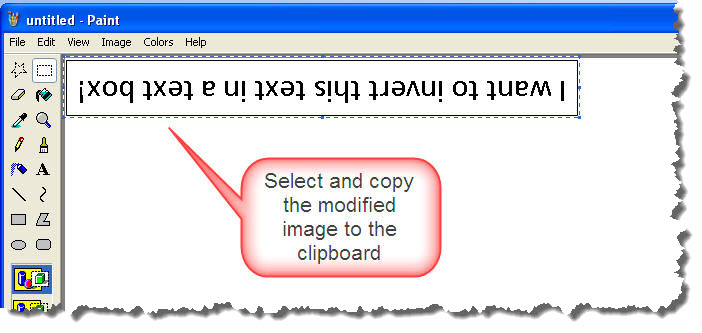
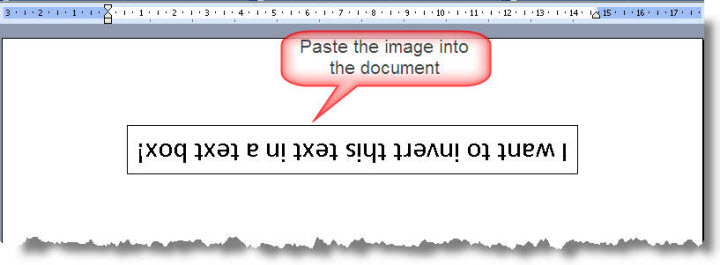
When the flipped text is copied back into Word, you may lose some resolution. If this is unacceptable, there is no real alternative to creating a higher resolution image in a graphics application, such as Corel Draw or Photoshop, and inserting that image into Word, but see Create upside down or rotated text in Word for a few more ideas
Free rotation of text in Word 2002/3
For plain text, Word 2002 and 2003 have another trick up their sleeves that gives variable results.
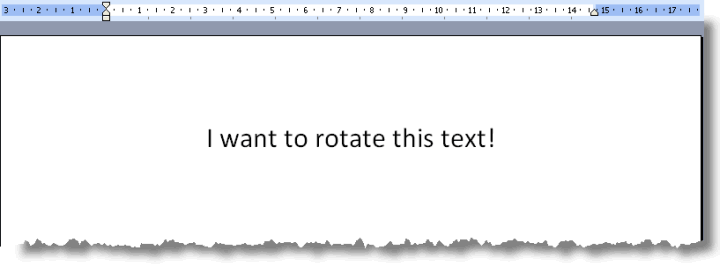
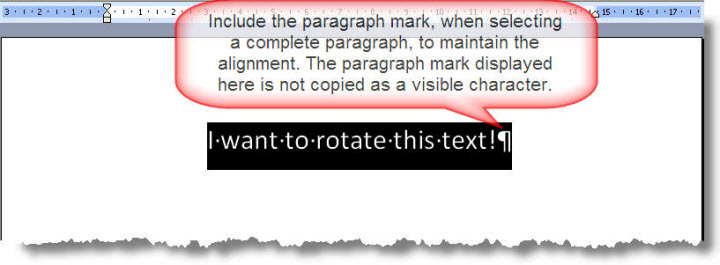
Select the required text, including the paragraph mark if you wish to retain the same alignment and cut to the clipboard (CTRL+X).
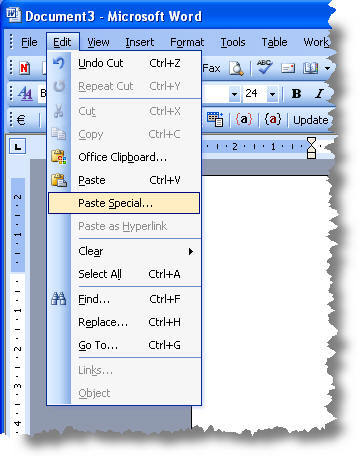
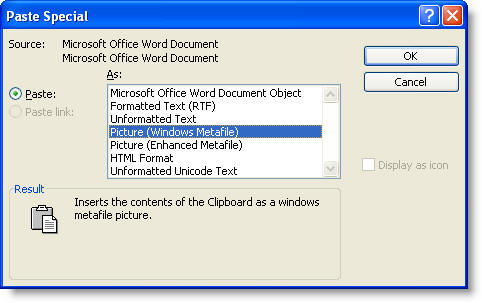
Use Edit > Paste Special to re-insert the text as a graphic.
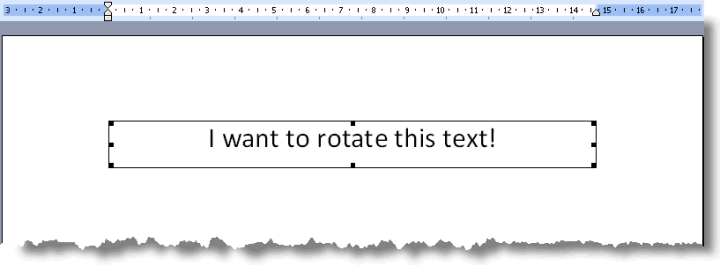
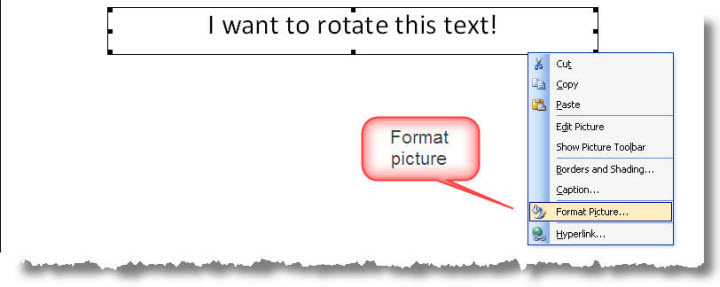
You can then select the graphic for further processing. Right click and Format picture.
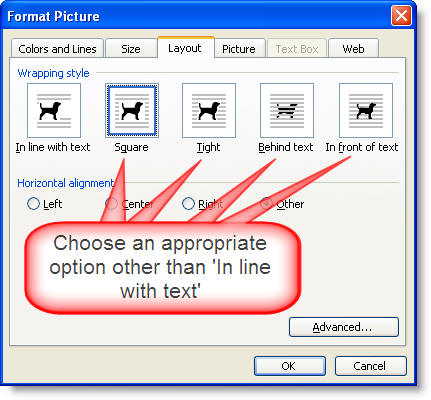
You can choose any option except 'in line with text', which will change the 'handles' around the 'picture'.
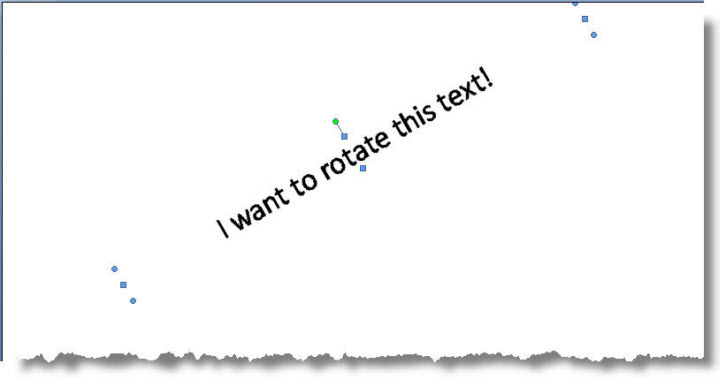
The green handle will allow you to rotate the image. Click and drag the handle in the required direction.
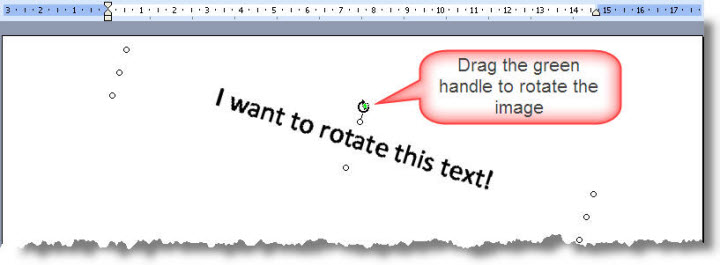
Rotation of text in Word 2007/2010
In Word 2007/2010, the process is essentially similar. Select the text:
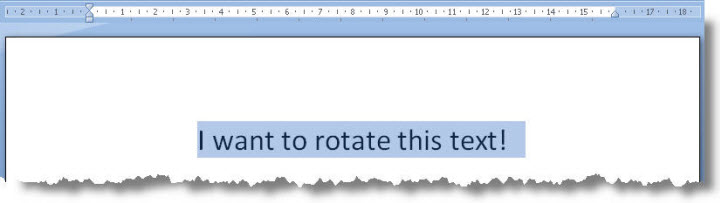
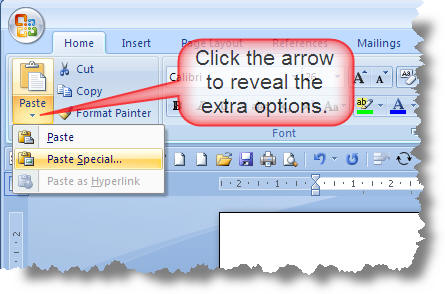
Cut the text to the clipboard CTRL+X Then click Paste Special:
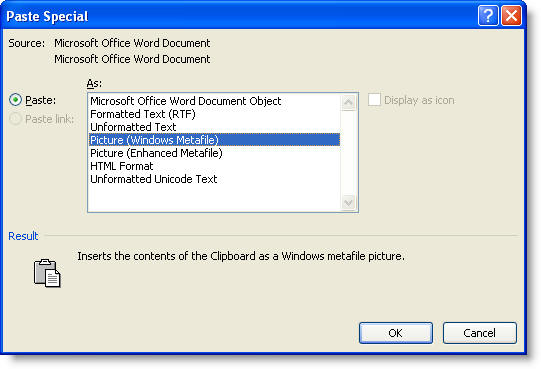
From the available options, check Picture (Windows Metafile) and click OK
As with Word 2002/3, you can now select the green handle above the box.
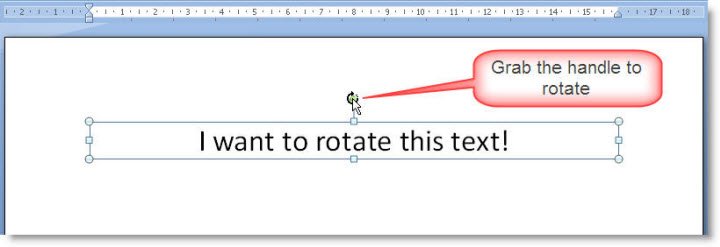
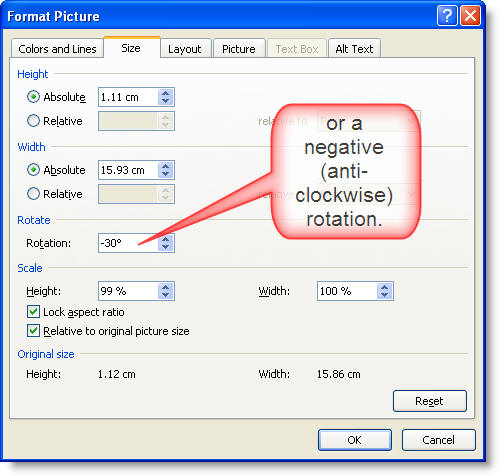
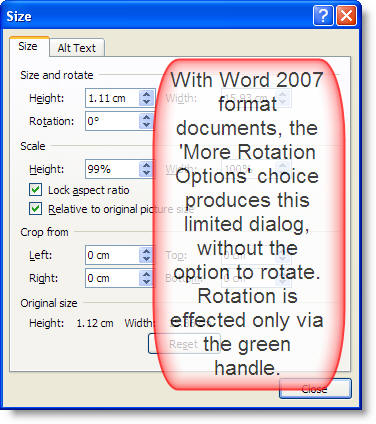
With Word 2007 format documents, the green handle provides the only means of rotation. With Word 97-2003 format documents edited in Word 2007, there are additional rotation choices and considerations.
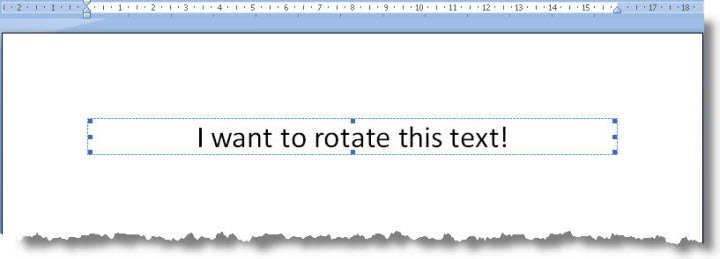
Unlike Word 2002/3, Word 2007's default document format does not differentiate between in-line and floating graphics when it comes to being able to rotate; however when working with older Word document format documents, in line images need to be converted to floating images to maintain compatibility. It will be obvious when this is required as the inserted image will not have the green handle, nor the corner and edge handles shown in the above illustration - instead appearing as below.
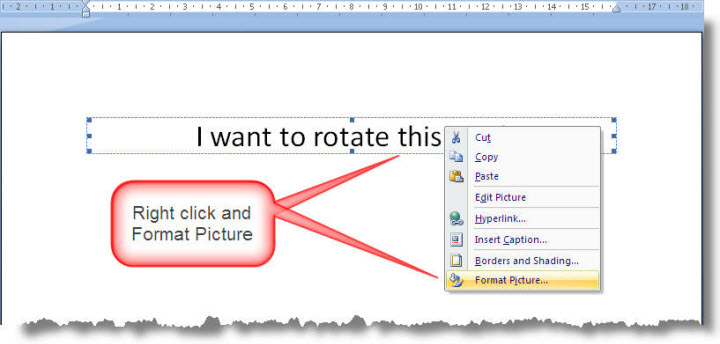
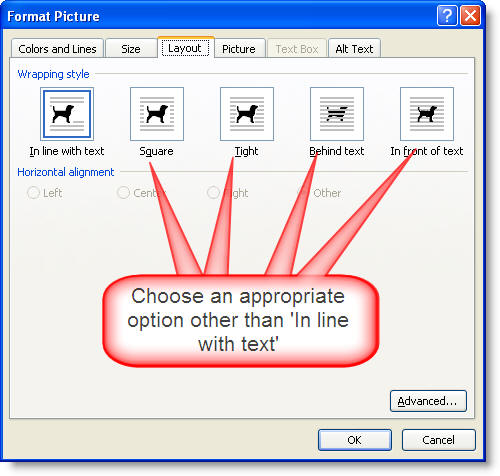
Or from the the ribbon Picture Tools options select 'Text Wrapping' and again choose an option other than 'In Line with Text'
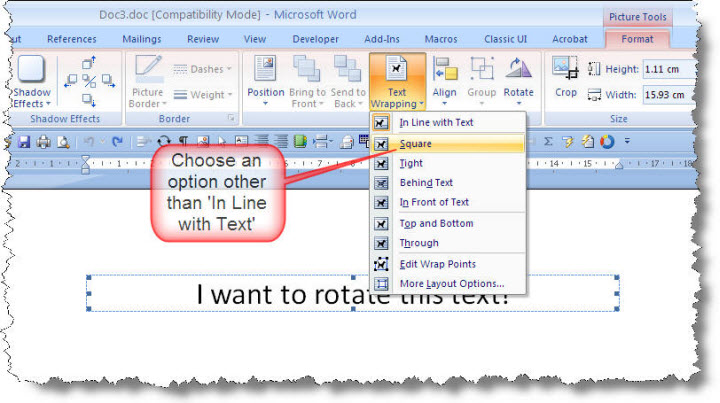
This changes the display as follows:
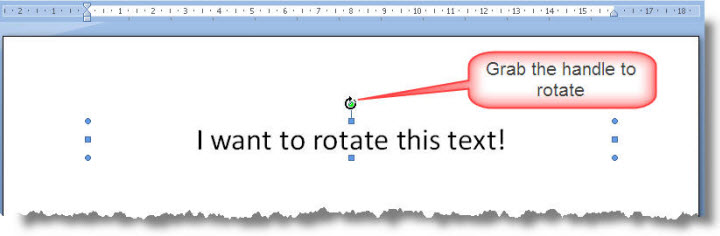
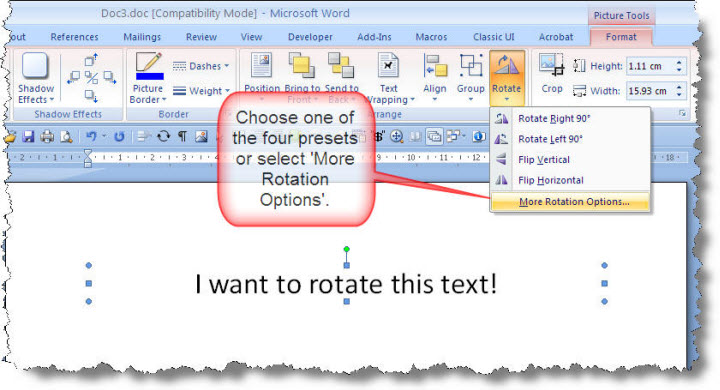
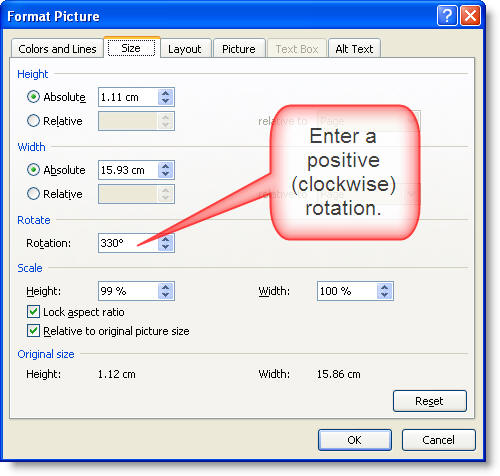
When the green handle is displayed it can be used to rotate the image at will, or you can select the rotation options from the Picture Tools:
Rotate text
Word is not a document layout program. It is a text processor and its ability to manipulate text in various directions is minimal, however here are a few workarounds.