Graham Mayor
... helping to ease the lives of Microsoft Word users.
 |
 |
 |
Many people access the material from this web site daily. Most just take what they want and run. That's OK, provided they are not selling on the material as their own; however if your productivity gains from the material you have used, a donation from the money you have saved would help to ensure the continued availability of this resource. Click the appropriate button above to access PayPal.
My Toolbars are missing!
Why did it happen?
When this occurs, the usual reaction is to reinstall Word, and when that doesn't fix it, which it won't, panic.
The cause of the problem is simple. It is caused by a minor registry corruption. Why this should happen not even Microsoft pretends to know, but it is relatively simple to fix.
How do I get them back?
Close Word.
From the Windows Start Menu > run - enter regedit
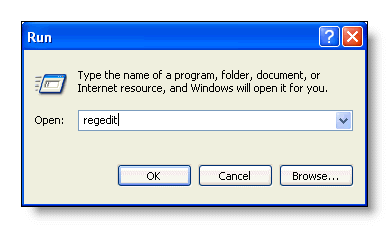
Whenever making changes to the registry, back up the registry key(s) in question (File > Export) before making those changes!
Then in the left window locate the registry key
HKEY_CURRENT_USER\Software\Microsoft\Office\n.0\Word\Data (where 'n' is the Word version number).
In the illustration below, the key is shown for Word version 2002 (Word 10). For other Word versions you'll need to substitute the 10.0 for 11.0 (Word 2003) for 9.0 (Word 2000) or for 8.0 (Word 97)
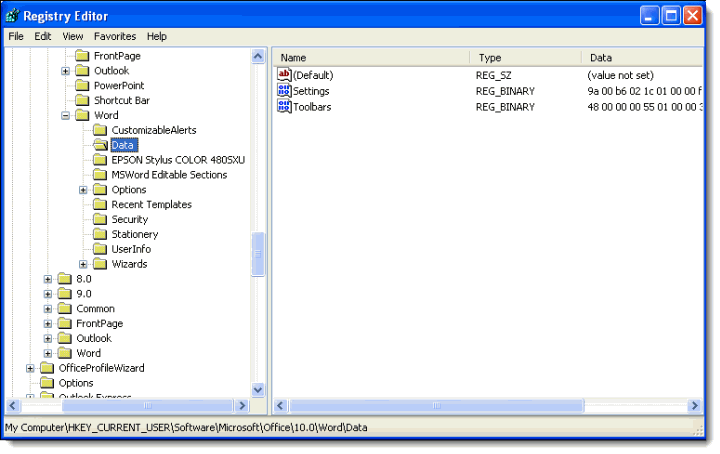
In the right window, you'll see the Toolbars sub-key. It is here that the corruption will have occurred. This is often accompanied by corruption in the Settings sub key also, so you might as well clear the lot. Select the Data key in the left window - as above - and press the delete key.
You can then close Regedit and re-start Word.
Resetting the Data key will return some of the settings in Tools > Options to install defaults, so check what is configured here. It will also reset the Autoformat and Autoformat as You Type options, so check that you have your preferred settings here also (Tools > Autocorrect Options > Autoformat as you type).
TIP: You can to advantage turn off most of the settings here and regain control of Word's formatting for yourself.
Missing Word toolbars
Before Microsoft introduced the Office ribbon interface, with Office 2007, "My toolbars are missing" was one of the most common problems raised in the Word forums. Even now in 2012, barely a couple of months go by without someone raises the issue.