Graham Mayor
... helping to ease the lives of Microsoft Word users.
 |
 |
 |
Many people access the material from this web site daily. Most just take what they want and run. That's OK, provided they are not selling on the material as their own; however if your productivity gains from the material you have used, a donation from the money you have saved would help to ensure the continued availability of this resource. Click the appropriate button above to access PayPal.
Clear Recently Used File List
Should you wish to selectively edit the list, then you can download a recent files list editor from the web site of my American friend Greg Maxey.
Word 2003
You could use tools > options > general and uncheck the recently used file list box, (see below) or you could try one of the following macro solutions.
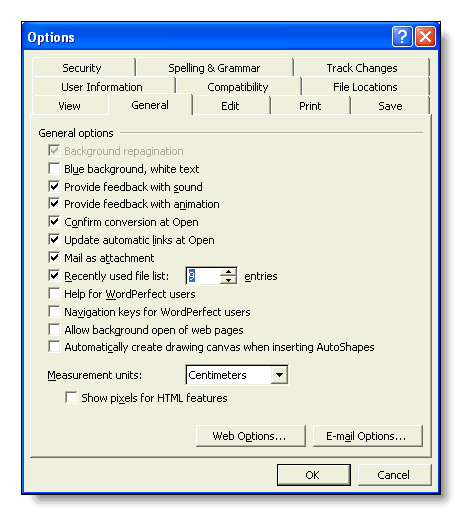
The first macro may be used with all recent Word versions, but it is aimed primarily at versions prior to Word 2007. The later macro takes advantage of the extra functions that Word 2007 provides.
' Macro created by Graham Mayor to clear Word's recently used file list.
'Updated 30 Oct 2009
Dim bAssistant As Boolean
Dim sMsg1 As String
Dim sMsg2 As String
Dim sMsg3 As String
Dim sMsg4 As String
Dim lngListSize As Long
sMsg1 = "This will delete your recently used file list"
sMsg2 = "OK, we won't do that then!"
sMsg4 = "Clear Recent File List"
Application.DisplayRecentFiles = True
lngListSize = RecentFiles.Maximum
sMsg3 = "Your recent file list has been cleared and reset to hold " & Str$(lngListSize) & " files."
If Val(Application.Version) < 12 Then 'Version is not Word 2007
bAssistant = Assistant.Visible
'So use the Office Assistant
If bAssistant = False Then
With Assistant
.On = True
.Visible = True
End With
End If
Set Balloon = Assistant.NewBalloon
With Balloon
.Text = sMsg1
.Button = msoButtonSetOkCancel
.Animation = msoAnimationBeginSpeaking
ButtonPressed = .Show
End With
If ButtonPressed = -2 Then
Set Balloon = Assistant.NewBalloon
With Balloon
.Text = sMsg2
.Button = msoButtonSetOK
.Animation = msoAnimationGoodbye
.Show
End With
GoTo Skipped:
End If
If ButtonPressed = -1 Then
RecentFiles.Maximum = 0
RecentFiles.Maximum = lngListSize
Set Balloon = Assistant.NewBalloon
With Balloon
.Text = sMsg3
.Button = msoButtonSetOK
.Animation = msoAnimationGetAttentionMinor
.Show
End With
End If
Skipped:
Assistant.Visible = bAssistant
Else
'Word version is 2007
Response = MsgBox(sMsg1, vbOKCancel, sMsg4)
If Response = 1 Then
RecentFiles.Maximum = 0
RecentFiles.Maximum = lngListSize
MsgBox sMsg3, vbInformation, sMsg4
Else
'User cancelled
MsgBox sMsg2, vbCritical, sMsg4
End If
End If
End Sub
If you don't know what to do with macro listings see - Installing Macros From Listings
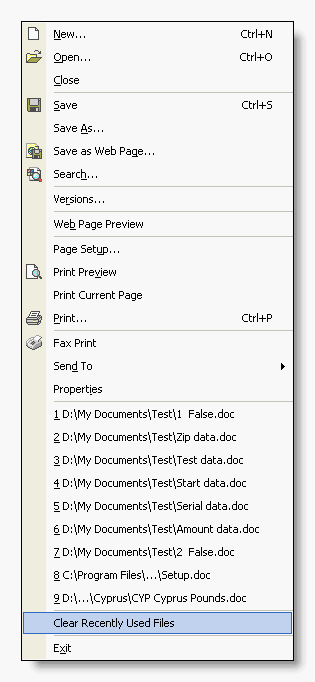
Use tools > customize to add the macro to the bottom of your Word 2000/2003 file menu as shown highlighted in the illustration below.
Word 2007 (Note this macro has not been modified for use in Word 2010!)
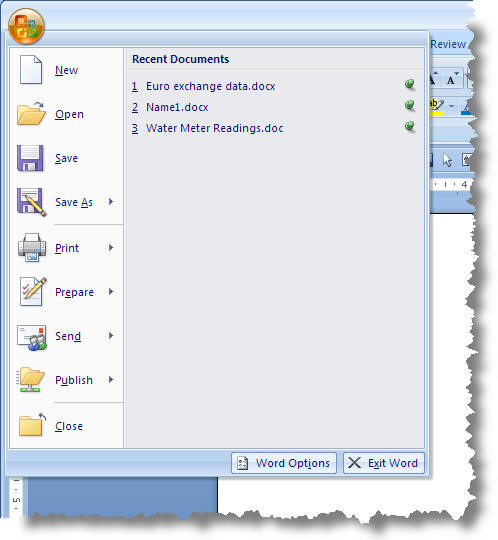
Word 2007 offers a recent file list (above) which stores up to 50 items and to which users may pin items to prevent them from being replaced in the list as new items are added. The previous macro will work with Word 2007, but it will wipe all the items from the list, including the pinned items.
The list is stored in the registry at HKEY_CURRENT_USER\Software\Microsoft\Office\12.0\Word\File MRU. Each item has a prefix which may be
[F00000000]
[F00000001]
[F00000002]
or
[F00000003]
(There are no instances of [F00000003] in the following illustration).
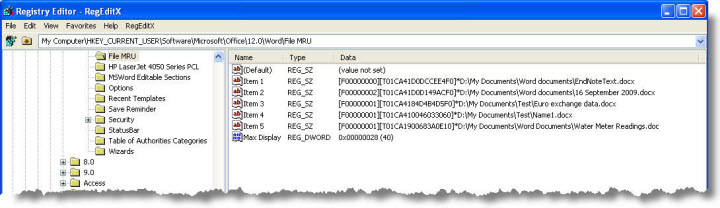
An item prefixed [F00000000] is neither read only nor pinned to the list
If the item is pinned a '1' is added to the number thus "[F00000001]". If the item is Read Only, then a '2' is added to the list, thus "[F00000002]", and if the item is both read only and pinned the numbers are added to one another thus"[F00000003]".
You can interrogate the registry entries with a macro to see what the last number of the prefix is and act accordingly.
The following macro takes advantage of this.
'Clear recent file list leaving the pinned items
Dim rFile As RecentFile
Dim WSHShell, RegKey, rKeyWord
Set WSHShell = CreateObject("WScript.Shell")
RegKey = "HKEY_CURRENT_USER\Software\Microsoft\Office\12.0\Word\File MRU\"
For Each rFile In RecentFiles
rKeyWord = WSHShell.RegRead(RegKey & "Item " & rFile.Index)
Select Case Mid(rKeyWord, 10, 1)
Case Is = 0, 2
rFile.Delete
End Select
Next rFile
End Sub
The following version is essentially similar but adds a user warnings and gives the user the opportunity to retain (or clear) the pinned items when clearing the list.
Dim rFile As RecentFile
Dim WSHShell, RegKey, rKeyWord
Dim sMsg1 As String
Dim sMsg2 As String
Dim sMsg3 As String
Dim sMsg4 As String
Dim sMsg5 As String
Dim sMsg6 As String
Dim sResponse As String
Dim sPinned As String
Dim lngListsize As Long
sMsg1 = "This will delete your recently used file list"
sMsg2 = "OK, we won't do that then!"
lngListsize = RecentFiles.Maximum
sMsg3 = "Your recent file list has been cleared and reset to hold " & Str$(lngListsize) & " files." & vbCr
sMsg4 = "Clear Recent File List"
sMsg5 = " Do you wish to retain the items pinned to the recent file list?"
sMsg6 = "Files pinned to the recent list have been retained."
sResponse = MsgBox(sMsg1, vbOKCancel, sMsg4)
If sResponse = 1 Then
sPinned = MsgBox(sMsg5, vbYesNo, sMsg4)
If sPinned = vbYes Then
Set WSHShell = CreateObject("WScript.Shell")
RegKey = "HKEY_CURRENT_USER\Software\Microsoft\Office\12.0\Word\File MRU\"
For Each rFile In RecentFiles
rKeyWord = WSHShell.RegRead(RegKey & "Item " & rFile.Index)
Select Case Mid(rKeyWord, 10, 1)
Case Is = 0, 2
rFile.Delete
End Select
Next rFile
MsgBox sMsg3 & sMsg6, vbInformation, sMsg4
Else
For Each rFile In RecentFiles
rFile.Delete
Next rFile
MsgBox sMsg3, vbInformation, sMsg4
End If
Else
MsgBox sMsg2, vbInformation, sMsg4
End If
End Sub
Destructive Cursor
You can remove individual items from the recently used file list by means of the destructive cursor. You activate this cursor with CTRL+ALT+- (hyphen) and dismiss it with ESC or by actually using it.
The cursor appears as a thick horizontal bar - as shown below:
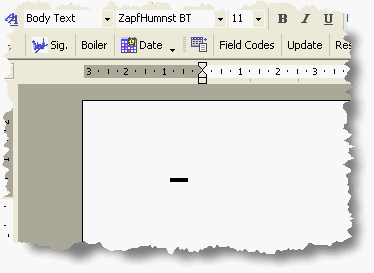
The destructive cursor is well named. It will remove individual items from any Word menu, so use with care! It does not work on Task Pane entries.
If you accidentally remove a Word menu entry, you can replace it from Tools > Customize > Commands. Select the required entry and drag it back to the menu.
With the cursor displayed open the required menu - here the Work menu (as this cursor is the only means of removing entries from the Work menu).
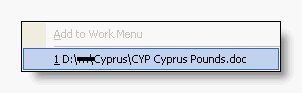
Click the left mouse button, and the entry is removed.
Clear Recent Files
Until the release of version 2010, Word did not provide an obvious way of deleting the contents from the recently used file list.
In Word 2010 entries can be removed by simply right clicking and selecting 'Remove from List'. This page addresses Word versions prior to 2010.