Graham Mayor
... helping to ease the lives of Microsoft Word users.
 |
 |
 |
Many people access the material from this web site daily. Most just take what they want and run. That's OK, provided they are not selling on the material as their own; however if your productivity gains from the material you have used, a donation from the money you have saved would help to ensure the continued availability of this resource. Click the appropriate button above to access PayPal.
Add the catchwords from the top of the following page to the footer
A questioner in a Word forum wanted a means of adding catchwords - the first word (or words) from the top of the following page - to the footer of his document, as shown in the example below. Word has no integral method of doing this - the closest it can manage is the Styleref field, but that can only reproduce information from the current page. A different method had to be found.
The solution I have produced requires that the first word(s) on each page after the first is(are) given a numbered bookmark in which the number relates to the page on which the footer will appear. i.e. the word(s) bookmarked on page 2 will be reproduced on page 1 and will have the corresponding number 1 in the bookmark name. For the sake of this exercise I chose to use the bookmark name Wordn where n is the number of the previous page.
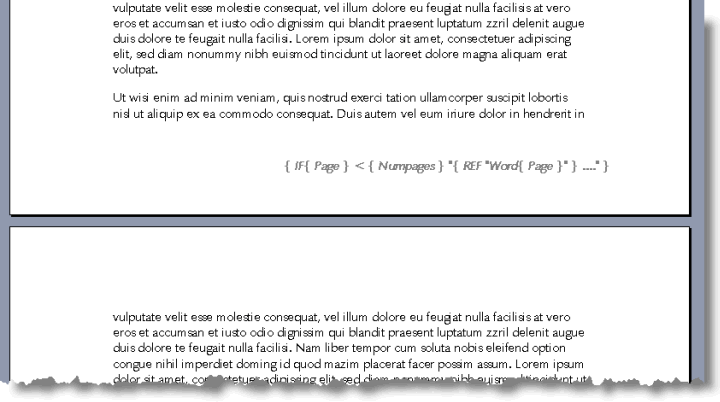
This information is then reproduced in the footer by means of a conditional field construction (second illustration).
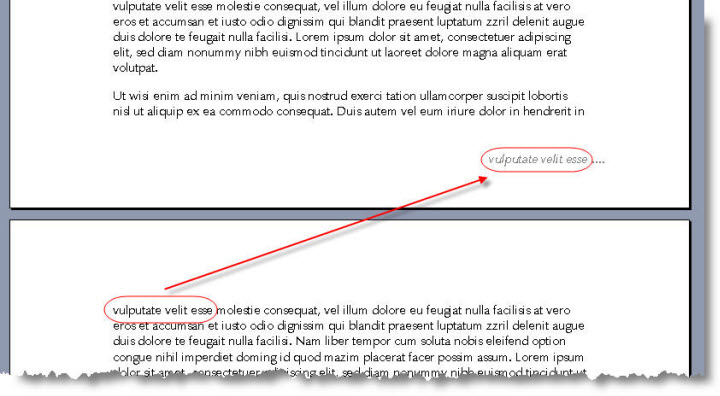
The following macro will bookmark the first word(s) on each page but the first of the finished document. The macro prompts for the number of words to be bookmarked (three in the above example) - the default is 1.
The 'BookmarkCatchwords' macro should not be run until all other editing of the document is completed as further editing will probably change which words are first on the pages, however running the macro again will update the bookmarks to show the correct values. I have included a macro to delete the bookmarks.
Important note for users:
Word documents are formatted with reference to the active printer driver. Changing the active printer, which would include changing to a PDF driver that functions as a printer driver, is likely to change the layout of the document sufficiently for the selected catchwords to be incorrect. If you change the printer driver, then reset the catchwords, using the macros, to allow for the change of layout.
The Macro Code
'Bookmarks the first word on each page
Dim Count As Long
Dim x As Long
Dim bName As String
Dim oRng As Range
Const sNumber As Long = 3
'Set the number of words to bookmark
Selection.HomeKey Unit:=wdStory
Count = ActiveDocument.BuiltInDocumentProperties("Number of Pages")
For x = 1 To Count - 1
Selection.GoTo What:=wdGoToPage, Which:=wdGoToNext
Set oRng = Selection.Range
oRng.MoveEnd wdWord, sNumber
bName = "Word" & x
ActiveDocument.Bookmarks.Add Range:=oRng, Name:=bName
Next x
End Sub
Remove the bookmarks inserted by the previous macro.
Dim oBm As Bookmark
For Each oBm In ActiveDocument.Bookmarks
If Left(oBm.Name, 4) = "Word" Then
oBm.Delete
End If
Next oBm
End Sub
Insert the field codes
You may find it simpler to manually insert the fields in the footer; however the following macro will insert the fields as shown in the second illustration at the current cursor position. Open the footer view, place the cursor and run the following macro. Toggle the display of fields with ALT+F9
With Selection
.Fields.Add Range:=.Range, Type:=wdFieldEmpty, PreserveFormatting:=False
.TypeText Text:="IF"
.Fields.Add Range:=.Range, Type:=wdFieldEmpty, PreserveFormatting:=False
.TypeText Text:="Page"
.MoveRight Unit:=wdCharacter, Count:=2
.TypeText Text:=" < "
.Fields.Add Range:=.Range, Type:=wdFieldEmpty, PreserveFormatting:=False
.TypeText Text:="Numpages"
.MoveRight Unit:=wdCharacter, Count:=2
.TypeText Text:=" """
.Fields.Add Range:=.Range, Type:=wdFieldEmpty, PreserveFormatting:=False
.TypeText Text:="REF ""Word"
.Fields.Add Range:=.Range, Type:=wdFieldEmpty, PreserveFormatting:=False
.TypeText Text:="Page"
.MoveRight Unit:=wdCharacter, Count:=2
.TypeText Text:=""""
.MoveRight Unit:=wdCharacter, Count:=2
.TypeText Text:=" ...."""
.MoveRight Unit:=wdCharacter, Count:=2
End With
ActiveDocument.Fields.Update
End Sub
If you do not know how to employ this code, see the tutorial elsewhere on this site.
Catchwords
A catchword is a word placed at the foot of a handwritten or printed page that is meant to be bound along with other pages in a book. The word anticipates the first word of the following page. It was meant to help the bookbinder or printer make sure that the leaves were bound in the right order or that the pages were set up in the press in the right order.