Graham Mayor
... helping to ease the lives of Microsoft Word users.
 |
 |
 |
Many people access the material from this web site daily. Most just take what they want and run. That's OK, provided they are not selling on the material as their own; however if your productivity gains from the material you have used, a donation from the money you have saved would help to ensure the continued availability of this resource. Click the appropriate button above to access PayPal.
Display Word Page Layout as One Page Regardless of Zoom Level
The Page Layout display in Word is determined by a combination of window size, screen resolution and zoom level. If the window is large enough to display more than one page in the viewing area, Word will automatically display two pages, or for a one page document, the displayed page will move from the centre to the left of the Word window.
This has been the case for all Word versions – certainly back to Word 97 - and there is no built-in over-ride to cause the page display to automatically revert to a centre location (see first illustration below).
In the past, with the screen sizes that were in common use, this was not much of a problem. However more recently there has been a move to wide screen formats, particularly on laptops, and this has brought the issue to the fore, as a potential problem for some users.
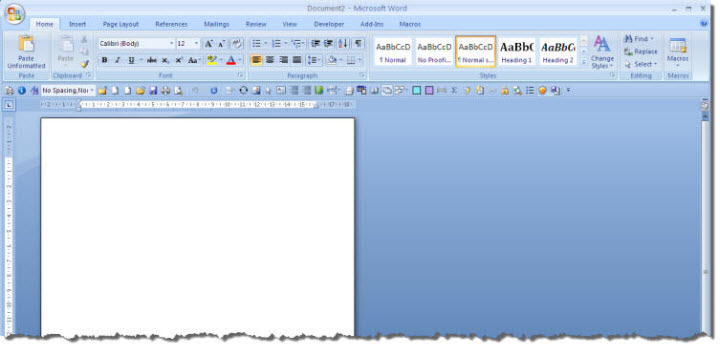
As I have indicated there is no built-in option to allow Word to automatically adopt a single page view when there is space for more pages in the Word window. The simple answer therefore is to reduce the width of the window until there is no longer sufficient space for two pages and the screen jumps back to the centre, as shown in the following illustration
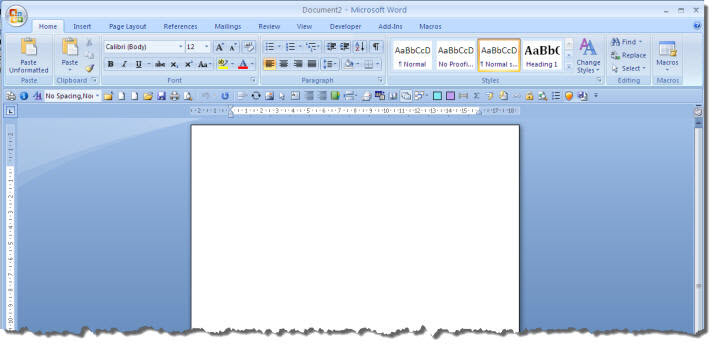
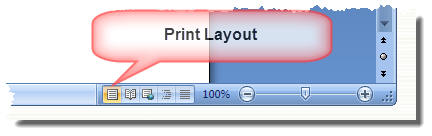
For most people, this should be sufficient, however there will be those who wish to make better use of the ribbon by working at full screen size. For those users, help is at hand with a few macros. The first 'ViewPage' intercepts the built-in Word command to select Print Layout view, forcing the user's choice of zoom setting (here 100%) and the display to one page. As this command intercepts the Print Layout command, clicking the button in the Word status bar will reset the zoom to the user's preference.
The other two macros force the required view for any new or existing documents. The ideal place for these macros is in the document template, though for all documents you can put the code in the normal template.
If there is already a macro in the template of the same name, add the code to the existing macro. See https://www.gmayor.com/installing_macro.htm.
With ActiveWindow
If .View.SplitSpecial = wdPaneNone Then
.ActivePane.View.Type= wdPrintView
Else
.View.Type = wdPrintView
End If
With .ActivePane.View.Zoom
.PageColumns = 1
.PageRows = 1
.Percentage = 100 'set the zoom AFTER the columns and rows!
End With
End With
End Sub
With ActiveWindow.ActivePane.View.Zoom
.PageColumns = 1
.PageRows = 1
.Percentage = 100
End With
End Sub
With ActiveWindow.ActivePane.View.Zoom
.PageColumns = 1
.PageRows = 1
.Percentage = 100
End With
End Sub
Centre the document in the Word window
Address the problem of the Word 'page' display jumping to the left of the Word window.