Graham Mayor
... helping to ease the lives of Microsoft Word users.
 |
 |
 |
Many people access the material from this web site daily. Most just take what they want and run. That's OK, provided they are not selling on the material as their own; however if your productivity gains from the material you have used, a donation from the money you have saved would help to ensure the continued availability of this resource. Click the appropriate button above to access PayPal.
Use Word 2000/3 Toolbars in Word 2007 and later versions
One of the main user interface features of Word, up to version 2003, has been the ability to create toolbars and have the commands they contain available to documents. The big shock on changing to Word 2007 (or Word 2010/13) is that such toolbars are no longer available, however it is possible to add the Word 2000/3 toolbar buttons to Word's new ribbon by making the toolbars available in an add-in template as a custom toolbar, without resorting to third party ribbon editors such as fellow MVP Patrick Schmid's useful Ribbon Customizer or by editing the ribbon XML code directly.
In Word 2010/13 Microsoft has addressed the omission with a rudimentary ribbon editor, that is somewhat similar in execution to Patrick Schmid's ribbon editor, built into the application.
You can install a Word template as an add-in, without changing it from the *.dot file type to the new *.dotm file type, but it will not display any of the built-in toolbars.
If you want the commands from the Word 2003 built-in toolbars to be displayed, you must add them to your custom toolbar(s).
Clearly you cannot do this if you don't have the earlier version of Word available, but as it is possible to install office 2007 2010 and/or later versions alongside an earlier version of Word, provided you take the few precautions described below, there is no reason when upgrading not to keep the older version of Word. You can even have them both running at the same time and switch between them, with the aid of a simple registry hack.
If you run Word 2007, 2010 and/or and an earlier version such as Word 2003 together as described below, there will be some minor interaction that may raise a few eyebrows. They share the same temporary document numbering, thus if you open a new document in (say) Word 2010 it might be given the temporary working name Document1. The next document opened on either version would be Document2.
Depending on which Word version was opened first in a given session, you may get a surprise when you mail merge from Outlook when the Word 2007 that Outlook claims to be opening is in fact Word 2003 - even to the extent that the 2003 help assistant thinks it has opened Word 2007, which given that 2007 no longer uses the help assistant is quite amusing!
Similarly you may find that if you attempt to open a mail attachment directly from an e-mail message (not the best of practices) that again Word 2003 may open to view the document. These phenomena are merely quirks of operating the two versions together.
If you run Word 2007 AND Word 2010 AND/OR Later Word versions together on the same profile, there will be more problems relating to shared templates - especially the normal template.
BEFORE INSTALLING any additional Word version, change the User Template location and the Word Startup location in the current version, from the default location to a different location of your choice. e.g. In my case for Word 2007 "D:\Word 2007 Templates" and "D:\Word 2007\Startup", for Word 2010 "D:\Word 2010 Templates" and "D:\Word 2010\Startup" for Word 2013 "D:\Word 2013 Templates" and "D:\Word 2013\Startup" and for Word 2016 "D:\Word 2016 Templates" and "D:\Word 2016\Startup"; but any locations to which you have read/write access should work.
You will of course have to create these folders BEFORE you can point Word to them.
Copy the contents from your original User Template folder and Startup folder to the new folders.
Copy again to the Word 2010 folders (most templates used with 2007 will work with 2010 and 2013 without further modification, and having your familiar templates available will aid familiarisation).
When adding to a Word 2003 (or earlier)
installation, put the Word 2003 normal template NORMAL.DOT in
the new User Templates folder. Start the newly added Word
version and point its templates folders to the new locations.
Also set the Word option to prompt to save the normal template
on exit. Close Word. You should be prompted to save the Normal
template. Decline to do so.
Next use Windows Explorer to locate your chosen User Templates
folder. Make sure that it does not contain NORMAL.DOTM. Restart
Word and it will build a new Normal template from the old
Normal.dot.
Close Word again and at the prompt to save, this time do so.
Remove the old normal template from the user templates folder to
a suitable safe location.
You should now have Word configured with your old settings and
macros.
You can change the locations in Word 2007 from Word Options > Advanced > File Locations (in 2010/13 it would be File > Options > Advanced > File Locations).
Having changed the locations, set the new folders to be trusted folders in Word's options.
In the case of adding Word 2010 or 2013 to Word 2007, these versions can use the same normal.dotm template, however the document title bar will display 'Compatibility Mode'. This is because it is using your Word 2007 format normal template. You can overcome that by opening the normal template from your new user template location in Word 2010 or 2013. Then use SaveAs to save the template with the same name (normal.dotm) and location which either Word version will allow.
Restart Word and the compatibility option label will have gone.
As there are minor compatibility differences between Word 2007 and 2010/13 template formats, it is not a bad plan to open all your document and add-in templates in Word 2010/13 and use SaveAs to save them with the same names in the new format.
By default Word 2010 will attempt to save templates in dotx format. If the original template is dotm (macro enabled) then ensure that the replacement is similarly named or you will lose any macros it contains.
Hacking the Registry
Many people are afraid of the registry as it is possible to make changes that can stop Windows from running, but really the registry can be considered as a large text file of instructions for running any program. Provided you stick closely to the following, you will not screw anything up that cannot easily be reversed.
If you install multiple Word versions then whichever you use will take hold of a number of registry entries relating to Word's file associations. This can severely slow down the use of Word and should prevent them being used together. It doesn't have to be like that. You can set up whichever Word version you wish as your main word processor which it will do automatically on running it and then before starting any other Word version, make the following additions to the registry.
Start the registry editor by typing Regedit in Windows > Start > Run and click OK
Windows 7 and probably Vista will require that you run Regedit as administrator. To facilitate this, pin a shortcut to Regedit32.exe to the Start menu then right click and select Run as Administrator to run it.
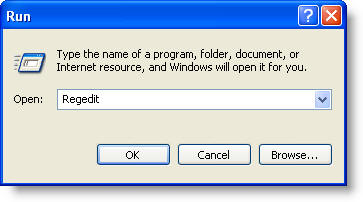 Windows XP
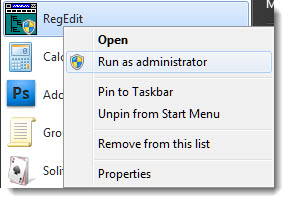 Windows 7
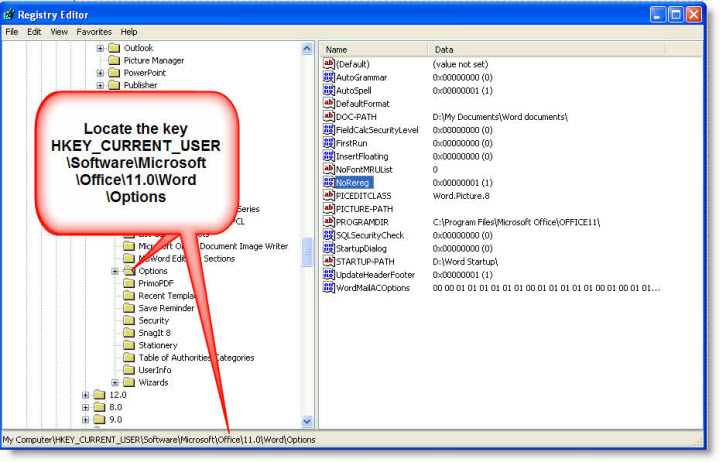
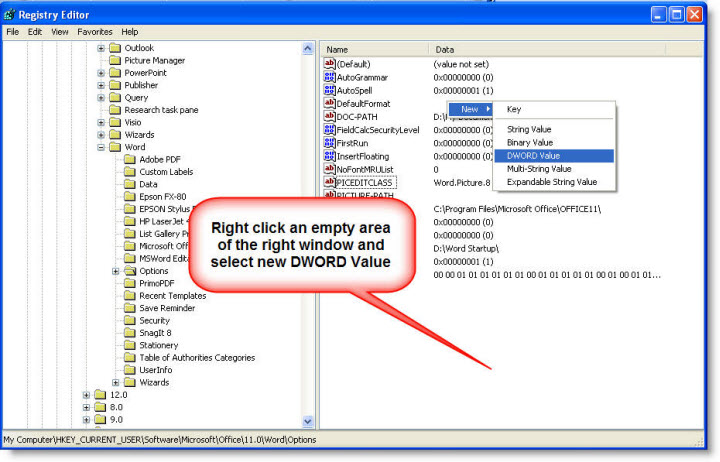
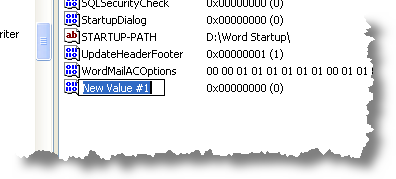
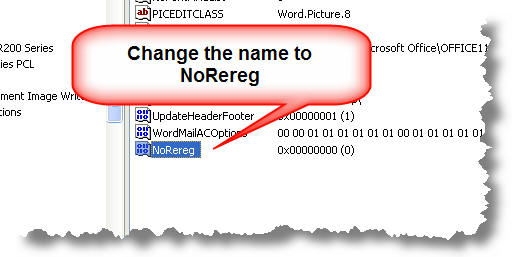
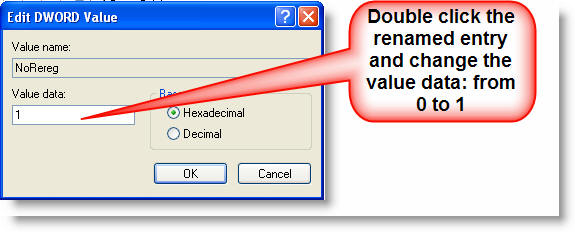
The illustrations above show the settings for Word 2003. Repeat for each installed Word version
Word 2000 uses HKEY_CURRENT_USER\Software\Microsoft\Office\9.0\Word\Options
Word XP uses HKEY_CURRENT_USER\Software\Microsoft\Office\10.0\Word\Options
Word 2003 uses HKEY_CURRENT_USER\Software\Microsoft\Office\11.0\Word\Options
Word 2007 uses HKEY_CURRENT_USER\Software\Microsoft\Office\12.0\Word\Options
Word 2010 uses HKEY_CURRENT_USER\Software\Microsoft\Office\14.0\Word\Options
Word 2013 uses HKEY_CURRENT_USER\Software\Microsoft\Office\15.0\Word\Options
You can now OK out of the dialog and close the registry editor.
If you prefer you can download a registry patch to add the entries - but please read the accompanying text file first!.
Creating the Toolbar
Open a new blank document in the earlier version of Word and save it as a template e.g. Toolbars.dot. Then Tools > Customize
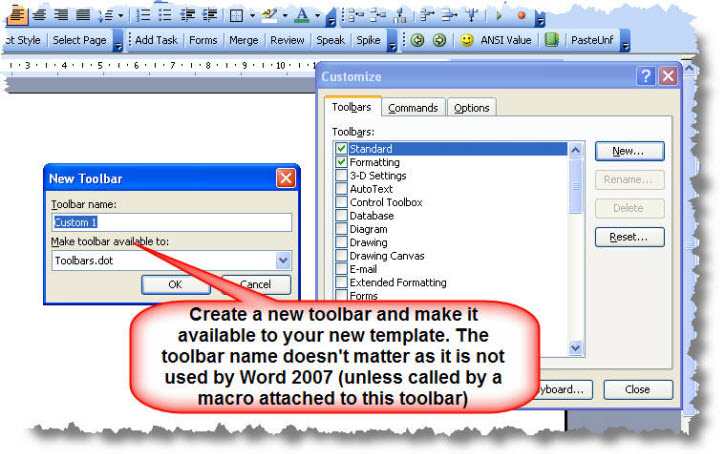
'OK' out of the dialog and this will put a small empty toolbar over the text area of the document. You can then populate that toolbar with commands either from the built-in toolbars or add buttons to call macros. In the example I have used commands from the forms toolbar as the forms tools are much simpler to apply in 2007/2010 from the old forms toolbar.
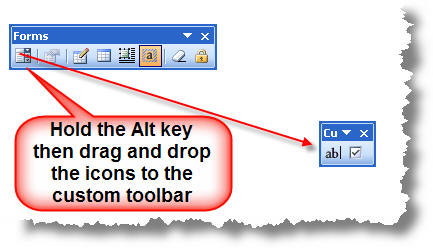
If you intend using protected forms in Word 2007-2016 then it is a good plan to install Greg Maxey's forms toolbar add-in.
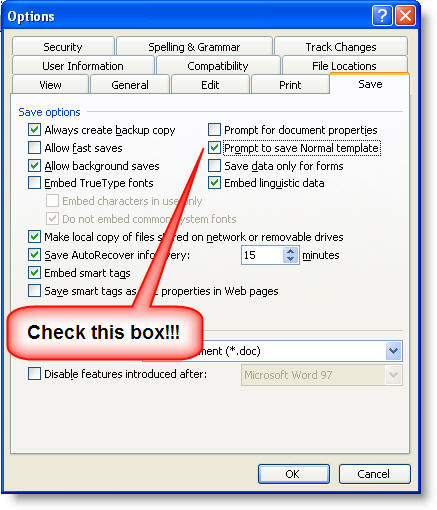
IMPORTANT! If you allow Word 2003 (or earlier) to automatically
make changes to the normal template then the changes you may have made while copying toolbar
commands will be written to the normal template.
Before closing the old Word version ensure that you set
Tools > Options > Save as shown in the following illustration. Then when you
close Word you should answer NO when prompted to save the normal template.
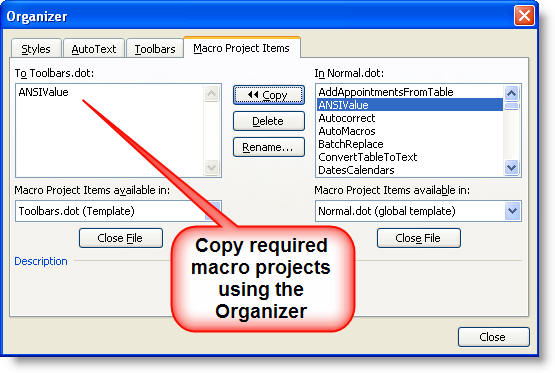
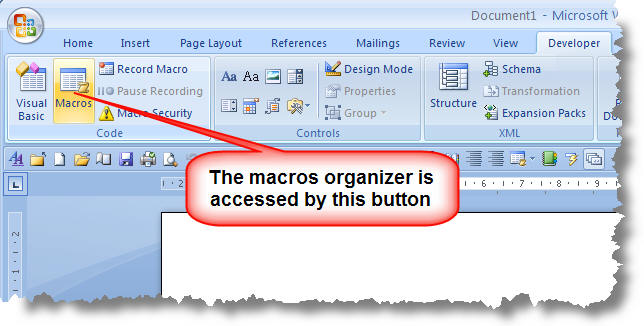
If you are calling macros that are not installed in your new normal template, then use the macros organizer to copy them from your Word 2003 template to the new template (though do see my earlier comment about creating a new normal template based on the old format one).
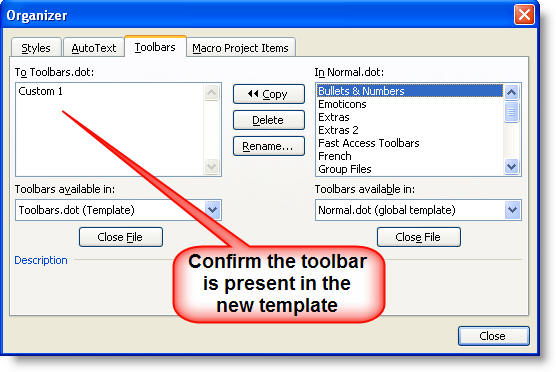
The organizer will also confirm that you have the required toolbar items installed. When satisfied that all is as you require it, save and close the template.
You will probably have to move the macros from the add-in to the normal template if the buttons are unable to find them, as you cannot edit the toolbars further in Word 2007-2016.
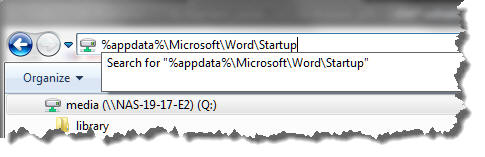
Copy or move the template to the Word 2007 startup folder. The default folder can be located by typing %AppData%\Microsoft\Word\STARTUP in the address bar of Windows Explorer, but with two or more Word versions on the PC you need to use the path you have changed the Startup folder to, to avoid conflicts.
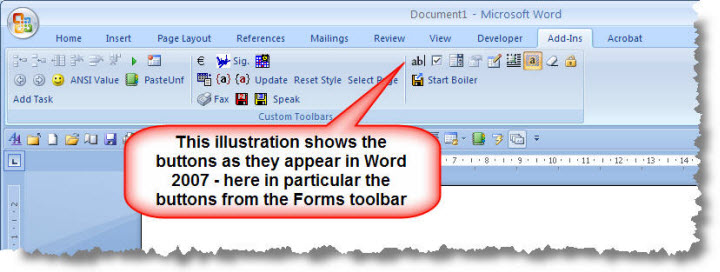
Then on restarting Word 2007, the template is loaded with Word to make the toolbars buttons available via the Add-Ins tab of the ribbon. You will have to experiment with what functions will still work and what won't, but in practice many of the older tools will still work quite happily in Word 2007
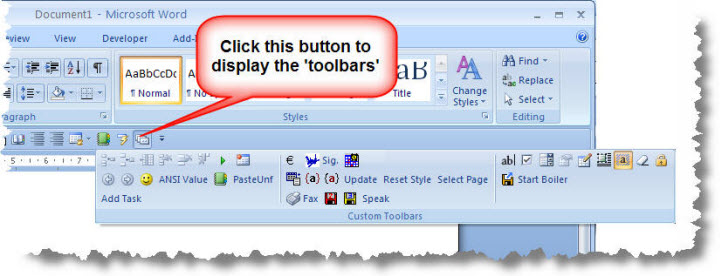
If you wish you can add the 'toolbars' to the QAT (Quick Access Toolbar) also:
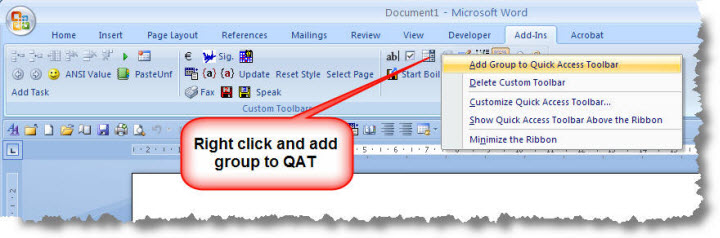
This adds a button as shown below, which when clicked produces the toolbars as shown in the following illustration.
Note that while Word 2010 and 2013 include a rudimentary ribbon editor which can be used to apply your personalisations to the normal template only, if you wish to edit the ribbons of documents, templates and add-ins or to edit the ribbon of Word 2007, you will have to edit the XML code that is used to create the ribbon. For more information on that, see Customising the Ribbon on Greg Maxey's web site.
Mix and match
Although primarily aimed at transitioning users toolbar settings of Word versions 2003 and earlier to the ribbon formats of versions 2007 and later, this page also includes important information to enable users to configure the operating system to allow multiple Word versions to work together.
Microsoft has produced their 'Click to Run' installer which uses a virtual 'Q' drive to enable different versions to be run together. Frankly this is best avoided as it appears to cause users no end of problems.