Graham Mayor
... helping to ease the lives of Microsoft Word users.
 |
 |
 |
Many people access the material from this web site daily. Most just take what they want and run. That's OK, provided they are not selling on the material as their own; however if your productivity gains from the material you have used, a donation from the money you have saved would help to ensure the continued availability of this resource. Click the appropriate button above to access PayPal.
Insert content into a protected form based on a selection from a dropdown form field
When preparing forms in Word, it would often be desirable to insert a block of text or a complete document based upon the choice offered in a drop-down form field. In the example below, the form field has three choices called Job1, 2 & 3. The actual names of the choices, or the document filenames they represent, doesn't matter a great deal as long as the appropriate changes are made in the conditional fields.
While the text items inserted into documents on this page all use information provided by a form field or check box to determine which text is inserted, there is no reason why the choice could not be prompted by an ASK field or user input into the macro itself.
Word 2002/3
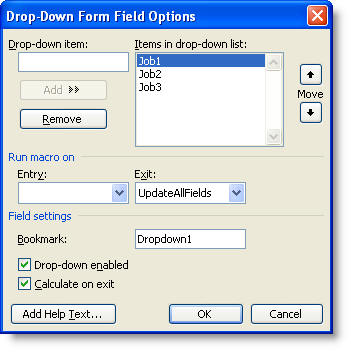
The Word 2007/2010 dialog is almost identical:
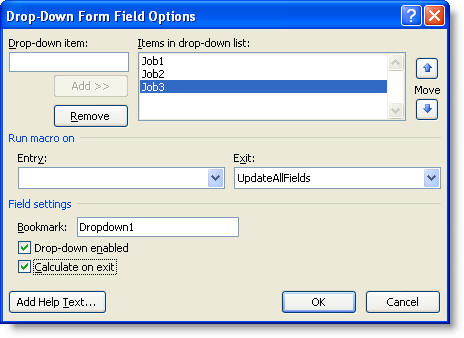
In this first example, note the exit macro UpdateAllFields. This runs as you tab out of the dropdown field, calling the macro code below to force an update of the fields that are used to insert the appropriate document.
Dim oStory As Range
For Each oStory In ActiveDocument.StoryRanges
oStory.Fields.Update
If oStory.StoryType <> wdMainTextStory Then
While Not (oStory.NextStoryRange Is Nothing)
Set oStory = oStory.NextStoryRange
oStory.Fields.Update
Wend
End If
Next oStory
Set oStory = Nothing
End Sub
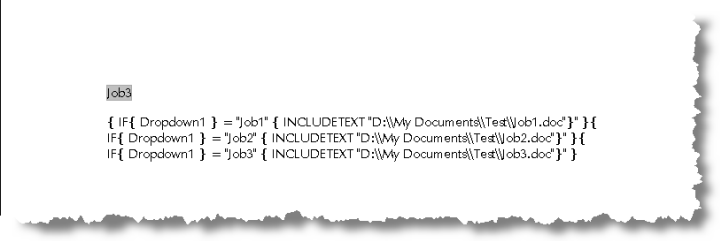
The conditional fields are all inserted on the same line, allowed to wrap to the margins, with no spaces between them.
The documents to be inserted in this case are named to match the field choices. Note that the path must be included and you must use double slashes '\\' between the elements of the path.
In the previous example, it doesn't matter whether the document filenames are the same as the words in the dropdown field, as I have shown them, as they are cross referenced by the conditional fields. However, if the document filenames are identical to the entries in the dropdown field, you can simplify the field construction to use a REF field { REF DROPDOWN1 } or simply { DROPDOWN1 } to reproduce the dropdown entry into the INCLUDETEXT path as shown below.
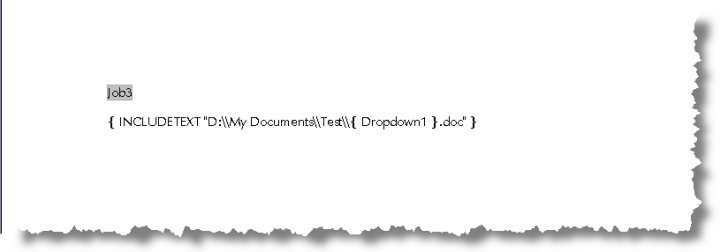
In either case, the document is placed at the location of the conditional field, thus:

Another possibility is to insert the required document using a macro on exit from the field. Here the macro is called DropSelection and the code is shown below:
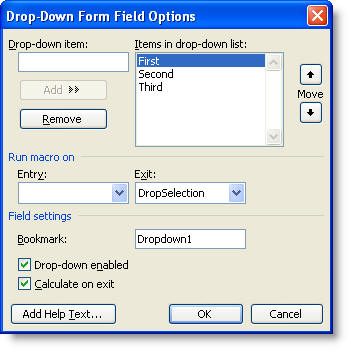
This macro adds the required document at the end of the form. The result is much the same, except that each time you tab out of the field a copy of the document is added at the end. To replace that document, on tabbing out of the field, it would be necessary to bookmark the target location as shown in the later methods on this page.
On this occasion the documents are called 1.doc, 2.doc & 3.doc and these numbers reflect the order in which the choices are listed in the drop-down list. Thus the First entry will insert 1.doc.
Dim myrange As Range
ActiveDocument.Unprotect
Set myrange = ActiveDocument.Range
myrange.Collapse wdCollapseEnd
myrange.InsertFile "D:\My Documents\Test\" & _
ActiveDocument.FormFields("DropDown1").DropDown.Value & ".doc"
ActiveDocument.Protect wdAllowOnlyFormFields, NoReset
End Sub
Placing text at a bookmark based on the result of a Check Box or Dropdown form field In more complex forms, it may be desirable to insert variable texts based on the setting of a check box or of the content of a dropdown field (or even a text field), but to have that text placed at a particular bookmarked locations within the document. In the following examples, I have a document with two check boxes and a drop down field. The macros which follow insert a choice of document based on the setting of the first check box and a choice of autotext entries named to match the three possible choices in the dropdown field. Whereas in the last example the three choices were 'First', 'Second' and 'Third', this time I have used 'Yes', 'No' and 'Maybe'.
The check box field inserts either document 'Doc1.doc' or 'Doc2.doc' from the local path 'D:\My Documents\Word Documents'.
For the sake of clarity I have displayed the bookmarks in the document.
In the examples, only one item is inserted at one bookmark. It would of course be possible to populate a variety of bookmarks with similar or different items from the one check box or dropdown selection, by defining the ranges associated with the various bookmarked locations and the items that will fill those ranges.
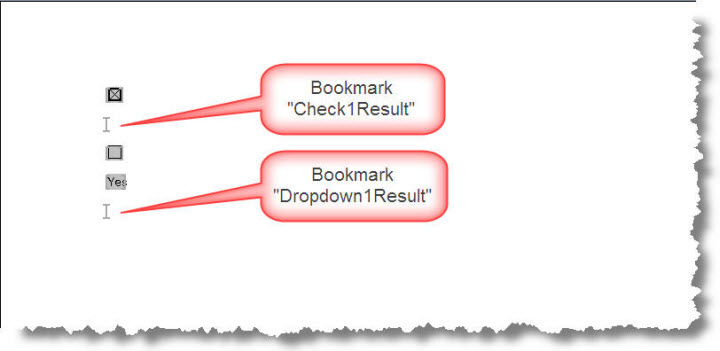
INCLUDETEXT Field
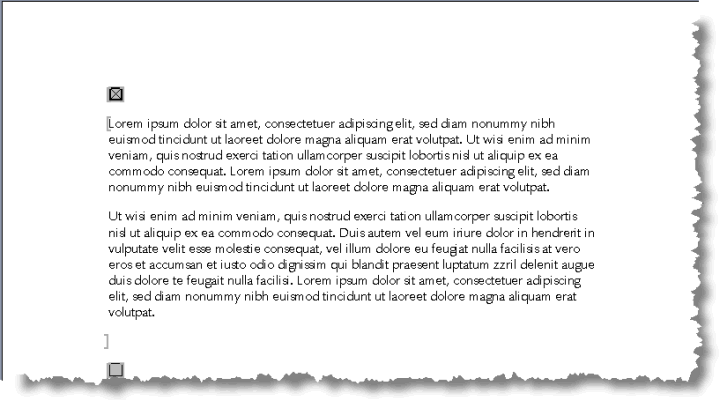
The OnExitCB1 macro, run on exit from the check box field inserts the appropriate document in the Check1Result bookmark as shown below. The first document clip shows some random text. The second document clip is identical but the text content is formatted white so that it occupies the same amount of space. You could instead use tables to position texts or simply insert them into an existing string of text.

Dim rText As Range
Dim sTrue As String
Dim sFalse As String
Dim oFld As FormFields
Set oFld = ActiveDocument.FormFields
sTrue = """D:\\My Documents\\Word Documents\\Doc1.doc"""
sFalse = """D:\\My Documents\\Word Documents\\Doc2.doc"""
Set rText = ActiveDocument.Bookmarks("Check1Result").Range
If oFld("Check1").CheckBox.Value = True Then
rText, wdFieldIncludeText, sTrue, False
rText.MoveEnd wdCharacter, 1
Else
rText.Fields.Add rText, wdFieldIncludeText, sFalse, False
rText.MoveEnd wdCharacter, 1
End If
With ActiveDocument
.Bookmarks.Add "Check1Result", rText
.Fields.Update
End With
End Sub
AUTOTEXT field
A similar technique can be used to insert autotext entries if preferred. The use of autotext tends to make things simpler when distributing forms between users, because of the issue of everyone having access to the same documents in the same path.
The second macro example uses autotext to place the variable text.
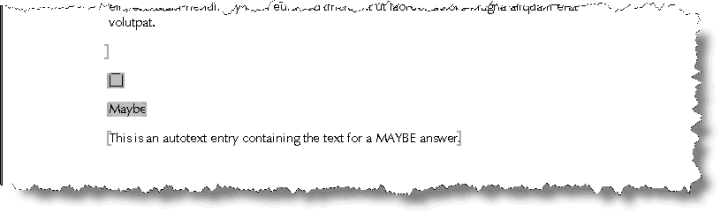
The macro OnExitDD1 runs from the dropdown field and inserts one of three autotext entries 'ATYes', 'ATNo' or 'ATMaybe' which reflect the three choices 'Yes', 'No' and 'Maybe' previously mentioned. I used the prefix AT for the autotext names to reduce the possibility of confusion with a similar named pre-existing autotext entry. The texts inserted by the entries can be anything that can be held in an autotext entry, which is wide ranging. Here I have used the text displayed in the illustration below.
Dim rText As Range
Dim sTrue As String
Dim sFalse As String
Dim oFld As FormFields
Set oFld = ActiveDocument.FormFields
Set rText = ActiveDocument.Bookmarks("Dropdown1Result").Range
rText.Fields.Add rText, wdFieldAutoText, _
Chr(34) & "AT" & oFld("Dropdown1").Result & Chr(34), False
rText.MoveEnd wdCharacter, 1
With ActiveDocument
.Bookmarks.Add "Dropdown1Result", rText
.Fields.Update
End With
End Sub
Plain Text
The OnExitCB1A macro demonstrates how to simply insert text defined in the macro itself, which could be the preferred option where either it won't be necessary for the user to change the wording of the inserted texts over time, or the texts are short. This particular example requires the form to be unlocked and the coding for that is included.

Dim bProtected As Boolean
Dim rText As Range
Dim oFld As FormFields
Dim sPassword As String
Set oFld = ActiveDocument.FormFields
Set rText = ActiveDocument.Bookmarks("Check1Result").Range
sPassword = "" 'password if any to unprotect the form
'Unprotect the file
If ActiveDocument.ProtectionType <> wdNoProtection Then
bProtected = True
ActiveDocument.Unprotect Password:=sPassword
End If
'Check whether Checkbox1 is checked
If oFld("Check1").CheckBox.Value = True Then
rText.Text = "This is the text to insert when the box is checked"
Else
rText.Text = "This is the text to insert when the check box is un-checked"
End If
With ActiveDocument
.Bookmarks.Add "Check1Result", rText
.Fields.Update
End With
'Reprotect the document.
Finished:
If bProtected = True Then
ActiveDocument.Protect _
Type:=wdAllowOnlyFormFields, NoReset:=True, Password:=sPassword
End If
End Sub
DocVariable fields
The OnExitCB1B macro below demonstrates yet another means of inserting variable texts into a form. This time I have used a DocVariable here names varCheck1Result to hold the data and a DocVariable field to place the data.


Dim oFld As FormFields
Dim oVars As Variables
Dim i As Long
Set oFld = ActiveDocument.FormFields
Set oVars = ActiveDocument.Variables
If oFld("Check1").CheckBox.Value = True Then
oVars("varCheck1Result").Value = _
"This is the text to insert when the box is checked"
Else
oVars("varCheck1Result").Value = _
"This is the text to insert when the box is un-checked"
End If
For i = ActiveDocument.Fields.Count To 1 Step -1
With ActiveDocument.Fields(i)
If .Type = wdFieldDocVariable Then .Update
End With
Next i
End Sub
There are further examples relating to the conditional insertion of data in protected forms on the VBA Examples page
Select a file
Insert data into a protected form or other document based upon user selection from a list, checkbox etc.