Graham Mayor
... helping to ease the lives of Microsoft Word users.
 |
 |
 |
Many people access the material from this web site daily. Most just take what they want and run. That's OK, provided they are not selling on the material as their own; however if your productivity gains from the material you have used, a donation from the money you have saved would help to ensure the continued availability of this resource. Click the appropriate button above to access PayPal.
Extract content from an Outlook e-mail message to a Word document
As my income is primarily in Sterling and I live in a country where the currency is the Euro, it is essential that I keep a weather eye on the exchange rate - which from summer 2007 to summer 2008 saw Sterling devalued by around 30% thanks to the UK government's policy of 'Quantitative Easing'.
To facilitate this I receive a daily e-mailed update from www.xe.com (now in html format) which shows a raft of exchange rates from around the world set to a base currency of your choice - which for me is the Euro. The message shows the currencies, as in the extract below. The messages are automatically diverted to an Inbox sub folder in Outlook called "Euro" using Outlooks rules.
It is possible to read the last message in the Outlook Inbox with a minor modification to these code examples, but if you have a requirement to read only messages of a certain type or from a certain sender, I strongly recommend that you create an Outlook mail folder and divert those messages to it.
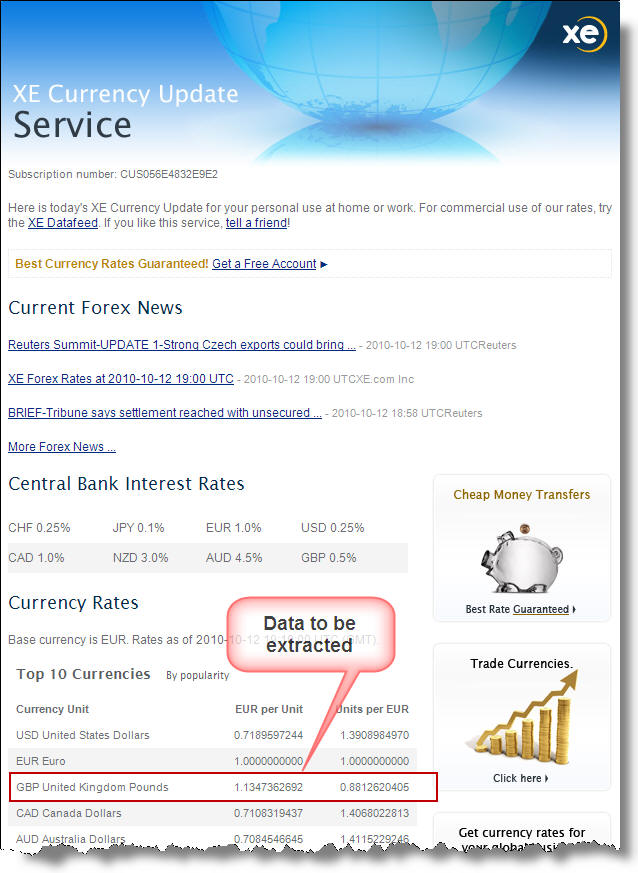
I am only interested in the GBP entry (highlighted in red). The extracted data is added, to a a new row of a three column table in a Word document defined in sFname as shown below.
Weekends are coloured in a pale orange.
The macro reads the most recent message in a Mail folder named 'Euro', and having extracted the data the message is marked as read.
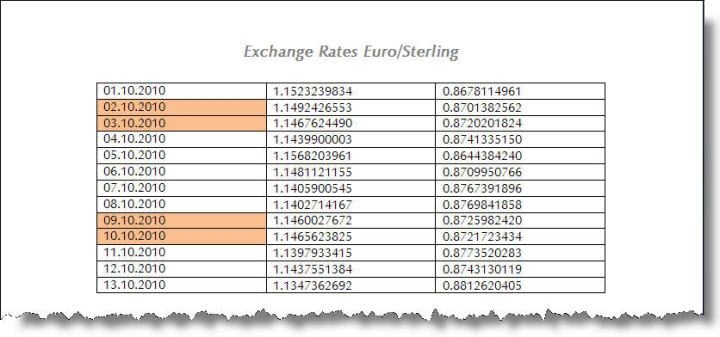
The macro uses 'early binding' to the Outlook object library. This method is easier to program, but it requires a reference to the Outlook object library to be set in the VBA Editor Tools > References.
'Create this macro in Word
'It requires a reference in vba tools > references
'to the Outlook object library e.g. for Outlook 2010
'Microsoft Outlook 14.0 object library
Sub ExtractOLMessage()
Dim sFname As String
Dim i As Long
Dim olApp As Outlook.Application
Dim olNs As Outlook.NameSpace
Dim olFolder As Outlook.Folder
Dim olItem As Outlook.MailItem
Dim oDoc As Document
Dim oTable As Table
Dim oRow As Row
Dim sText As String
Dim strEuros As String
Dim strGBP As String
Dim bStarted As Boolean
Dim vText As Variant
Dim sDate As String
Dim sDay As String
Dim sMonth As String
Dim sYear As String
bStarted = False 'Set a flag
'Document containing the table
sFname = "D:\My Documents\Test\Euro exchange data.docx"
'If the document is open, set it as the active document
If ActiveDocument.FullName = sFname Then
Set oDoc = ActiveDocument
Else
'otherwise open it
Set oDoc = Documents.Open(FileName:=sFname)
bStarted = True
'And set the flag to true
End If
Set oTable = oDoc.Tables(1)
On Error Resume Next
Set olApp = GetObject(, "Outlook.Application")
If Err = 429 Then
'Outlook is closed so open it
Set olApp = CreateObject("Outlook.Application")
End If
Set olNs = olApp.GetNamespace("MAPI")
'Indicate which Outlook folder to access
Set olFolder = olNs.GetDefaultFolder(olFolderInbox).Folders("Euro")
'Indicate the last message
Set olItem = olFolder.Items(olFolder.Items.Count)
'Get the text of the message
sText = olItem.Body
'and split it by paragraph
vText = Split(sText, Chr(13))
'Examine each paragraph
For i = 1 To UBound(vText)
'and locate the text relating to the item required
If InStr(1, vText(i), "GBP United Kingdom Pounds") Then
'The Euros entry '1.1347362692' in the example is two paragraphs after the found paragraph
strEuros = vText(i + 2)
'The Pounds entry '0.8812620405' in the example is four paragraphs after the found paragraph
strGBP = vText(i + 4)
'Log the date the message was sent
sDate = Format(olItem.SentOn, "dd.MM.yyyy")
'The entry has been found so stop looking for it
Exit For
End If
Next i
'Mark the message as read
olItem.UnRead = False
'Then clear the Outlook variables
Set olItem = Nothing
Set olItem = Nothing
Set olFolder = Nothing
Set olNs = Nothing
Set olApp = Nothing
'Add another row to the table
Set oRow = oTable.Rows.Add
'and fill the cells in that row with the extracted data
oRow.Cells(1).Range = sDate
oRow.Cells(2).Range = strEuros
oRow.Cells(2).Range = Replace(oRow.Cells(2).Range, Chr(13), "")
oRow.Cells(3).Range = strGBP
oRow.Cells(3).Range = Replace(oRow.Cells(3).Range, Chr(13), "")
'Establish whether the date is a Saturday or a Sunday
sMonth = MonthName(Mid(sDate, 4, 2))
sDay = Left(sDate, 2)
sYear = Right(sDate, 4)
sDate = sDay & Chr(32) & sMonth & Chr(32) & sYear
sDate = WeekDay(sDate)
If sDate = 1 Or sDate = 7 Then
'it is a weekend
'So colour the date cell
oRow.Cells(1).Range.Shading.BackgroundPatternColor = -654245991
Else 'it is not a weekend so leave it white
oRow.Cells(1).Range.Shading.BackgroundPatternColor = -603914241
End If
Application.ScreenRefresh
If bStarted = True Then 'The document was opened by the macro so save it and close
oDoc.Close SaveChanges:=wdSaveChanges
End If
Set oDoc = Nothing
End Sub
Extract data from Outlook message
This page demonstrates a method of extracting information from similarly formatted e-mail messages to a Word document.