Graham Mayor
... helping to ease the lives of Microsoft Word users.
 |
 |
 |
Many people access the material from this web site daily. Most just take what they want and run. That's OK, provided they are not selling on the material as their own; however if your productivity gains from the material you have used, a donation from the money you have saved would help to ensure the continued availability of this resource. Click the appropriate button above to access PayPal.
Globally replace text with formatted text
This page was prompted by a Word forum question which led to a private discussion with Greg Maxey. The essence of the question concerned replacing a typed brand name in a document with a formatted brand name which incorporated two different fonts within the same word. This cannot be effected in a single pass by Word's replace tool. However that tool does provide for selected text to be replaced with the content of the clipboard.
It is a small step from this to place a formatted autotext entry on the clipboard and use the same function to replace this.
In the following example, I have replaced the word Lorem with an autotext smiley:
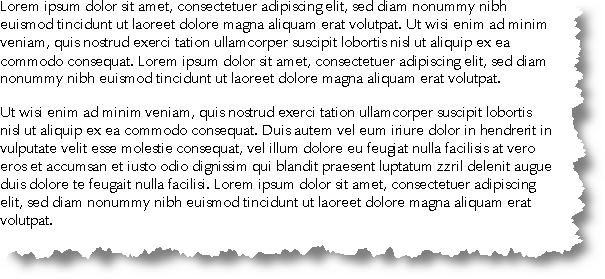
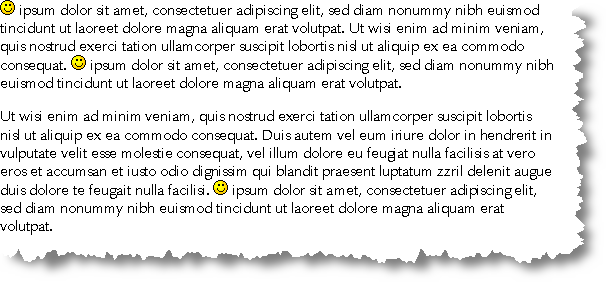
Running the macro
The macro is compatible with Word 2002 - 2010 (probably Word 97 & 2000 also). When run it determines the Word version (as the use of autotext has been completely revised from Word 2007) and calls the appropriate dialog for the version and sets the text for the dialog boxes.
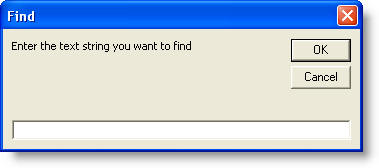
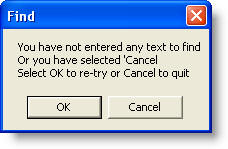
If you click OK without entering a text to search for you will get a warning and the macro then restarts
The macro allows the use of wildcards which are selected at the next dialog box.
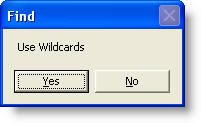
Word 2003
What happens next depends on the Word version. With versions prior to Word 2007, you get the following dialog:
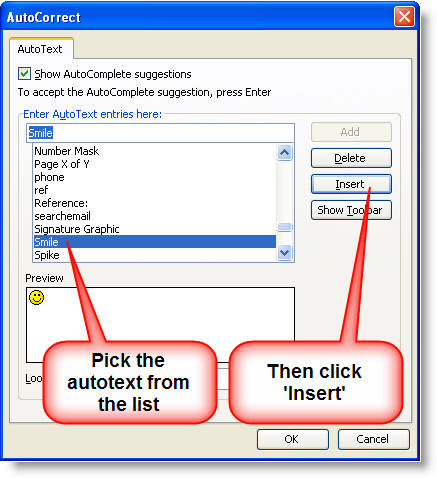
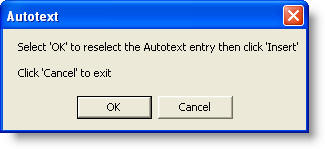
If you click OK instead of Insert, you get the following opportunity to try again or exit
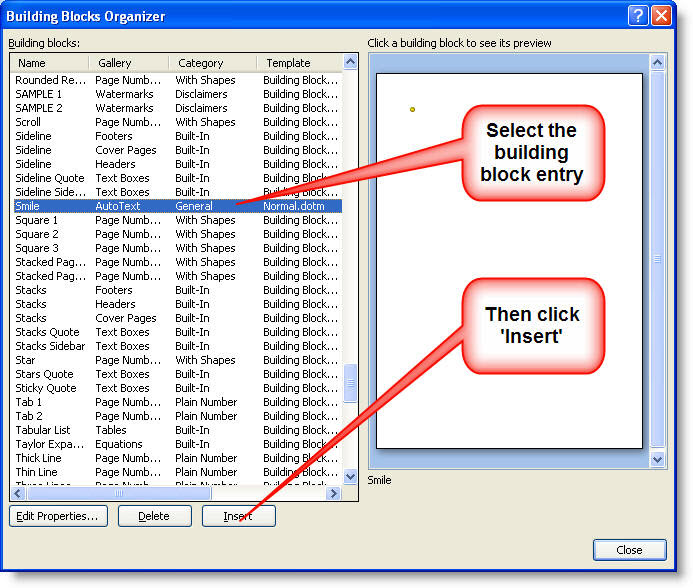
Word 2007/2010
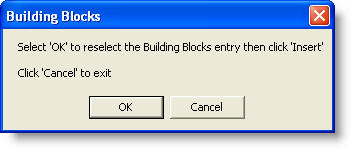
If the macro detects the Word version as 2007/2010, the following dialogs are used instead:
The Macro Code
Sub ReplaceWithAUTOTEXT()
' Replace text globally with Autotext Macro
' Macro created 21/06/2004 by Graham Mayor
' Revised 28/08/2004 with additions suggested by Greg Maxey
' Revised 01/08/2007 with modifications for Word 2007
' Revised 27/08/2007 with further modifications suggested by Greg Maxey
Dim findText As String
Dim ReplaceText As String
Dim strWildcards As String
Dim bWild As Boolean
Dim sQuery As String
Dim sType As String
Start:
findText = InputBox("Enter the text string you want to find", "Find")
If findText = "" Then
sQuery = MsgBox("You have not entered any text to find" & vbCr & "Or you have selected 'Cancel" & vbCr & _
"Select OK to re-try or Cancel to quit", vbOKCancel, "Find")
If sQuery = vbOK Then
GoTo Start
Else
Exit Sub
End If
End If
strWildcards = MsgBox("Use Wildcards", vbYesNo, "Find")
If strWildcards = 6 Then bWild = True Else bWild = False
GetInput:
On Error GoTo Oops 'Handle incorrect AutoText request
'Create a scratch pad
Documents.Add
If Val(Application.Version) > 11 Then
'Word 2007/2010 - Use the Building Blocks Organizer
Dialogs(GetDialog).Show
sType = "Building Blocks"
Else
'Not Word 2007 - Use the Autotext dialog.
Dialogs(wdDialogEditAutoText).Show
sType = "Autotext"
End If
'Cut the inserted entry to the clipboard
Selection.HomeKey Unit:=wdStory, Extend:=wdExtend
Selection.Cut
'crumple up scratch pad :-)
ActiveDocument.Close SaveChanges:=wdDoNotSaveChanges
'Replace found text with the clipboard contents.
With Selection.Find
.ClearFormatting
.Replacement.ClearFormatting
.Text = findText
.Replacement.Text = "^c"
.Forward = True
.Wrap = wdFindContinue
.Format = False
.MatchCase = False
.MatchWholeWord = False
.MatchWildcards = bWild
.MatchSoundsLike = False
.MatchAllWordForms = False
.Execute Replace:=wdReplaceAll
End With
End
Oops: 'Error handler
ActiveDocument.Close SaveChanges:=wdDoNotSaveChanges
sQuery = MsgBox("Select 'OK' to reselect the " & sType & " entry then click 'Insert'" & vbCr & vbCr & _
"Click 'Cancel' to exit", vbOKCancel, sType)
If sQuery = vbOK Then
Resume GetInput
End If
End Sub
Function GetDialog() As String
GetDialog = wdDialogBuildingBlockOrganizer
End Function
If you do not know how to employ this code, see the tutorial elsewhere on this site.