Graham Mayor
... helping to ease the lives of Microsoft Word users.
 |
 |
 |
Many people access the material from this web site daily. Most just take what they want and run. That's OK, provided they are not selling on the material as their own; however if your productivity gains from the material you have used, a donation from the money you have saved would help to ensure the continued availability of this resource. Click the appropriate button above to access PayPal.
Create autotext entries from a Word table
Word 2007 changed how autotext is presented to the user, though in practice it worked in much the same way as before, however the removal of auto-complete from that version rendered it less convenient; but there are still plenty of people using earlier versions, who wish to maintain lists of autotext entries. It is at those users that this page is aimed.
Autocomplete was restored to autotext in Word 2010.
Word provides the mechanism to edit entries individually, but it is possible to maintain a list of autotext entries in a Word table and apply them to a Word template.
The list of entries is stored in a document containing a two column Word table, which is saved here with the name "D:\My Documents\Test\AutotextTable.doc".
The first column contains the autotext names. The second column contains the texts associated with those names.
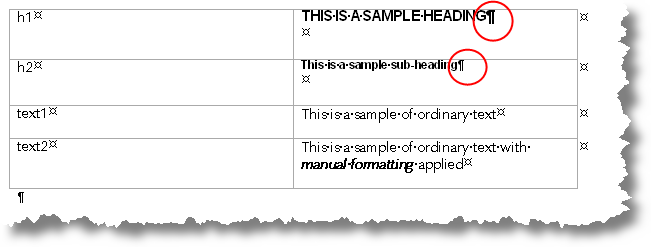
The name and path of the document are unimportant as long as they are entered into the macros in place of the above name and path.
Autotexts in Word versions before 2007 are filed in Word according to the style that was attached to the text when the entry was created. If the entry contains the paragraph mark that terminates the entry (circled in red), it will be stored with the formatting that is associated with the applied style otherwise it is merely stored under the style name and when inserted adopts the formatting of the paragraph the text is inserted into. Manual formatting is retained in either instance.
The following macro loads the table document, reads each entry from the table, and enters it into the Normal template overwriting any existing autotext entry of the same name.
If you don't know how to use macro listings, see https://www.gmayor.com/installing_macro.htm
Dim aTextDoc As Document
Dim cTable As Table
Dim rName As Range, rText As Range
Dim i As Long
Dim sFname As String
sFname = "D:\My Documents\Test\AutotextTable.doc"
Set aTextDoc = Documents.Open(sFname)
Set cTable = aTextDoc.Tables(1)
For i = 1 To cTable.Rows.Count
Set rName = cTable.Cell(i, 1).Range
rName.End = rName.End - 1
Set rText = cTable.Cell(i, 2).Range
rText.End = rText.End - 1
NormalTemplate.AutoTextEntries.Add name:=rName, _
Range:=rText
Next i
aTextDoc.Close wdDoNotSaveChanges
End Sub
The following macro deletes from the Normal template the list of autotext entries stored in the table.
If you plan to reduce the number of autotext entries by deleting some unwanted items from the table, run the following macro BEFORE deleting the entries from the table, or they will remain in the Normal template after the changes have been made. The macro only deletes entries named in the table!
Dim aTextDoc As Document
Dim cTable As Table
Dim rName As Range, rText As Range
Dim i As Long
Dim sFname As String
sFname = "D:\My Documents\Test\AutotextTable.doc"
Set aTextDoc = Documents.Open(sFname)
Set cTable = aTextDoc.Tables(1)
On Error Resume Next
For i = 1 To cTable.Rows.Count
Set rName = cTable.Cell(i, 1).Range
rName.End = rName.End - 1
NormalTemplate.AutoTextEntries(rName).Delete
Next i
aTextDoc.Close wdDoNotSaveChanges
End Sub
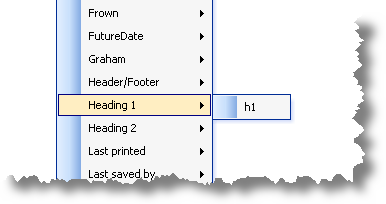
In the example above the first entry from the table is formatted in Heading 1 style and thus appears in the Heading 1 listing. When inserted, because the paragraph mark is included, the entry is formatted with the Heading 1 style thus:

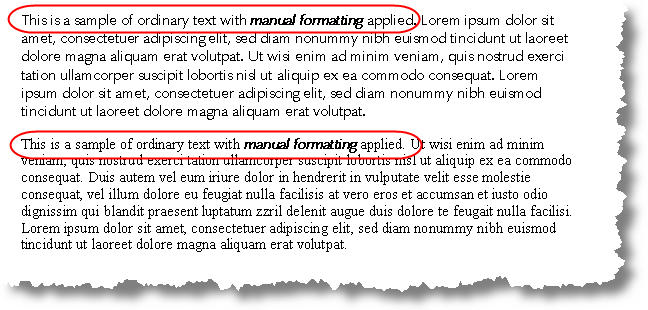
In the case of the entry "text2" this does not include the paragraph mark so is formatted with the style of the paragraph into which it is inserted, but retains the manual formatting thus:
Autotext
Autotext changed radically with Word 2007, being incorporated in a new system of Building Blocks. Nevertheless autotext remains part of the system and works much as before in the later versions.
This page, however, is aimed at Word versions before 2007.