Graham Mayor
... helping to ease the lives of Microsoft Word users.
 |
 |
 |
Many people access the material from this web site daily. Most just take what they want and run. That's OK, provided they are not selling on the material as their own; however if your productivity gains from the material you have used, a donation from the money you have saved would help to ensure the continued availability of this resource. Click the appropriate button above to access PayPal.
Insert address add-in for Word 2007 and later
The add-in should work with all versions of Word 2007 and later and when installed, adds a group of three buttons to the 'Insert' tab of the ribbon. The Reset Registry button will remove all the registry entries used to store user personalisations of this add-in.
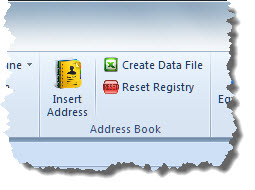
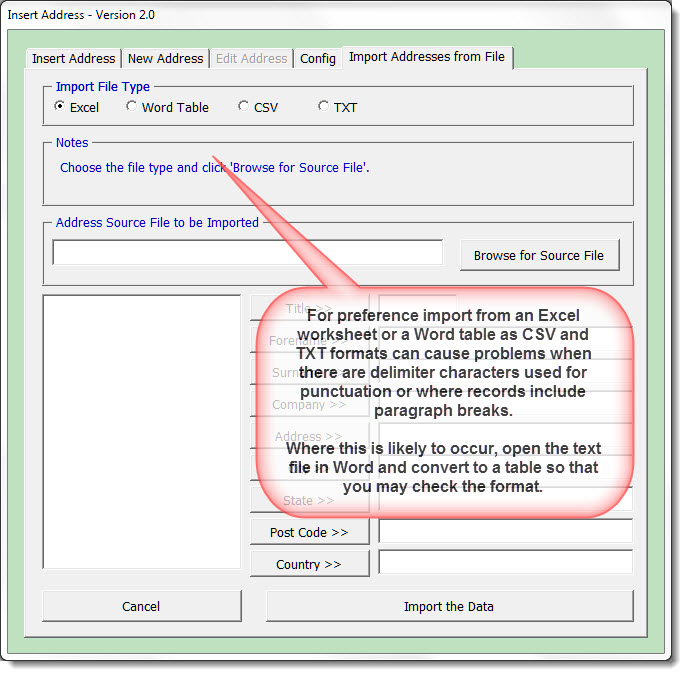
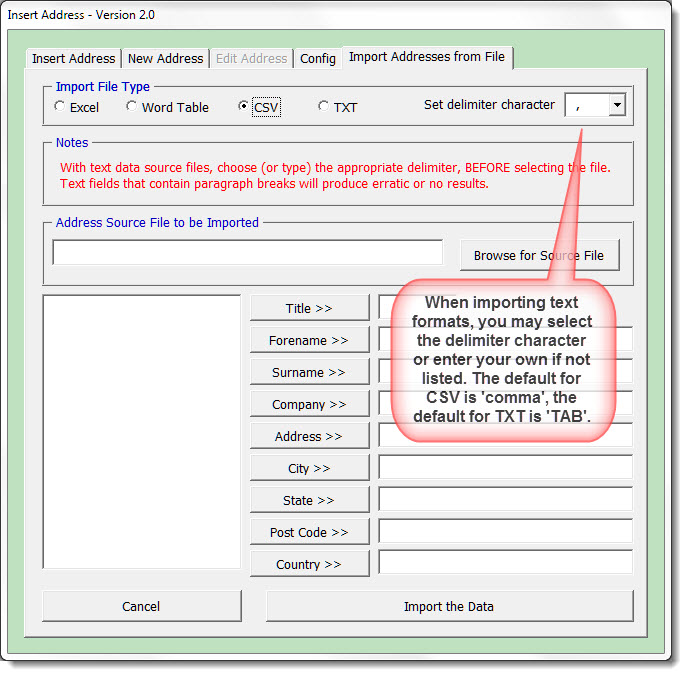
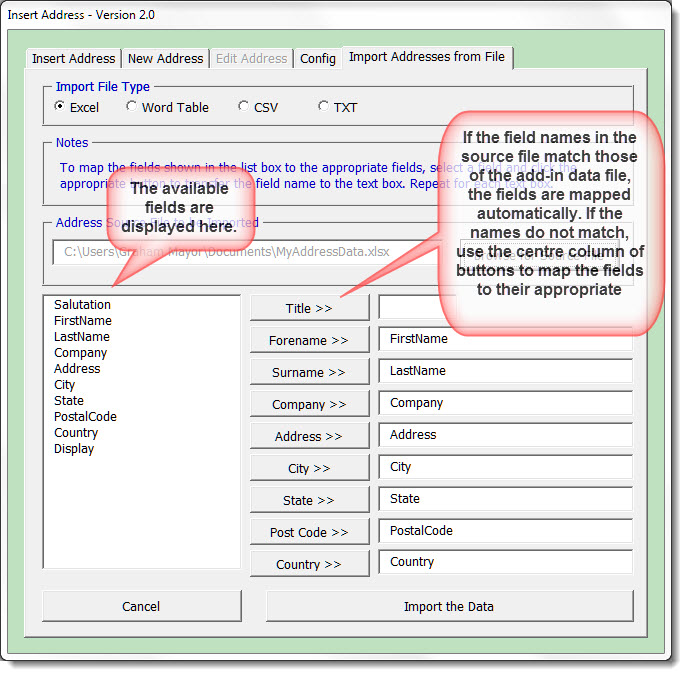
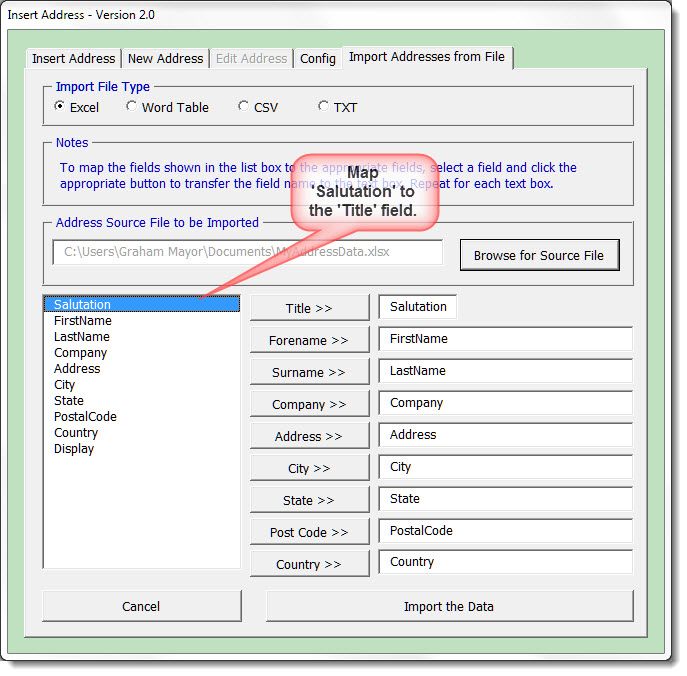
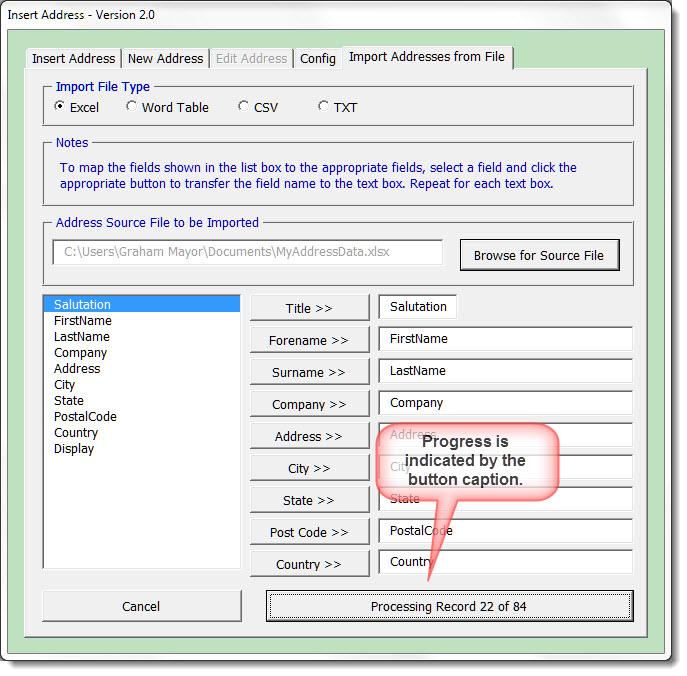
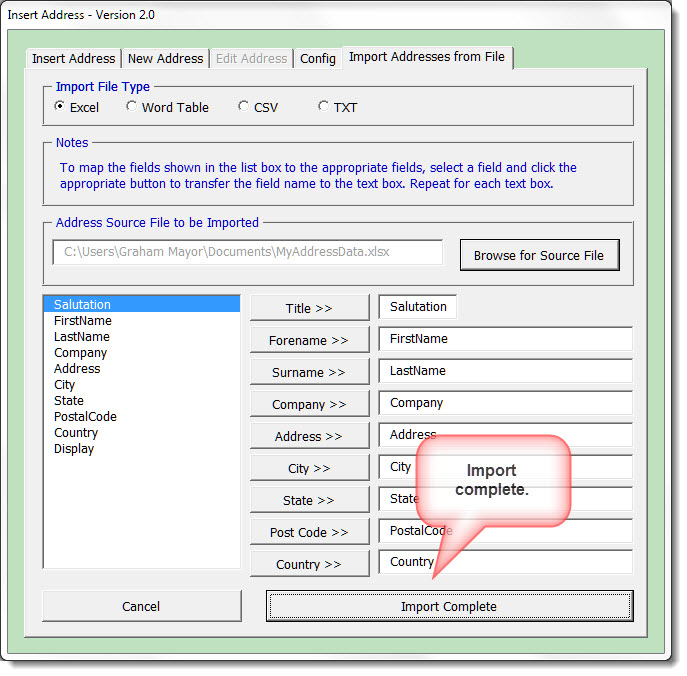
In order to use the add-in you must first create a data file which has to be in a fixed format and for this you will need to have Excel installed. Clicking the 'Create Data File' button will create a new blank file with the appropriate headers. You can either fill the Excel table manually from Excel, or you can use the tools in the add-in to enter addresses and/or import address lists.
The last column of the data file includes a calculated field which is used to display the contacts in the add-in. If you are going to edit the file in Excel ensure that you add at least one address from the add-in itself, to create the calculated field which you can then copy down the column.
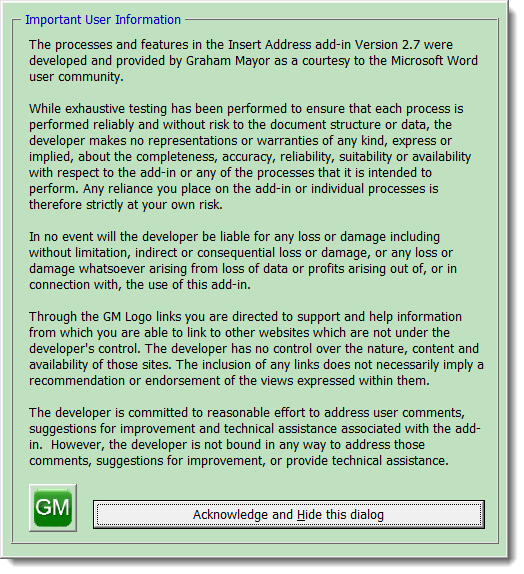
The first time the add-in is used, whichever button is clicked, the add-in will display a disclaimer form. This will display each time the functions are used, until the check box on the main dialog is unchecked.
Create Data File
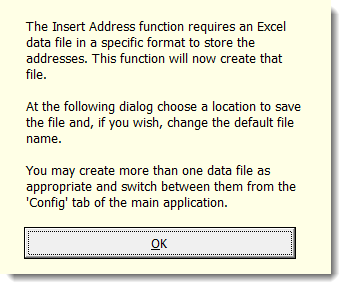
Click Create Data file and after an information message, a file open dialog will appear.
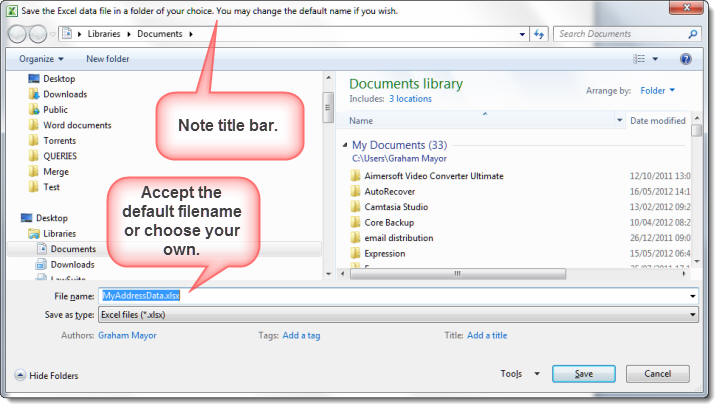
Choose a filename and path for the data file and click 'Save'. The main dialog will then open to give you the opportunity to add or import records.
Insert Address
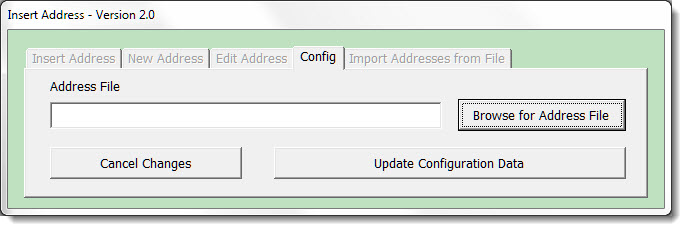
If there is no data file attached, the add-in will prompt for the data file:
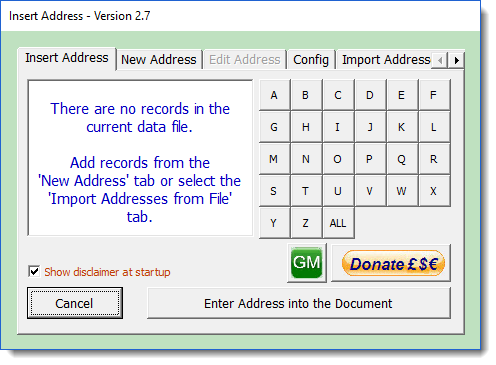
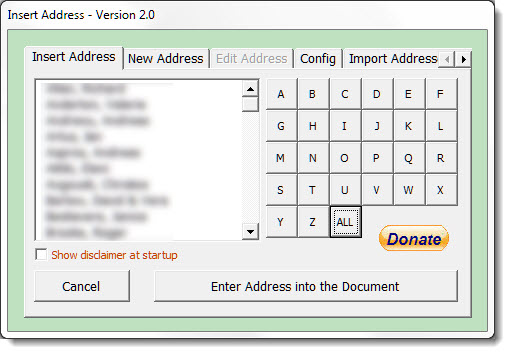
If the data file is attached, then the main dialog will be presented, with either a no data warning or the list of addresses:

A selected address may be edited (or deleted) from the 'Edit Address' tab:
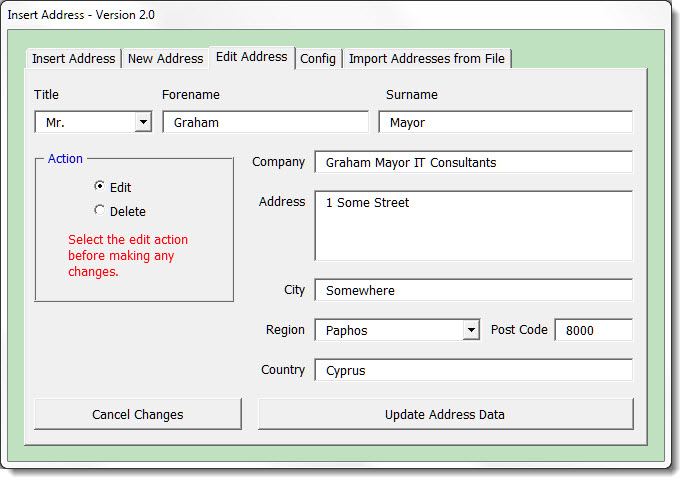
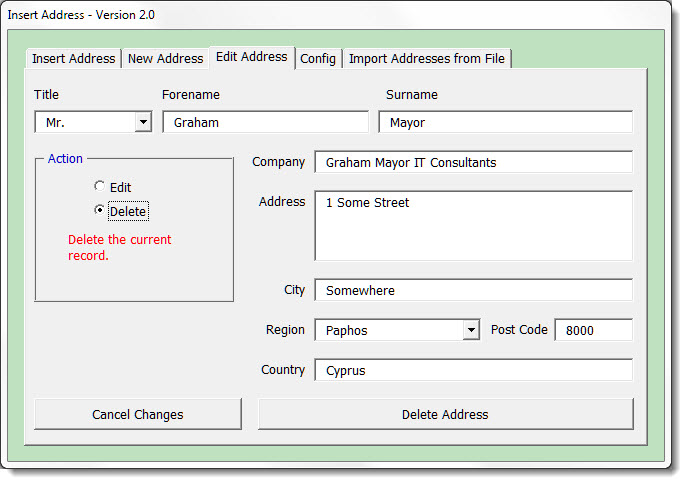
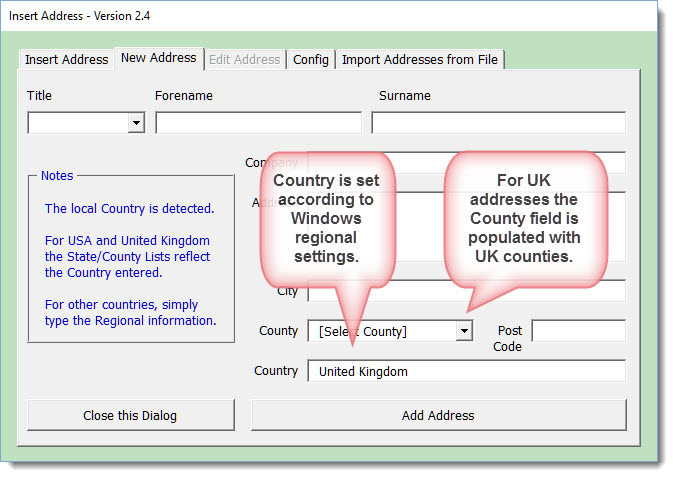
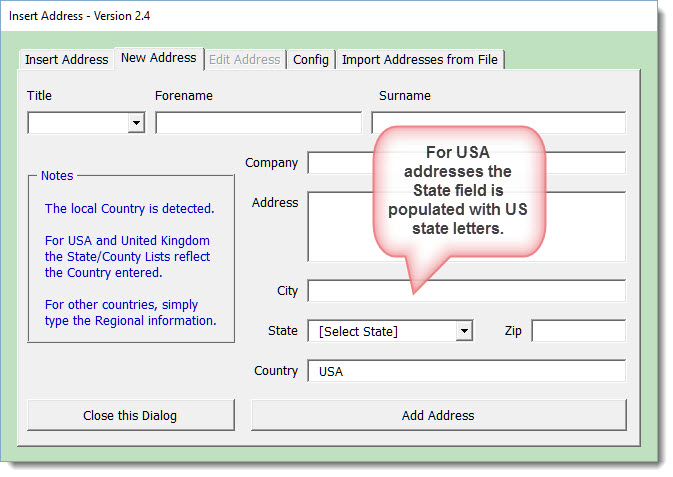
The address field will accept multiple lines. Press the Enter key to include a line break.
When an address is edited or deleted, clicking 'Update Address' returns to the opening list with no item selected.
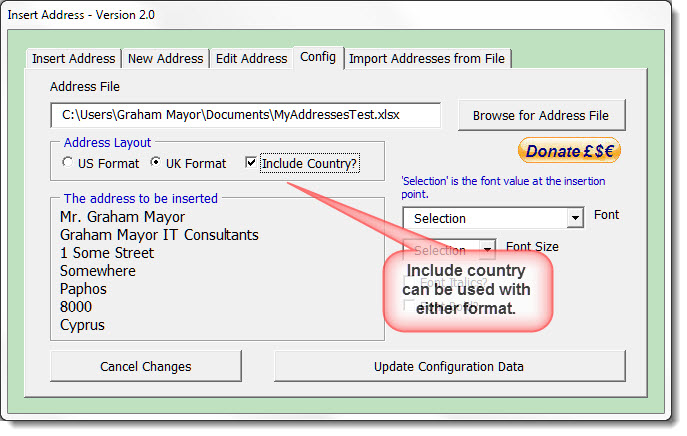
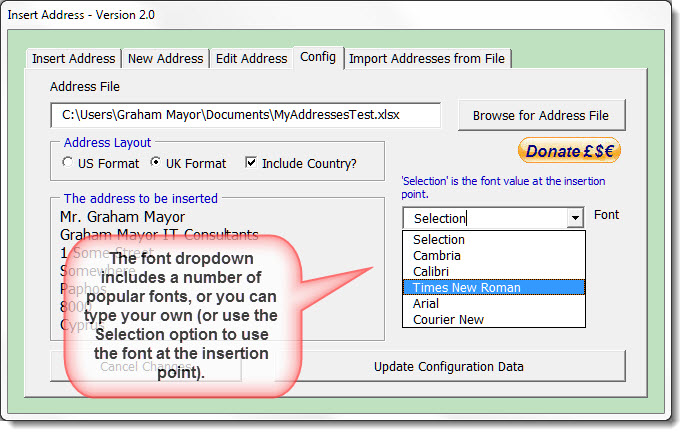
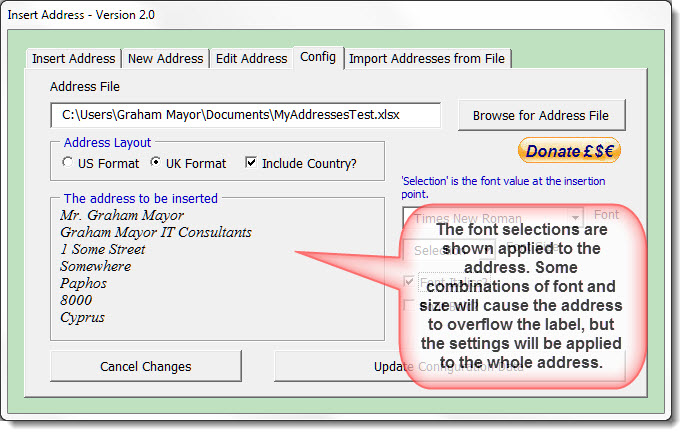
You can apply some measure of formatting to the addresses you insert from the config tab. The default is to insert using the paragraph settings at the cursor.
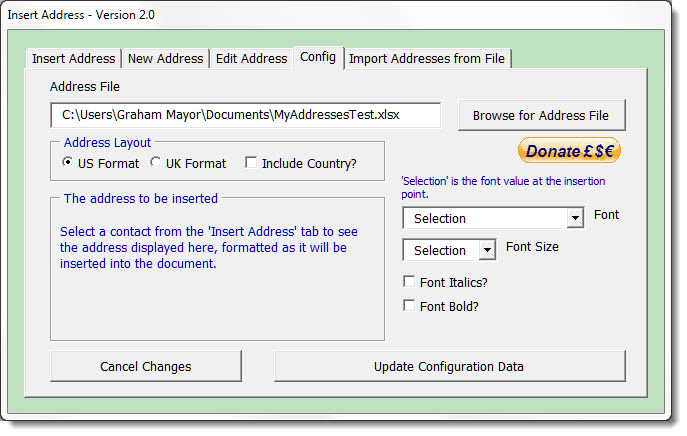
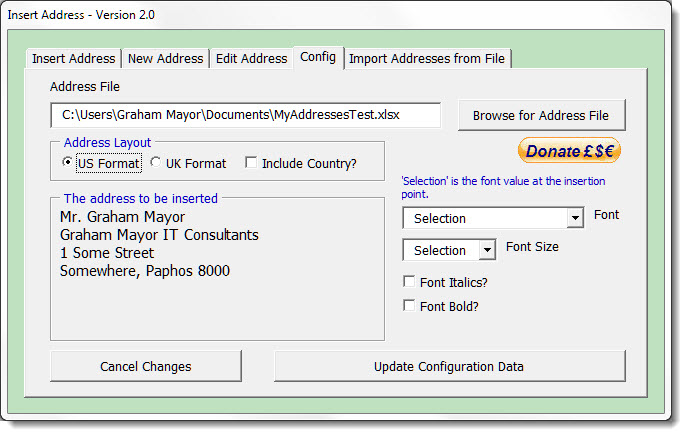
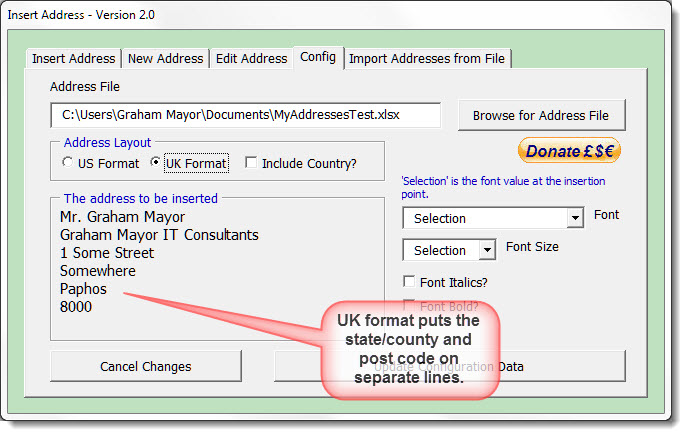
All that remains is the main function, which is to insert the address at the cursor. The focus should be in the list and you can start typing the name to select the contact, or use the scroll bar
In normal use, with a data file present, this is the only part of the application that you will see. Use the letter pad to limit the display to those names that begin with the selected letter:

There are various error and informative messages used throughout the application. They should be self explanatory.
As with other add-ins available from my web site, there is no charge for downloading and using this add-in, but if you find it useful, please consider making a donation to the author. You can do that either by clicking one of the donation buttons on this web page, or the donation buttons in the add-in.
 - Click here to download the
add-in
- Click here to download the
add-in
Word Address Book
When Microsoft introduced the Home and Student versions of Office, without Outlook to provide an address database, there was no simple method available to insert addresses into Word documents. This page describes an add-in that will allow users to maintain an address list and to insert addresses at the cursor. 'Simple' is perhaps the wrong word to describe the add-in as its development was anything but simple, but simplicity is hopefully what the user will see.